
About BrandCrock GmbH
BrandCrock GmbH is a one-stop software solution provider for all your business needs, offering solutions to more than 15 countries worldwide. We create sales-oriented corporate websites, web-based applications, and web services. We are stationed in Munich, Germany, with other offices in Karachi and Chennai. BrandCrock GmbH is one of Germany’s leading and trusted offshore and outsourcing software solution providers for web designing and application development since 2015. For further information, please refer to our website www.brandcrock.com
Managing Theme & Contact Details
This document relates to BrandCrock Theme for Aqua and contains important information about the installation and usage of the theme. The performance and functional specifications/requirements for features included in the theme are also provided in the document. If you face any issues or problems with installing or testing our plugin please contact our Support team. Please do not change or modify the theme without having any experience or understanding.
Theme Installation
Aqua Theme can help you visualize your content and data for your website visitors. It includes customized templates, images, and styles. Be sure to read and follow the instructions for successfully installing the theme.
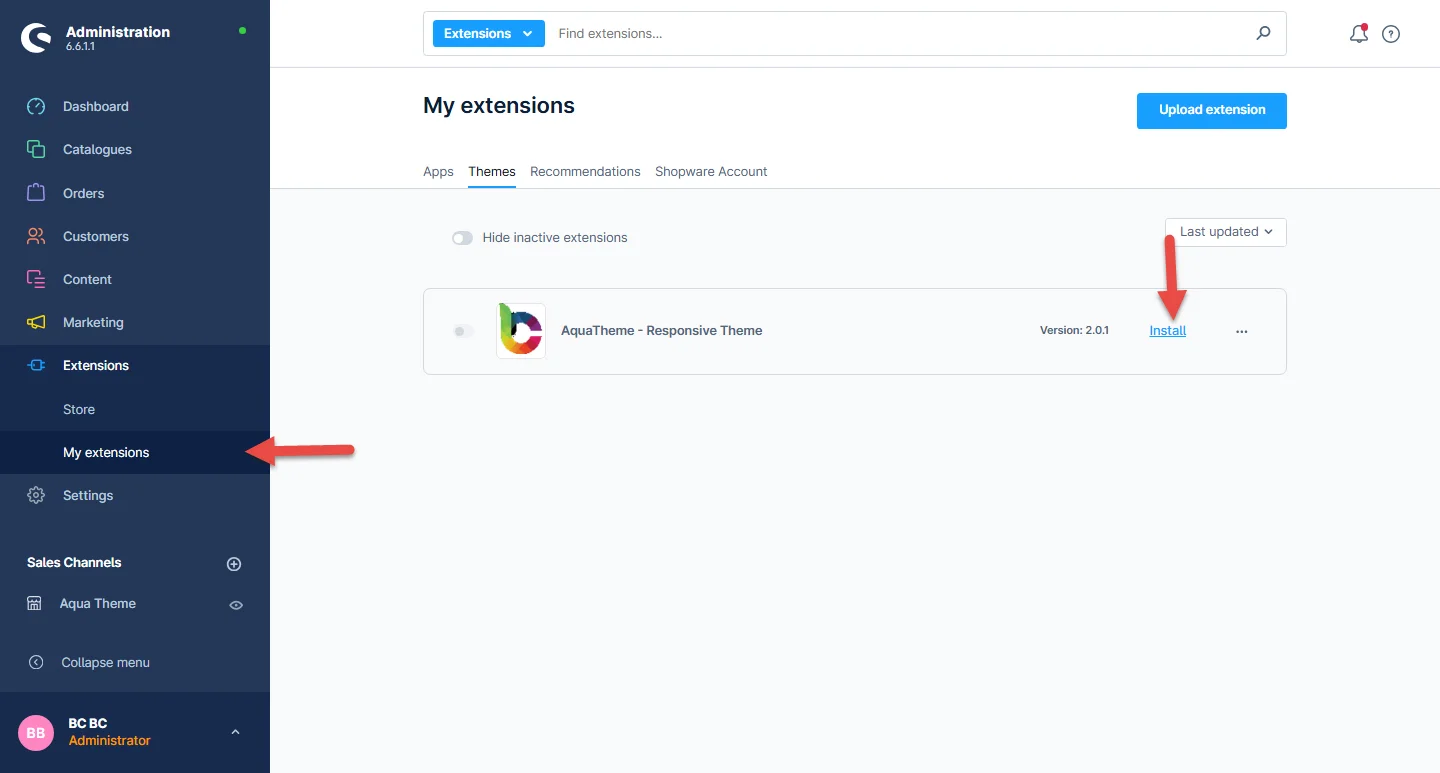
Step 1: Log in to the shop backend, after downloading the AquaTheme from the store, navigate to Extensions > My extensions > Themes. Click on the install button at the theme listed there.
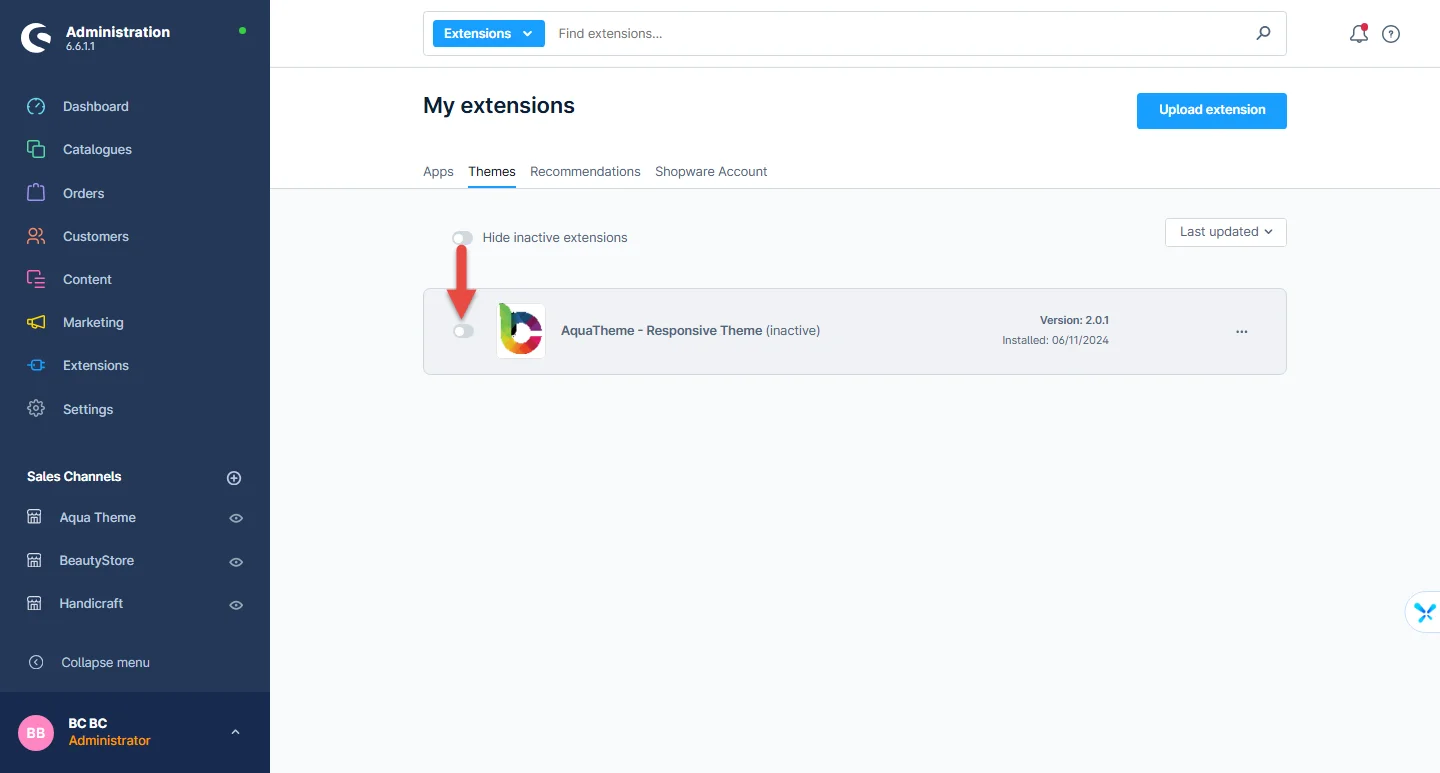
Step 2: Next, click the enable switch to activate the Aqua theme
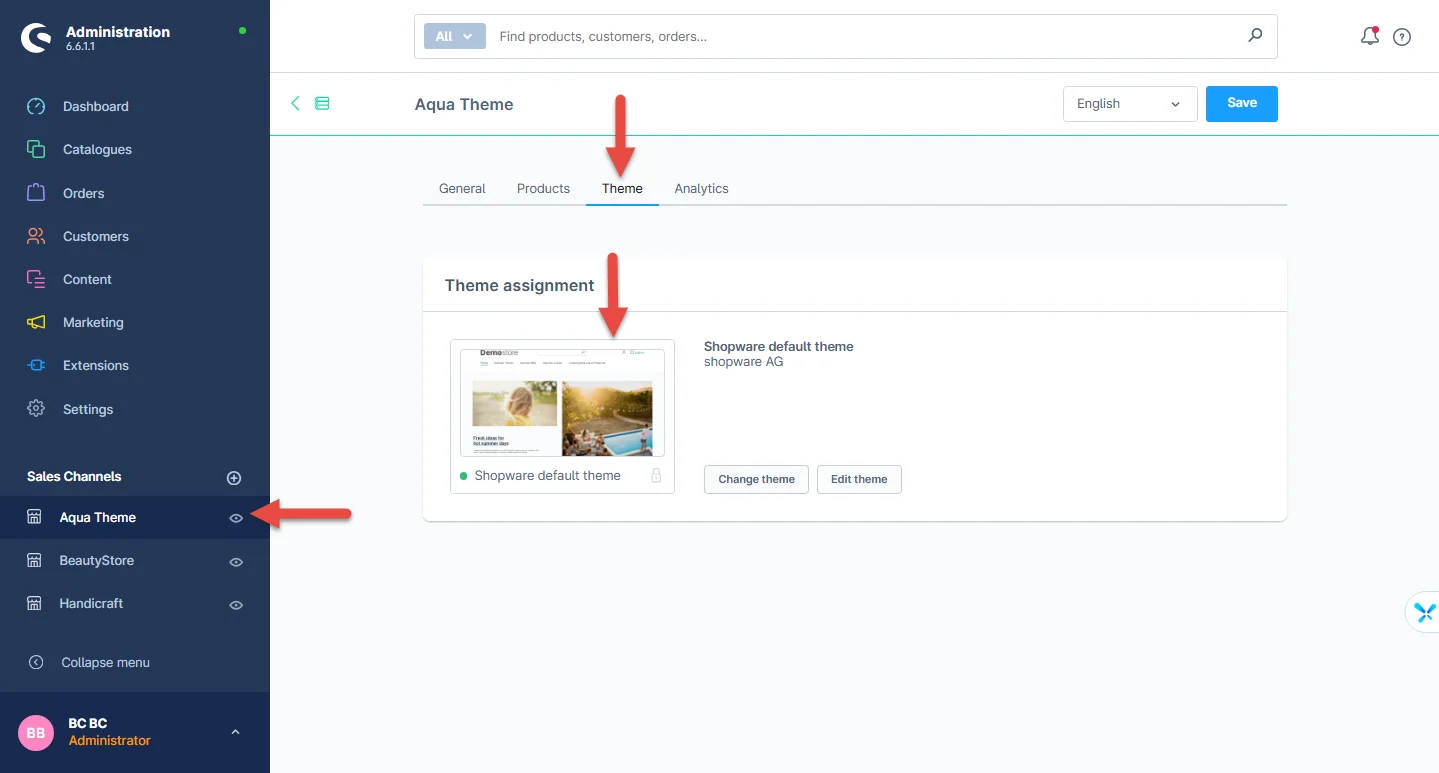
Step 3: The Shopware theme is selected by default, to access Navigate to Aqua > Theme, then click the default theme
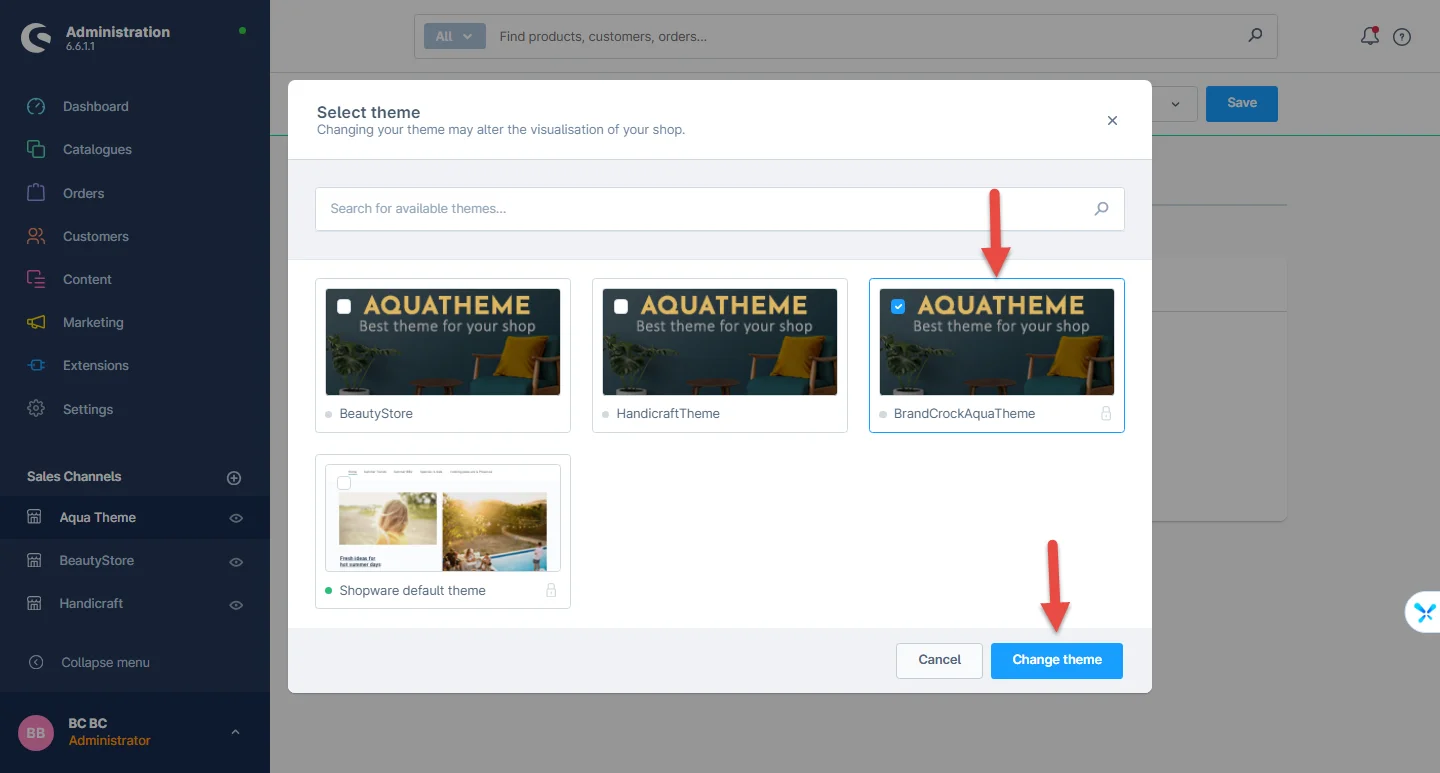
Step 4: After clicking the default theme, you can select the Aqua theme and then click the save button
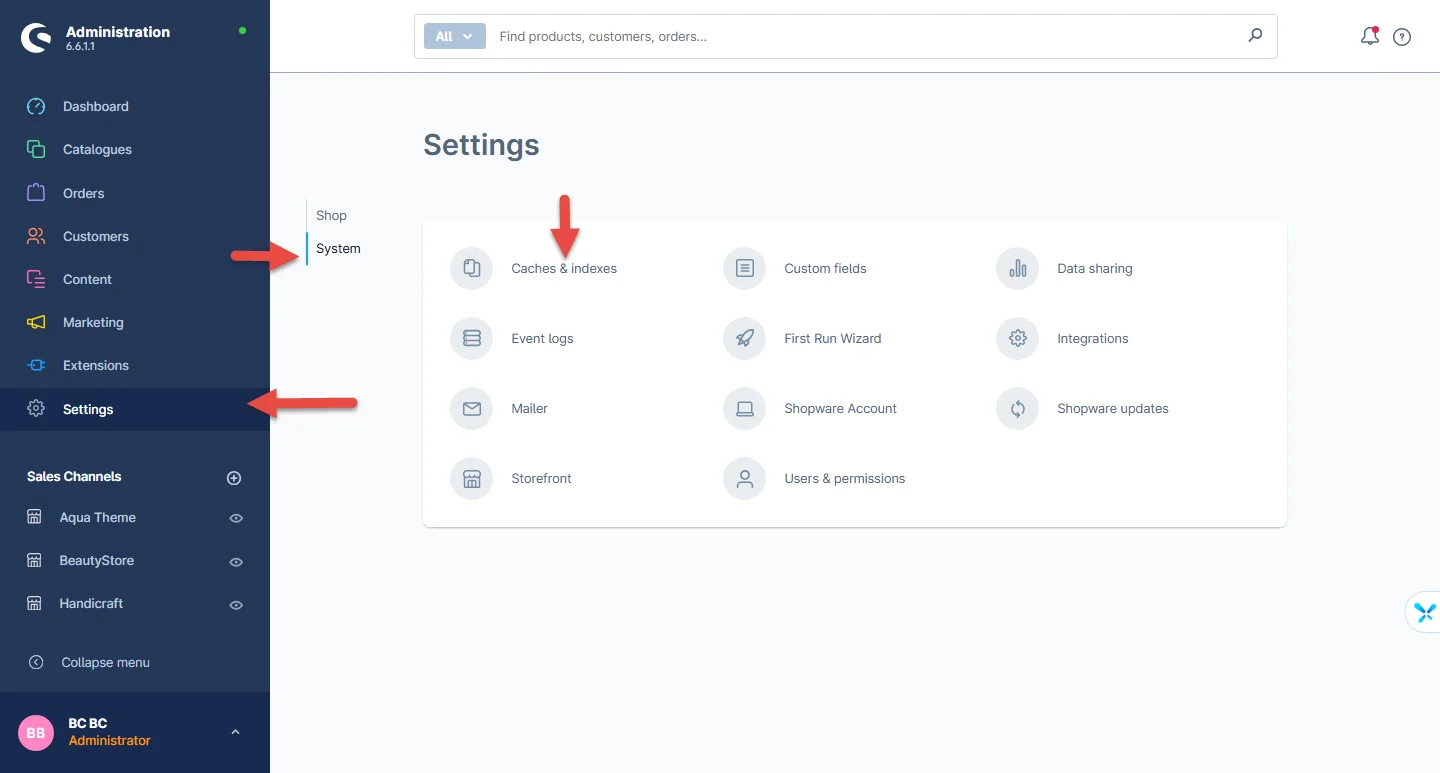
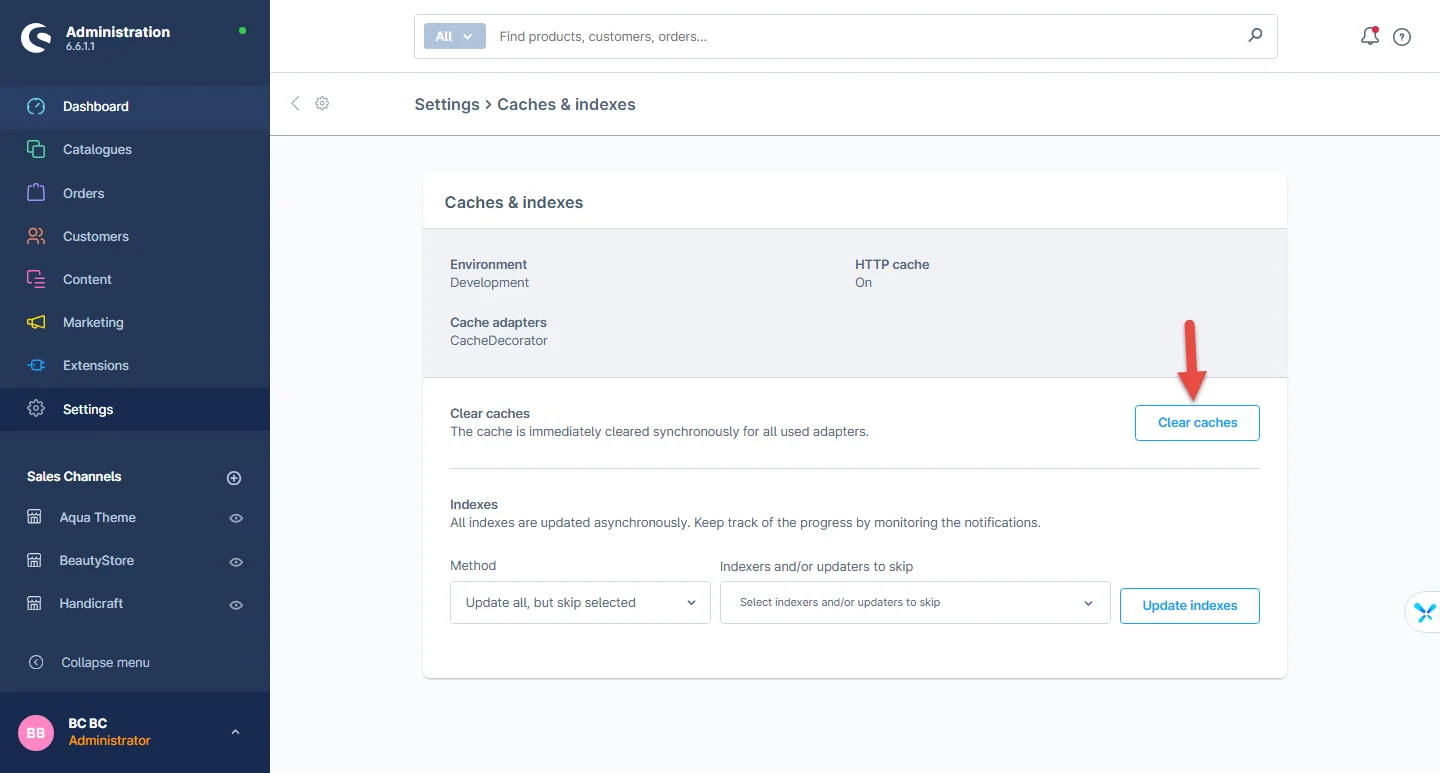
Step 5: Once the AquaTheme is activated, Shop Cache must be empty. Navigate to Settings> System> Caches
Theme Uninstallation
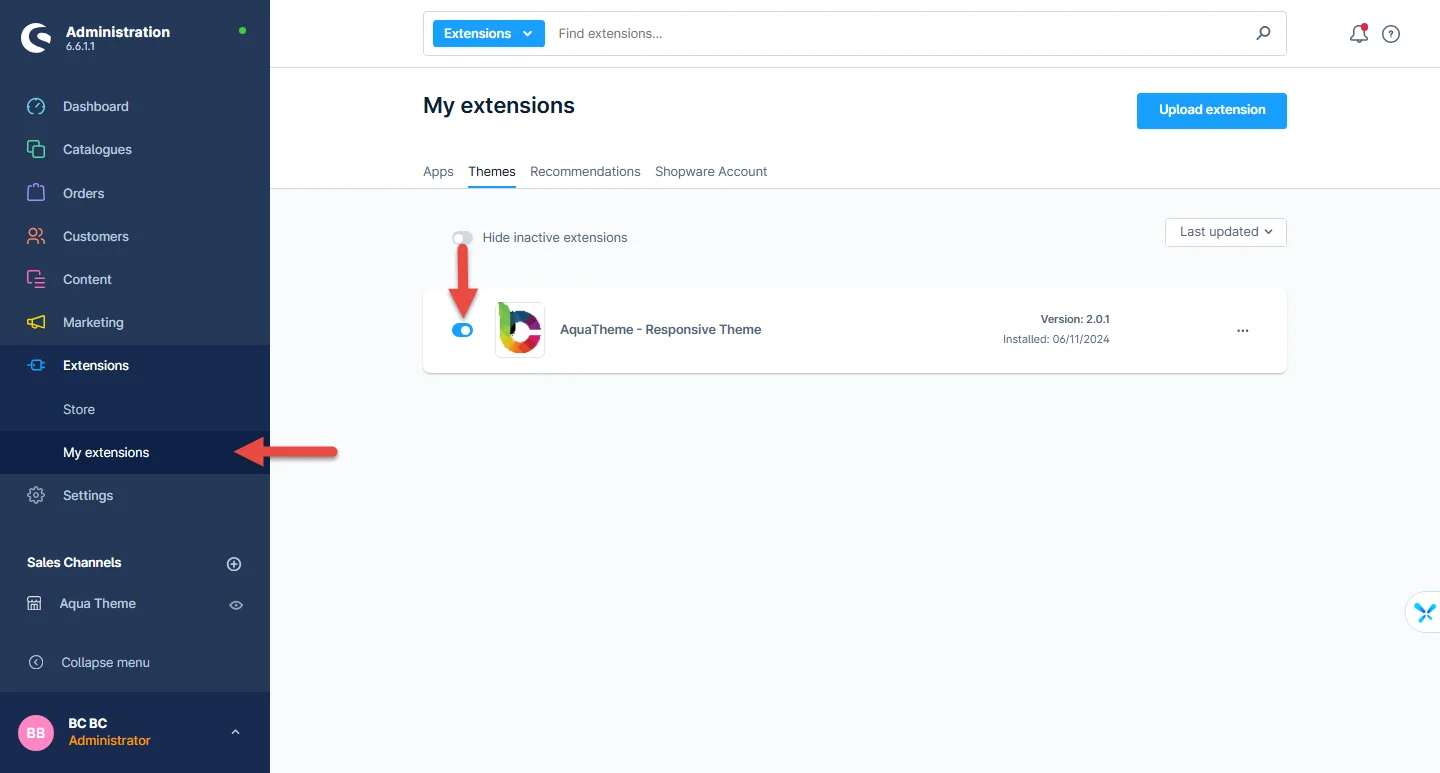
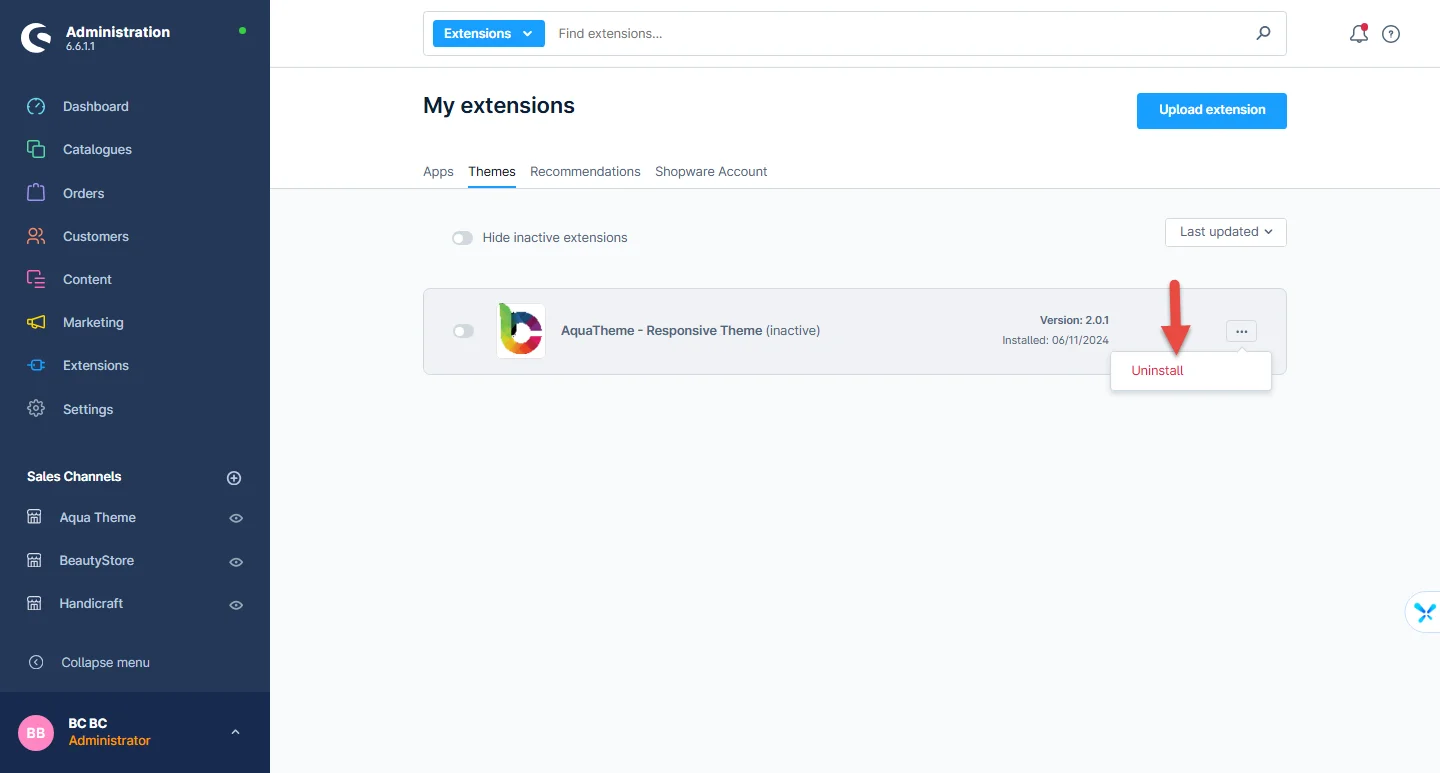
To uninstall the theme, you need to deactivate it first. It’s a two-step process defined below
Step 1: To deactivate the theme, navigate to Extensions > My extensions and click the disable switch to deactivate the Aqua theme as shown below
Step 2: Next, to uninstall the Aqua theme, navigate to My Extension and click Uninstall as shown below
General Theme Settings
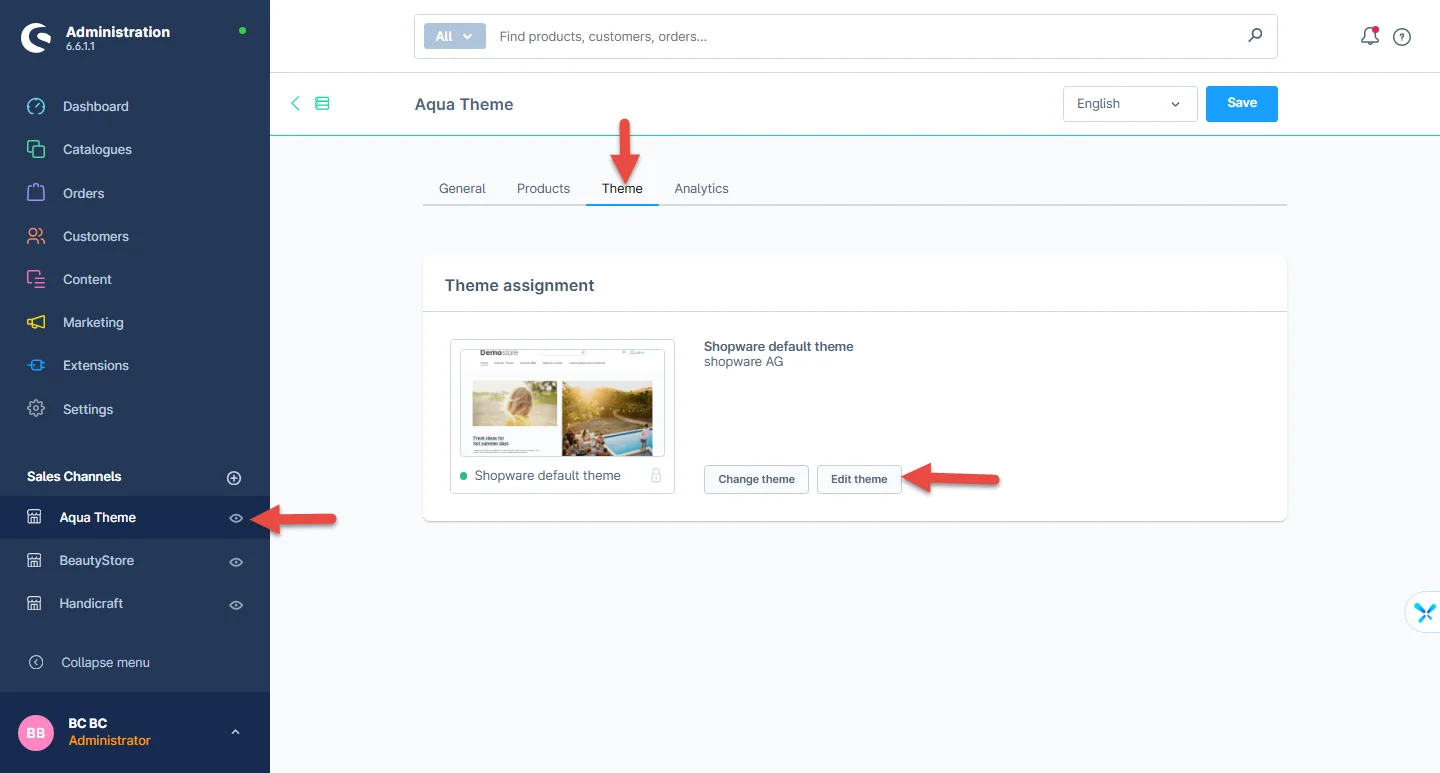
1- After successful installation of the Aqua theme, navigate to Aqua > Theme > Edit Theme
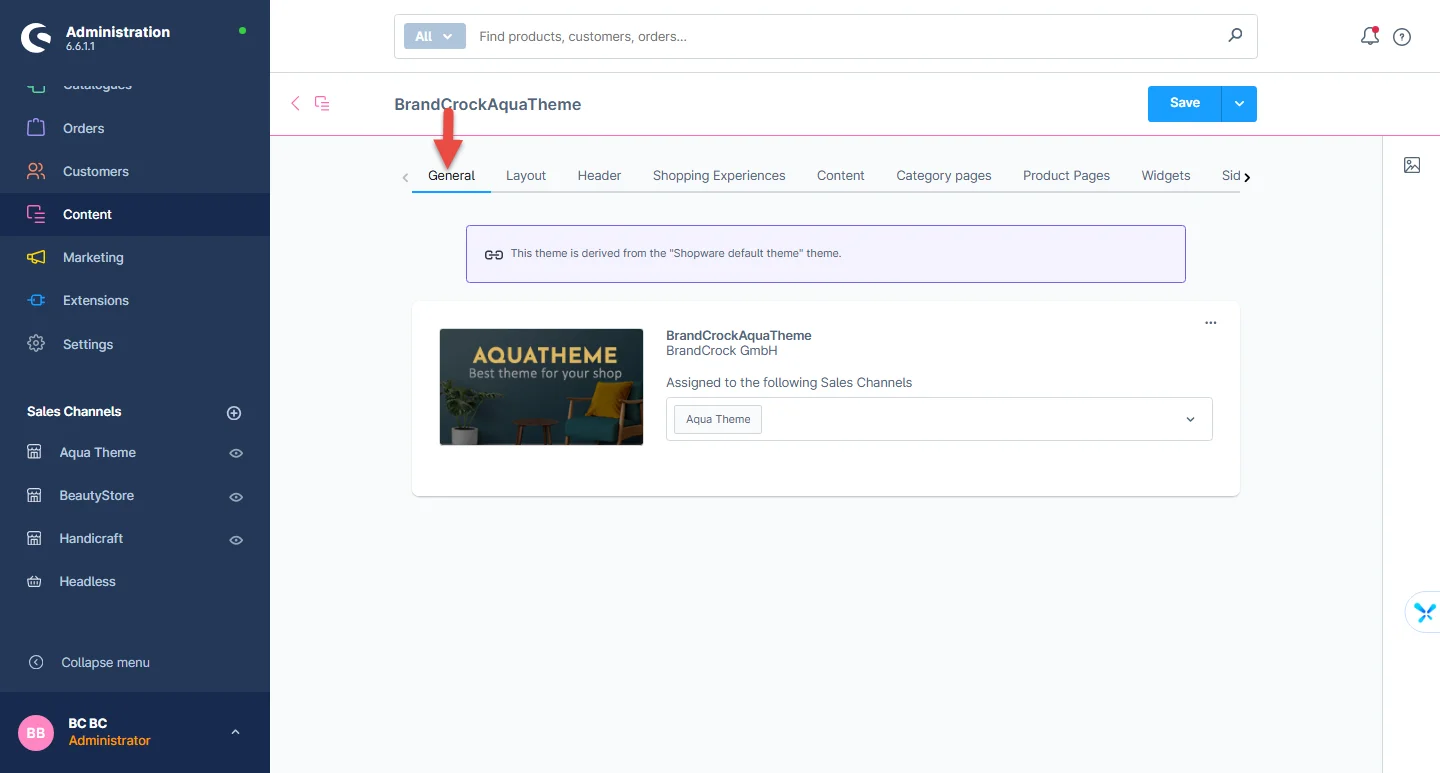
2- Open the General tab: Select the general theme configuration from here
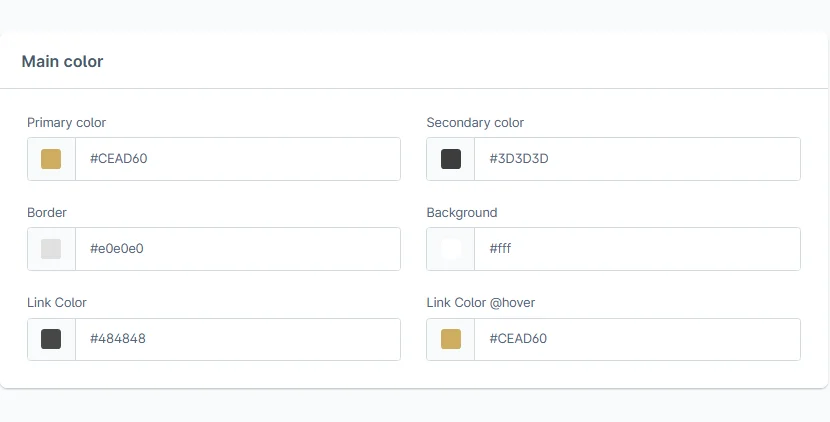
3- Theme colors: For themes including primary, secondary color, Frame, Background color, link color, and hover link color
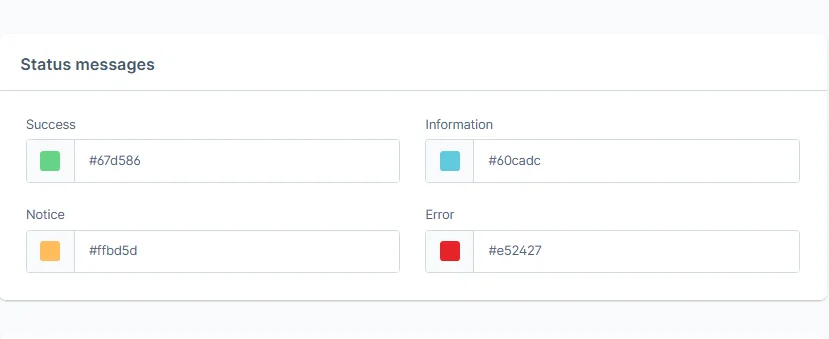
4- Status Notification/Messages color: Success, Notice, information message, and Mistake color
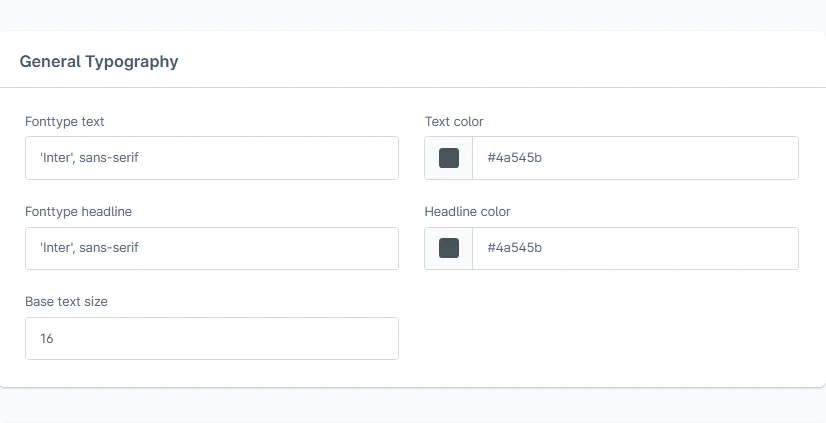
5- General typography: Font text, text color, font heading, and color, Base text size
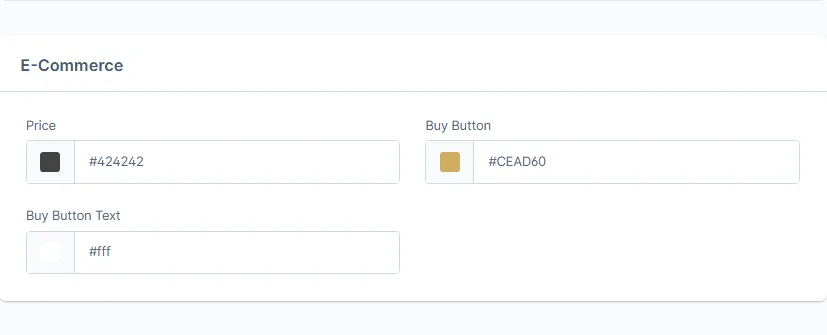
6- Price and buttons: Price text color, buy button color, and buy button text
Header Configuration
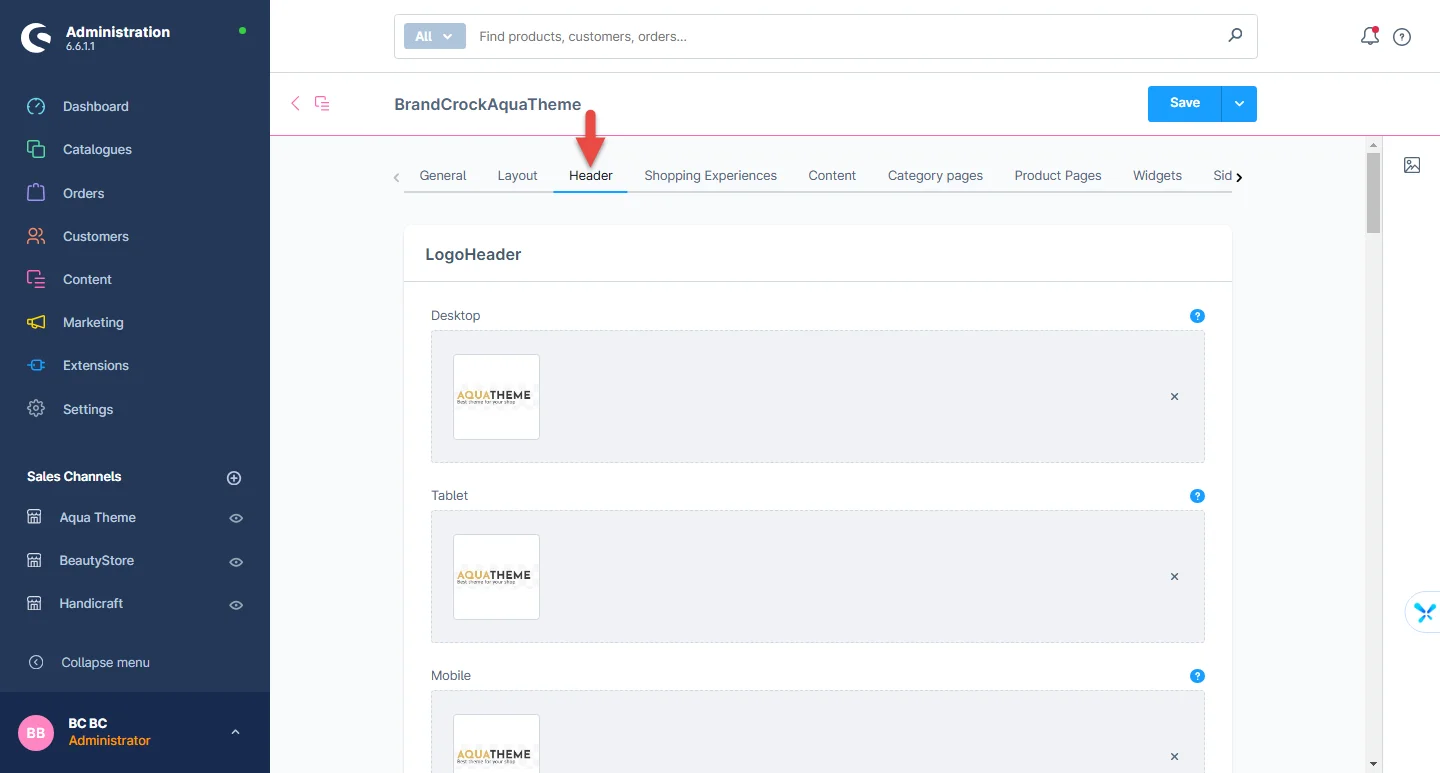
1- Open the header tab: Select the header configuration from here
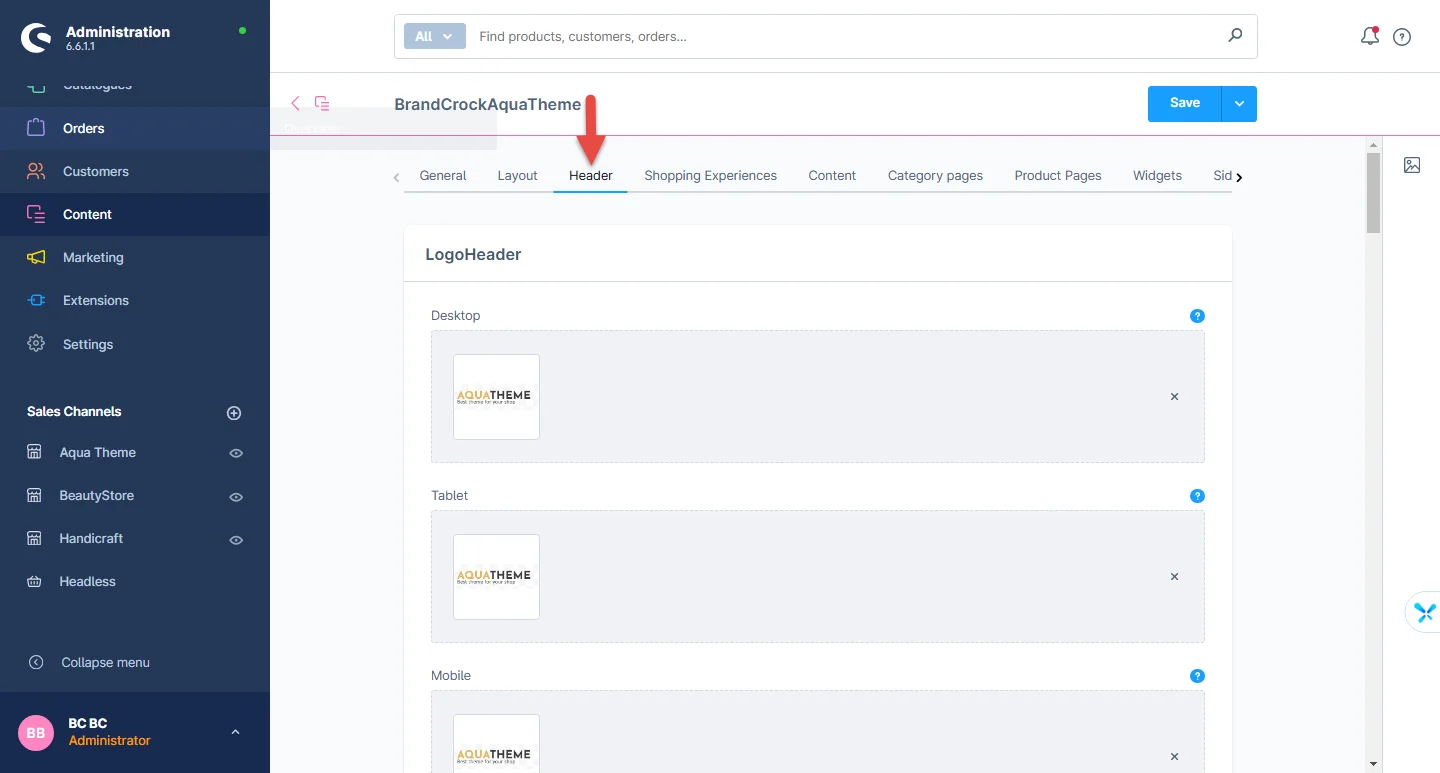
2- Logo configuration: You can upload the logo on different resolutions like desktop, tablet, and mobile
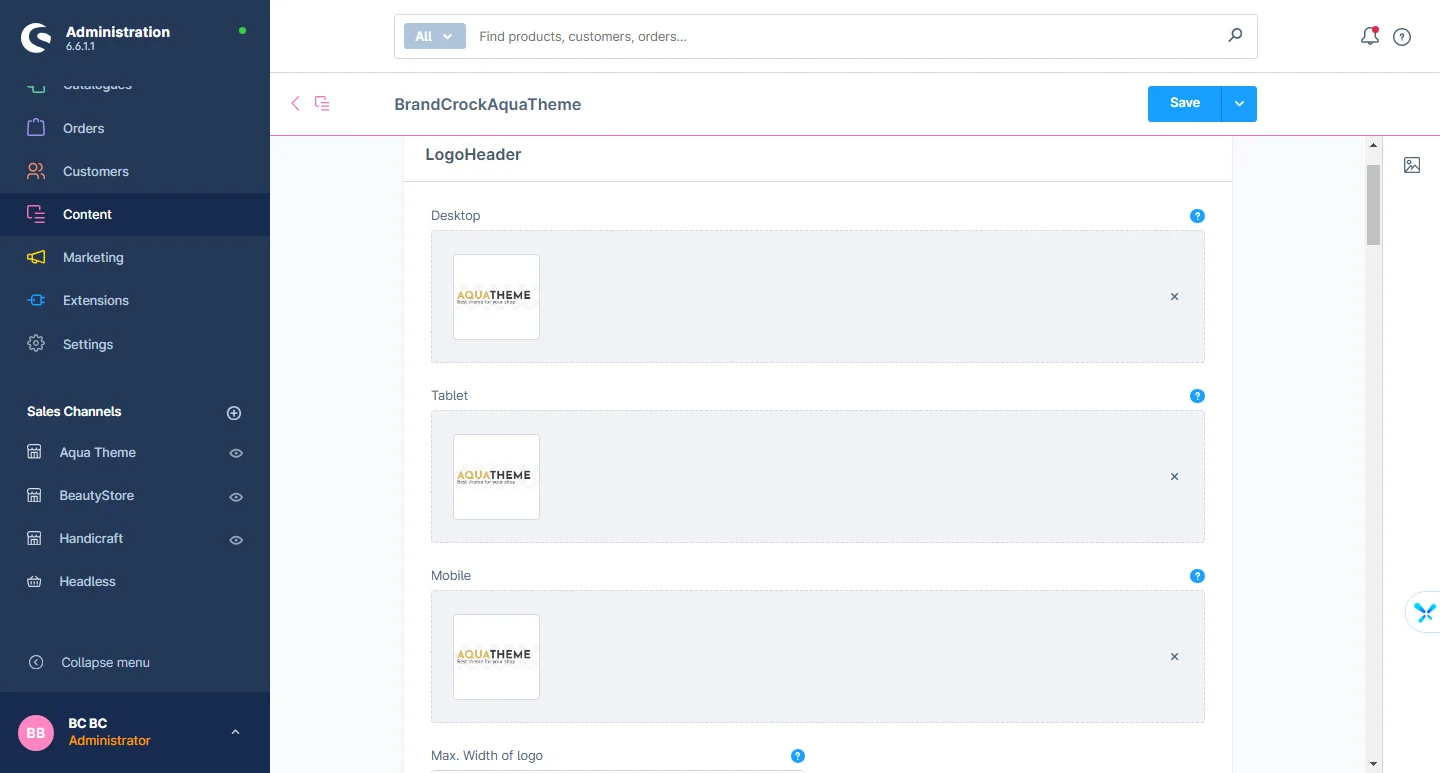
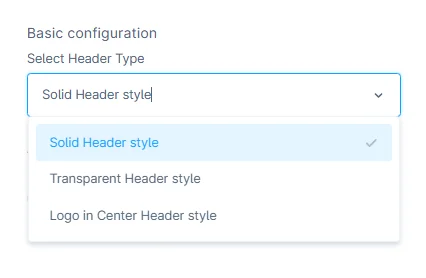
3- Header type: You can select the different Solid header styles, Transparent header format, and logo in the middle header
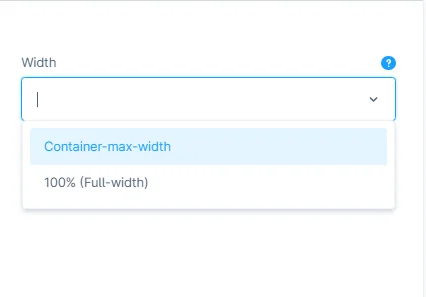
4- Full width header: You can choose your preferred container and the max width of the header
5- Header Style: There are various styles included in the header like header background color and header box-shadow
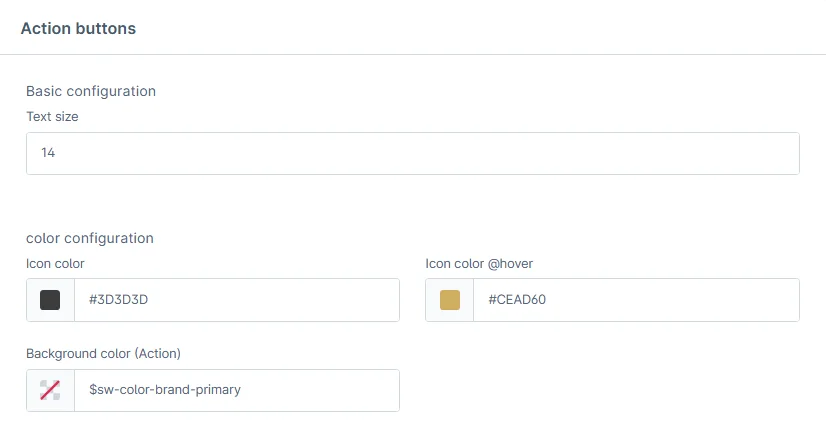
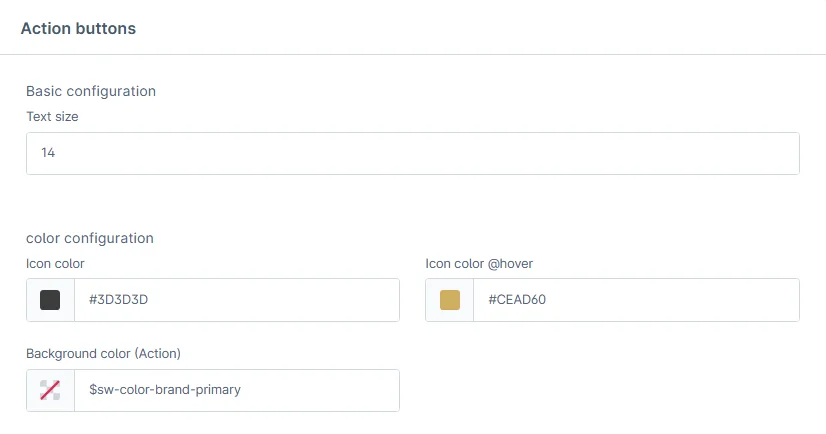
6- Header Icons: Icon color, the icon on the mouse hover color
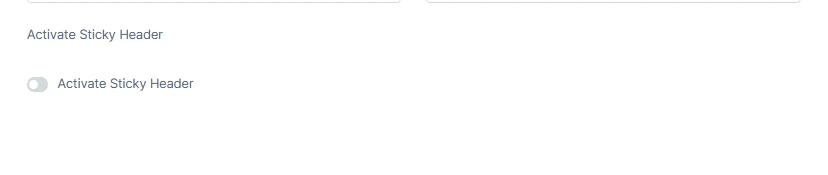
7- Sticky header: You can choose to enable or disable the sticky header and alter the color of sticky background
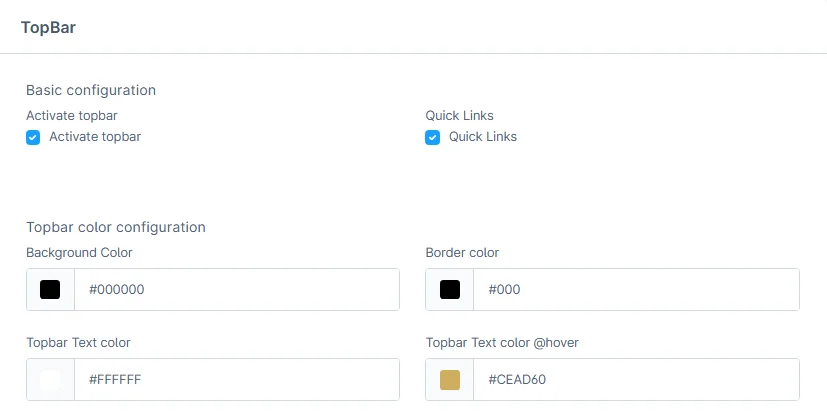
8- Top Bar: Background color, border color, Top bar text color, and top bar text hover color
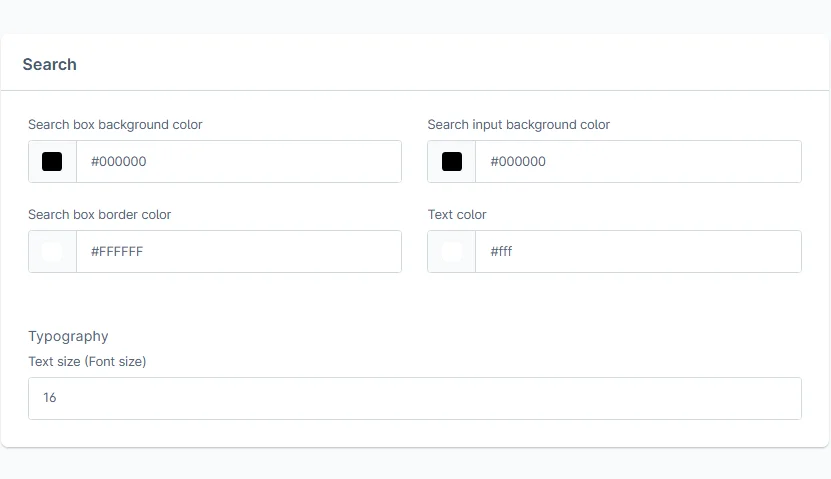
9- Search: Includes background color in the search field, Background color search field, border color of the search field Text font size, and text color
Navigation Configuration
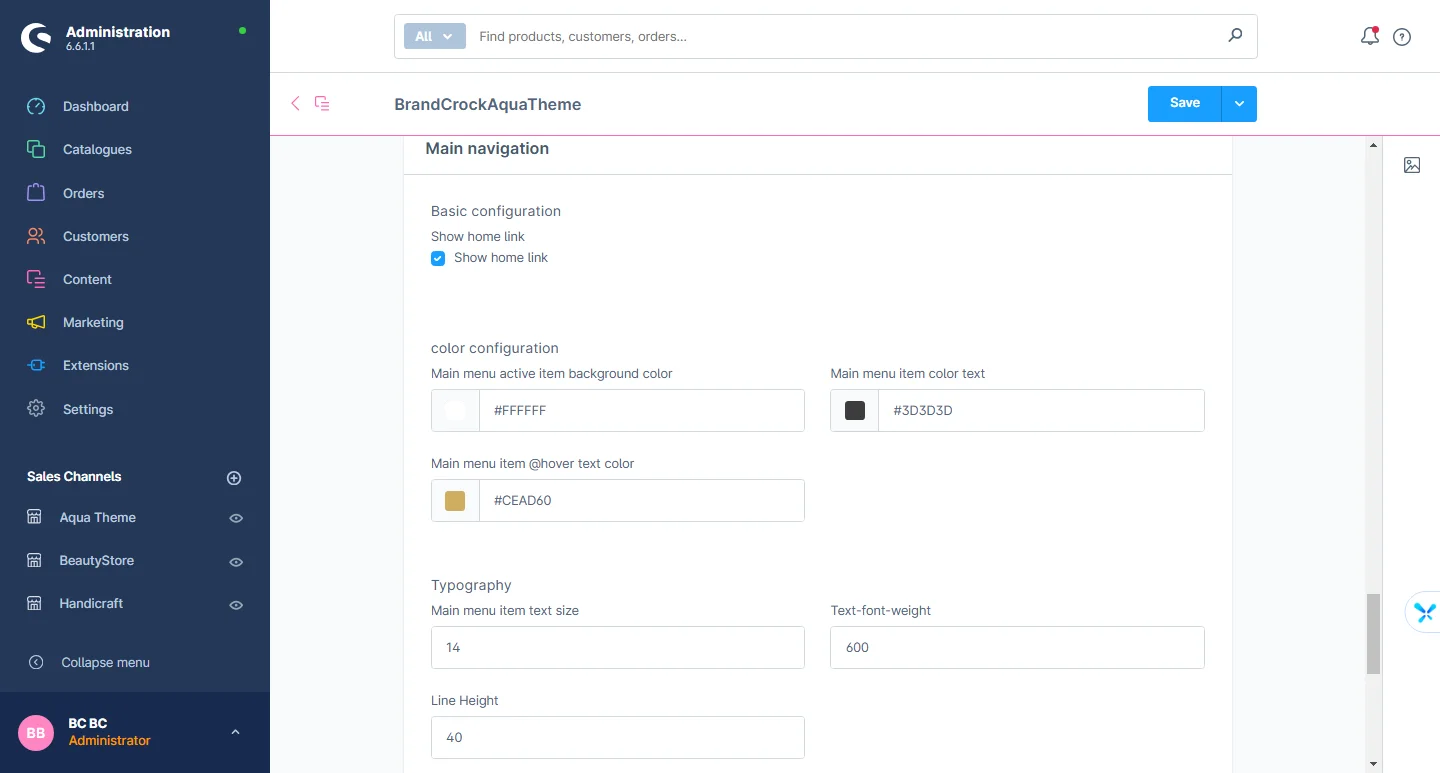
1- Open the navigation tab: Select the navigation configuration from here
2- Navigation: You can change the background color of active items in the main menu, the Color text of the main menu, the main menu hover text color, the font size of the main menu, text font-weight, and row height b/w both menus
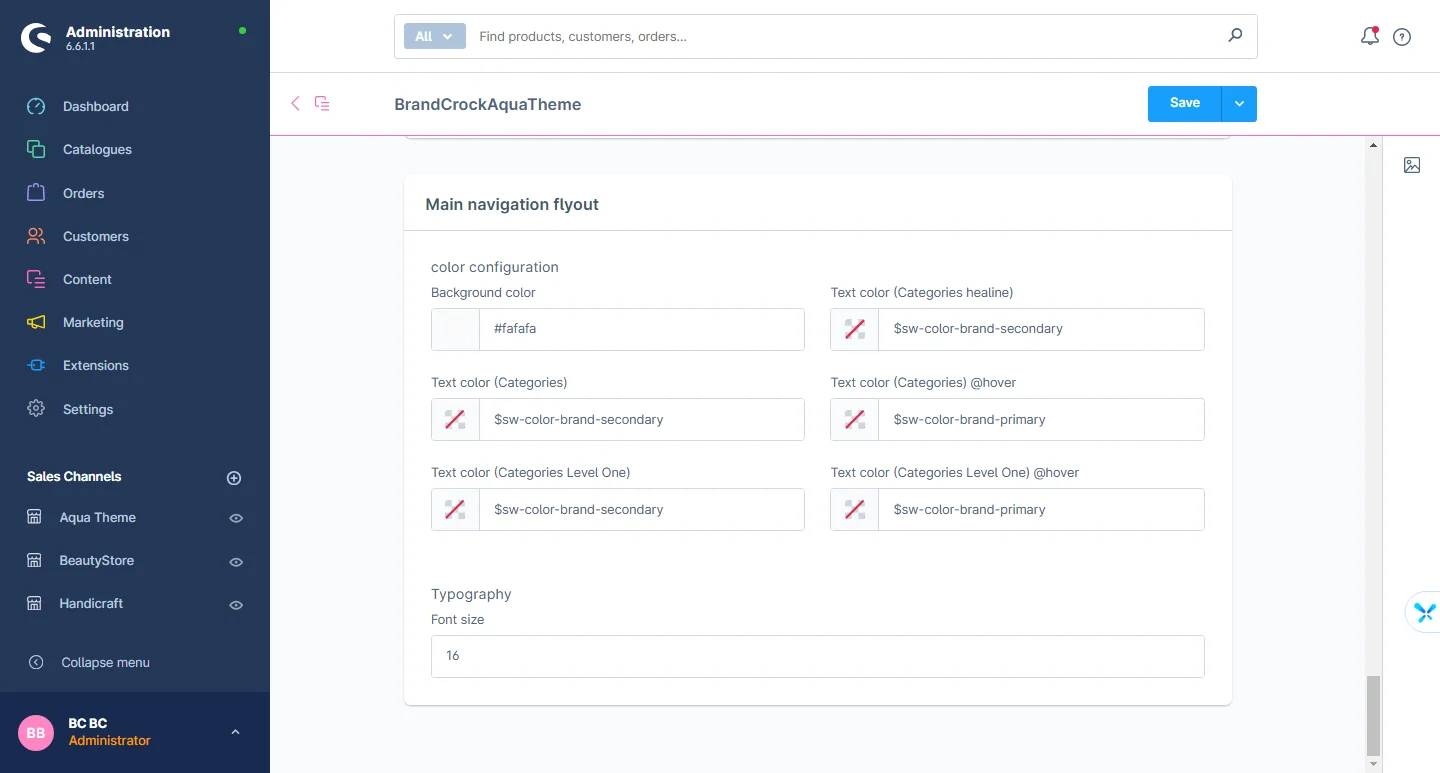
3- Flyout Menu: You can change the background of the main menu drop-down and the menu color, font size of the main drop-down, and font size of the main category
Shopping Experience Configuration
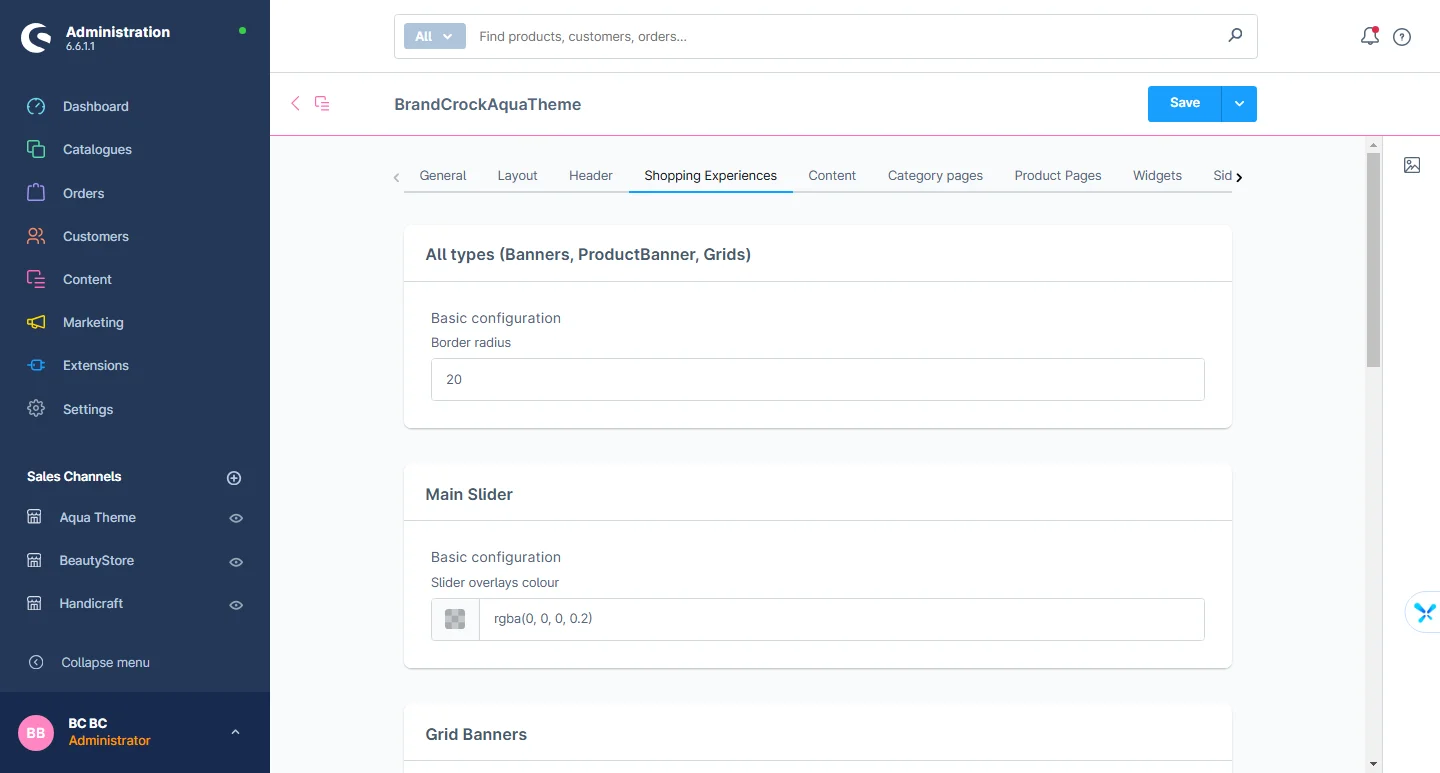
1- Basic layout settings: You can make changes to the elements in the Shopping Experience, such as border radius, colors, and banner overlay opacity.
Content Configuration
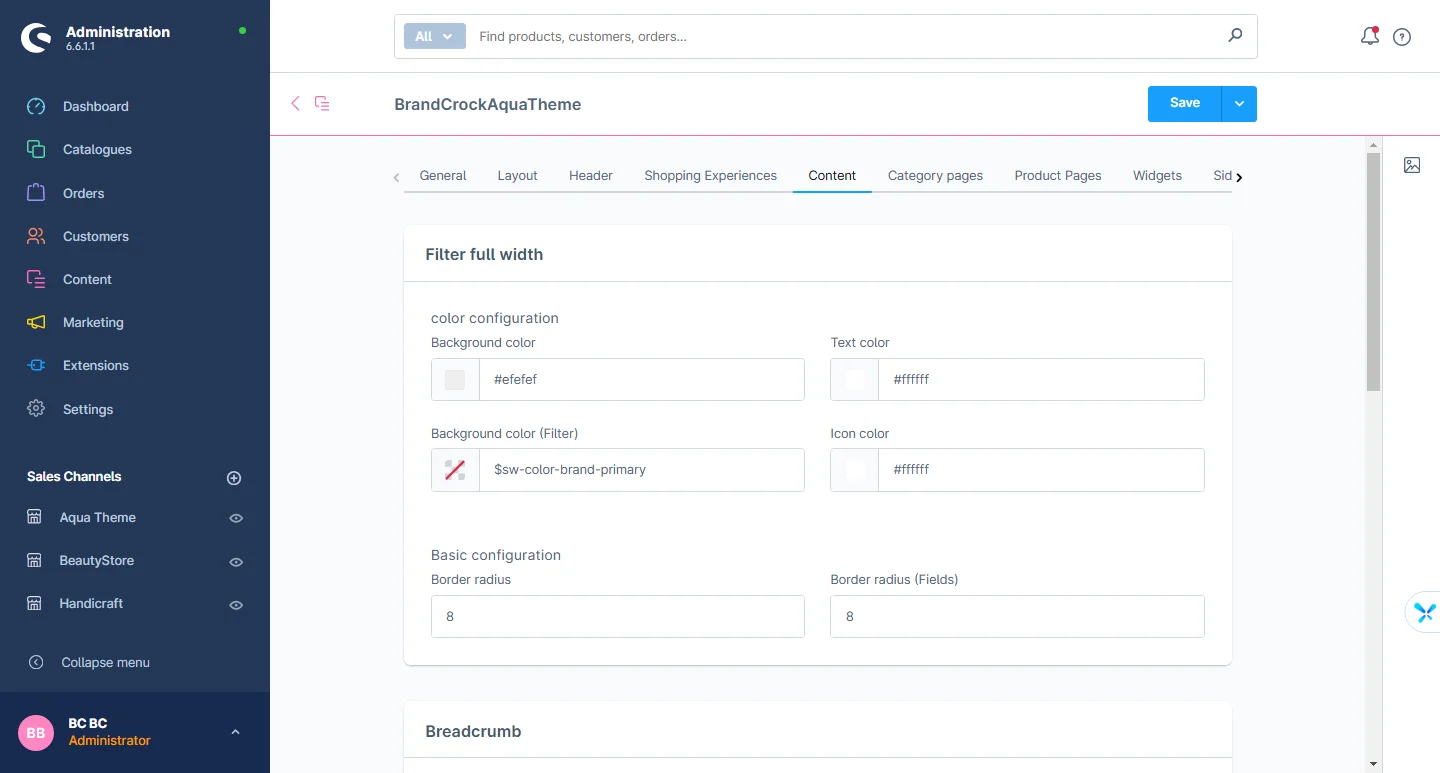
1- Basic layout settings: You can change the text color, background color, and border radius of the filters in the listing layout. Similarly, you can adjust the background color, border radius, and hover colors for both the breadcrumb and pagination elements.
Product List Configuration
1- Open the product list tab: Select the product list configuration from here
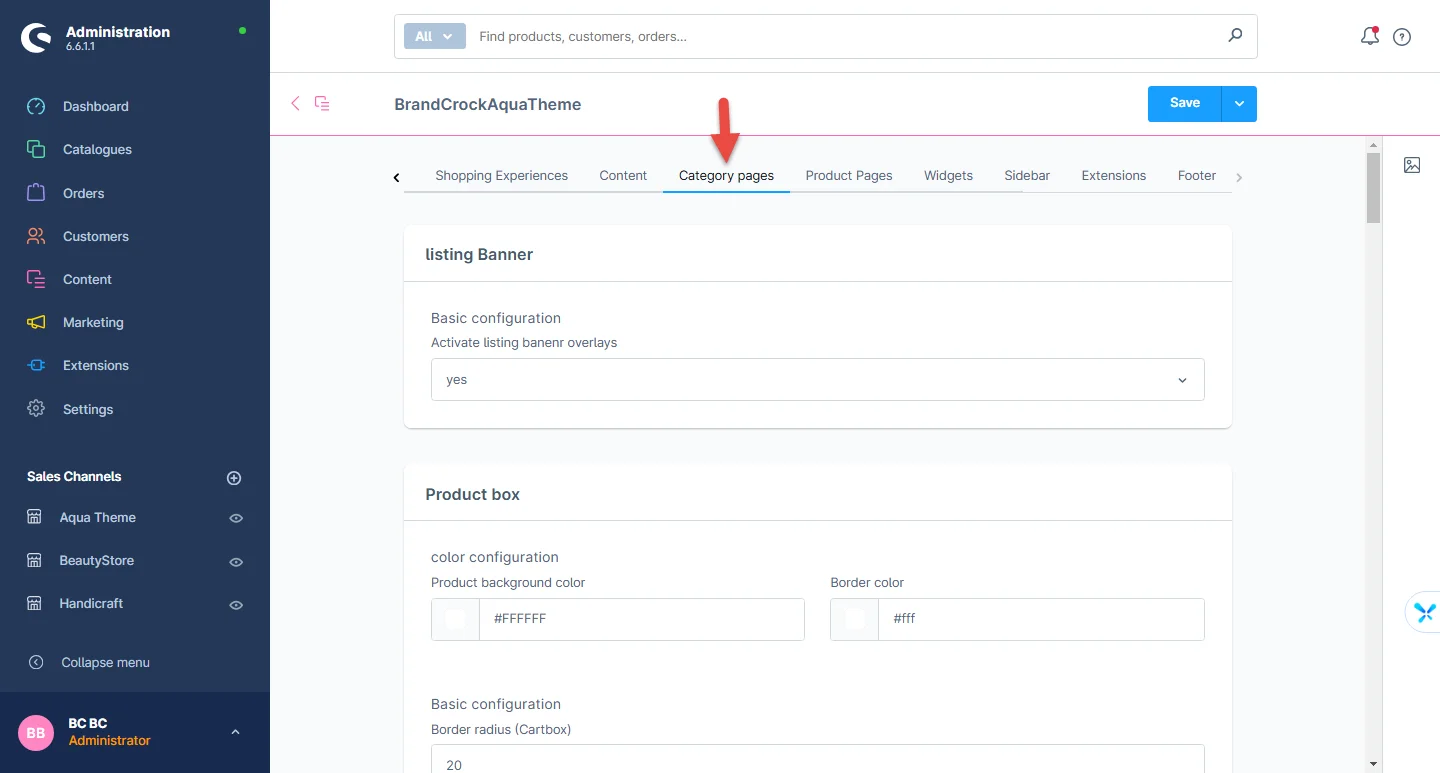
2- Listing banners: You can enable or disable the overlay on the listing banner.
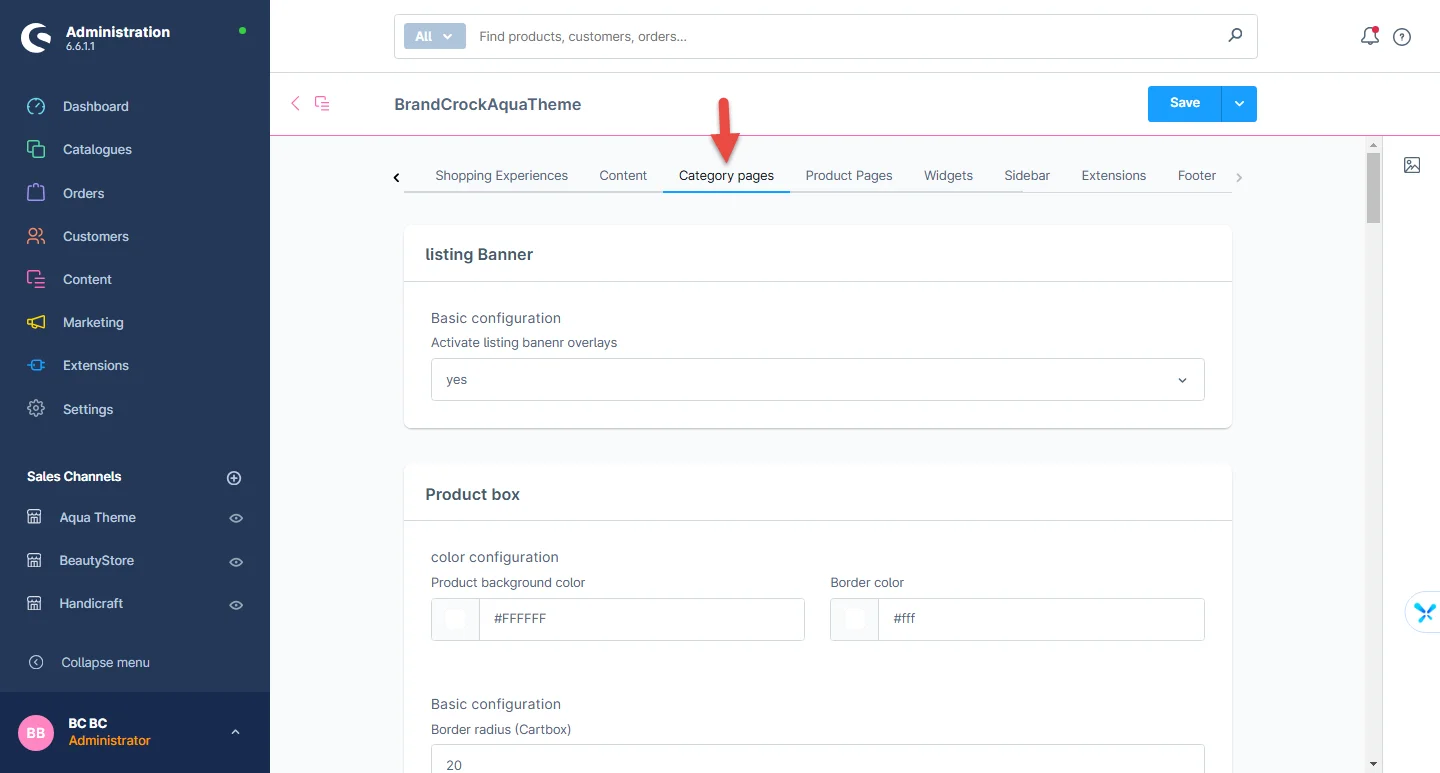
3- Product Cart: You can change the background color of the cart, the background color of the image, the color product frame, the button color, the mouse hover color, and the button icon color
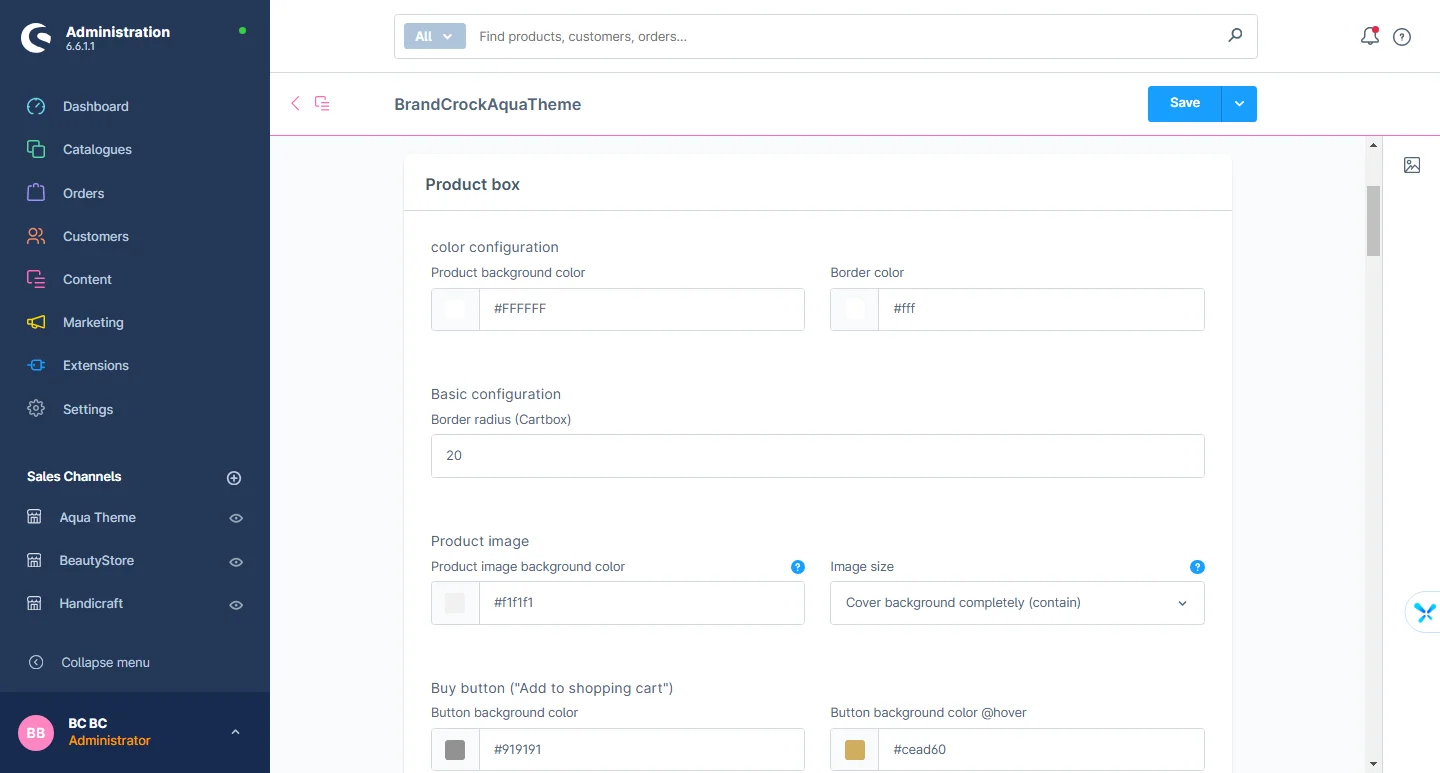
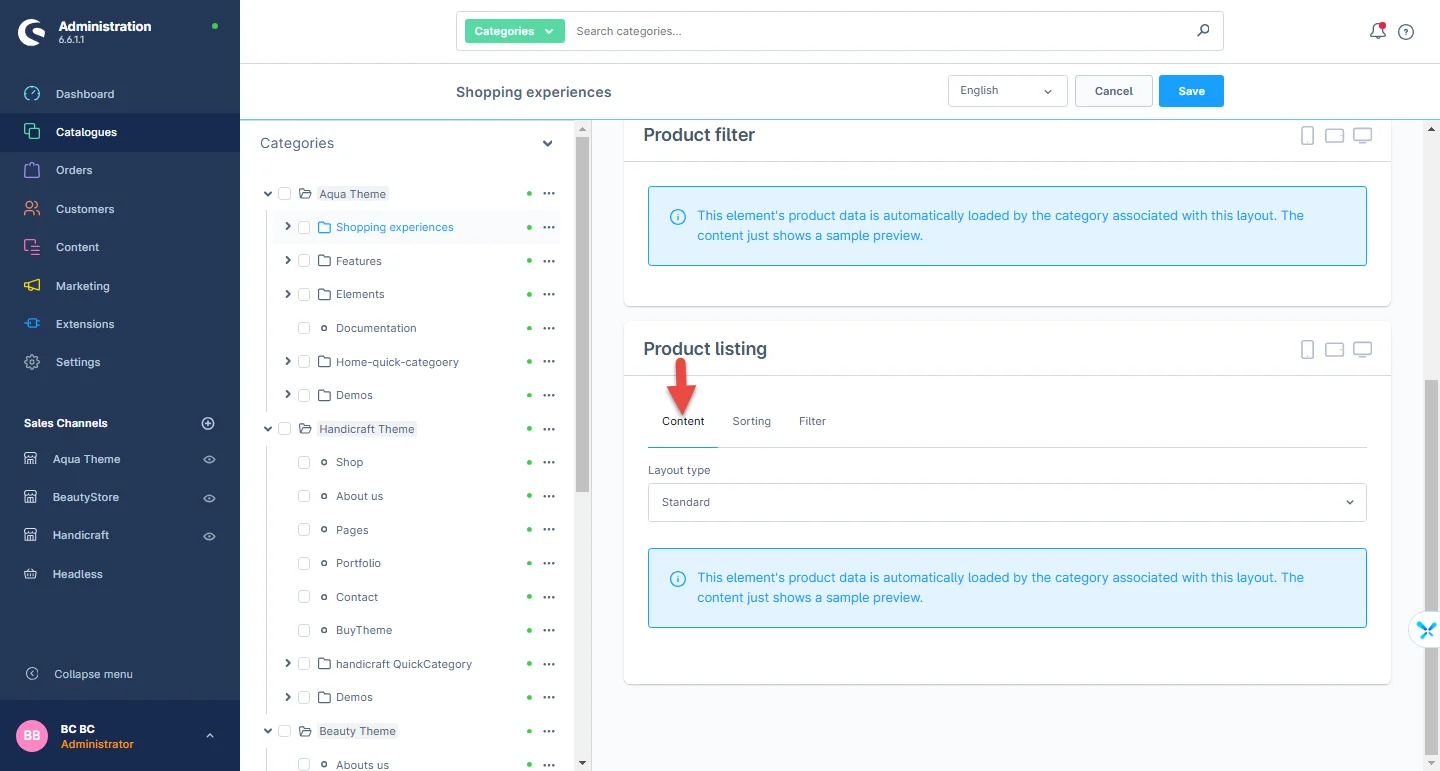
4-Switch Listing view: Go to Categories after the Catalogues. Visit Layouts to modify the listing view
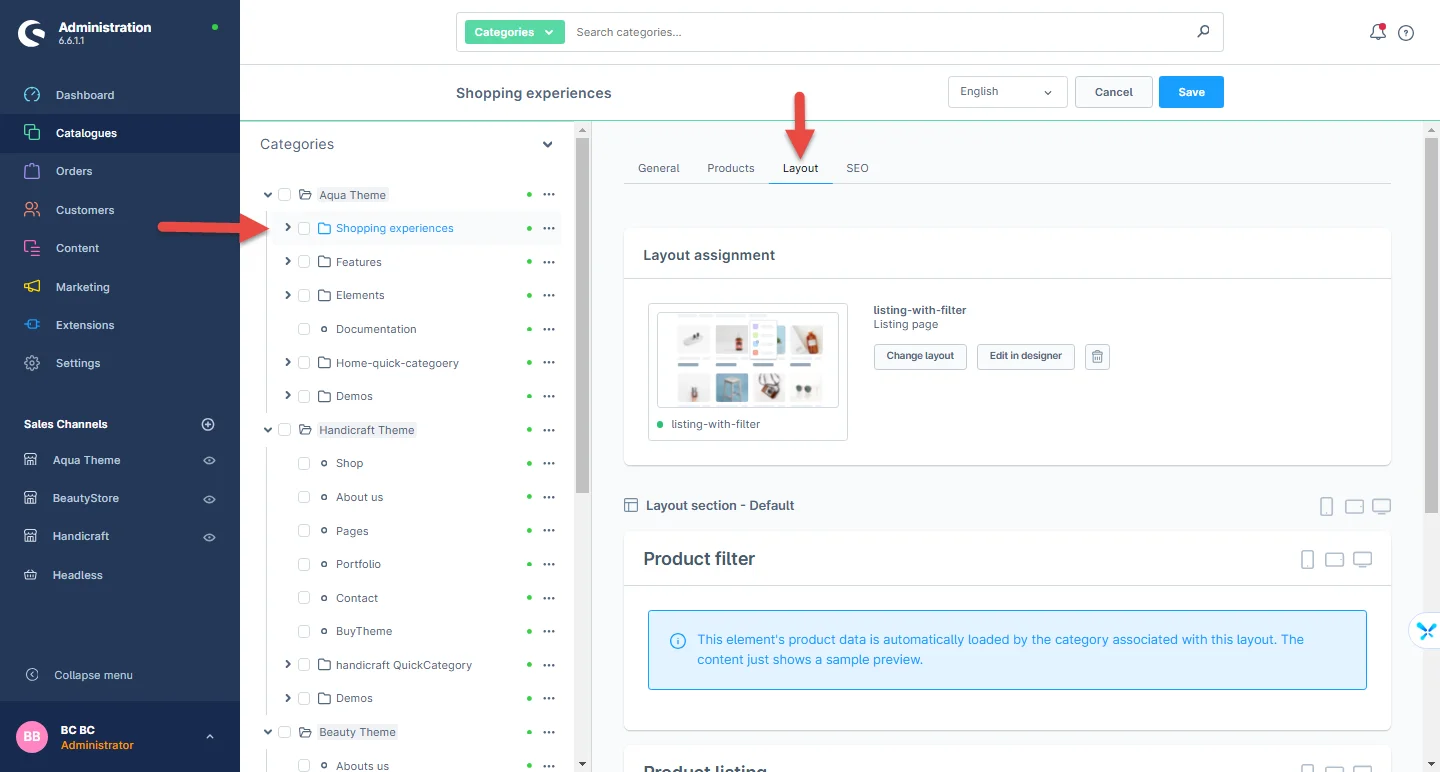
5- Switch Listing view: Select the listing view under the Content tab
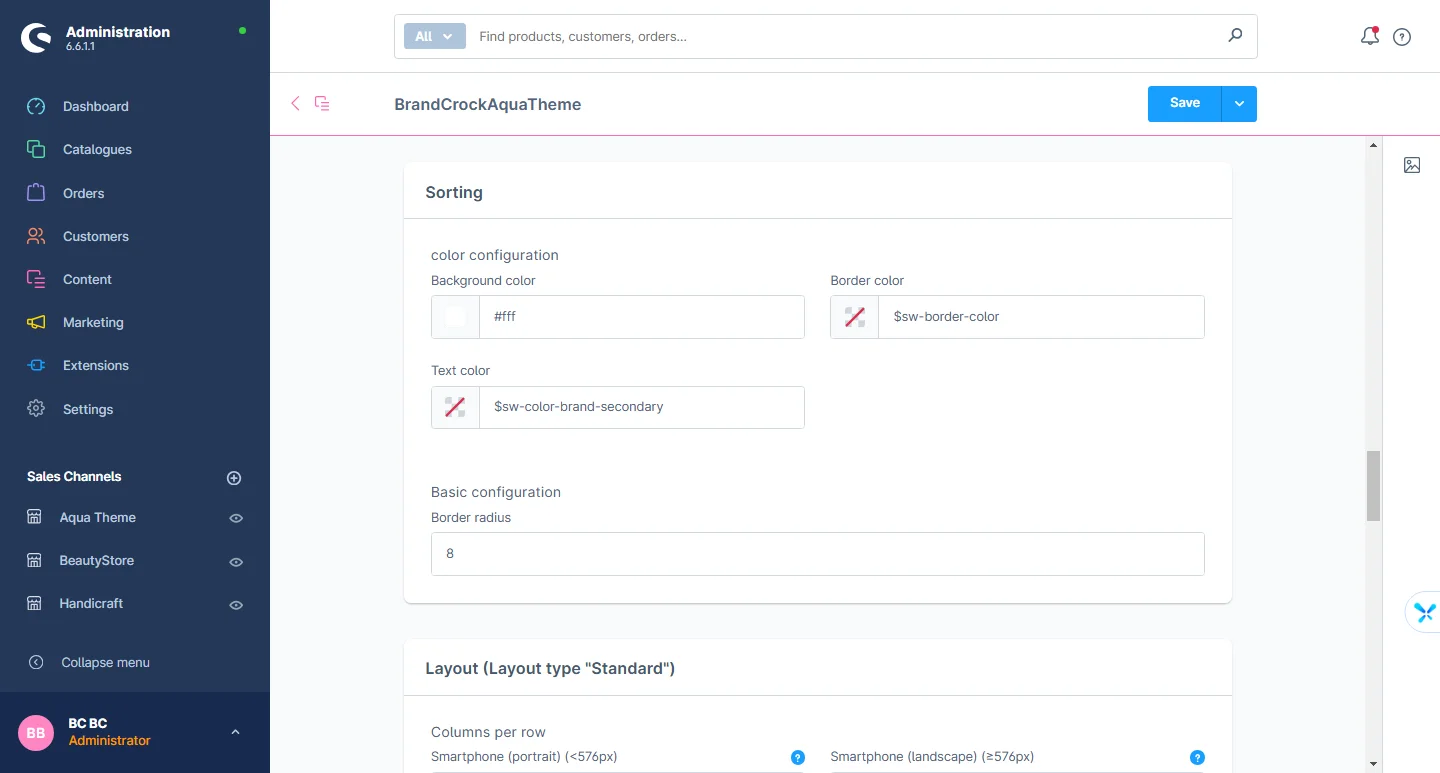
6- Sorting: You can select the background and text color
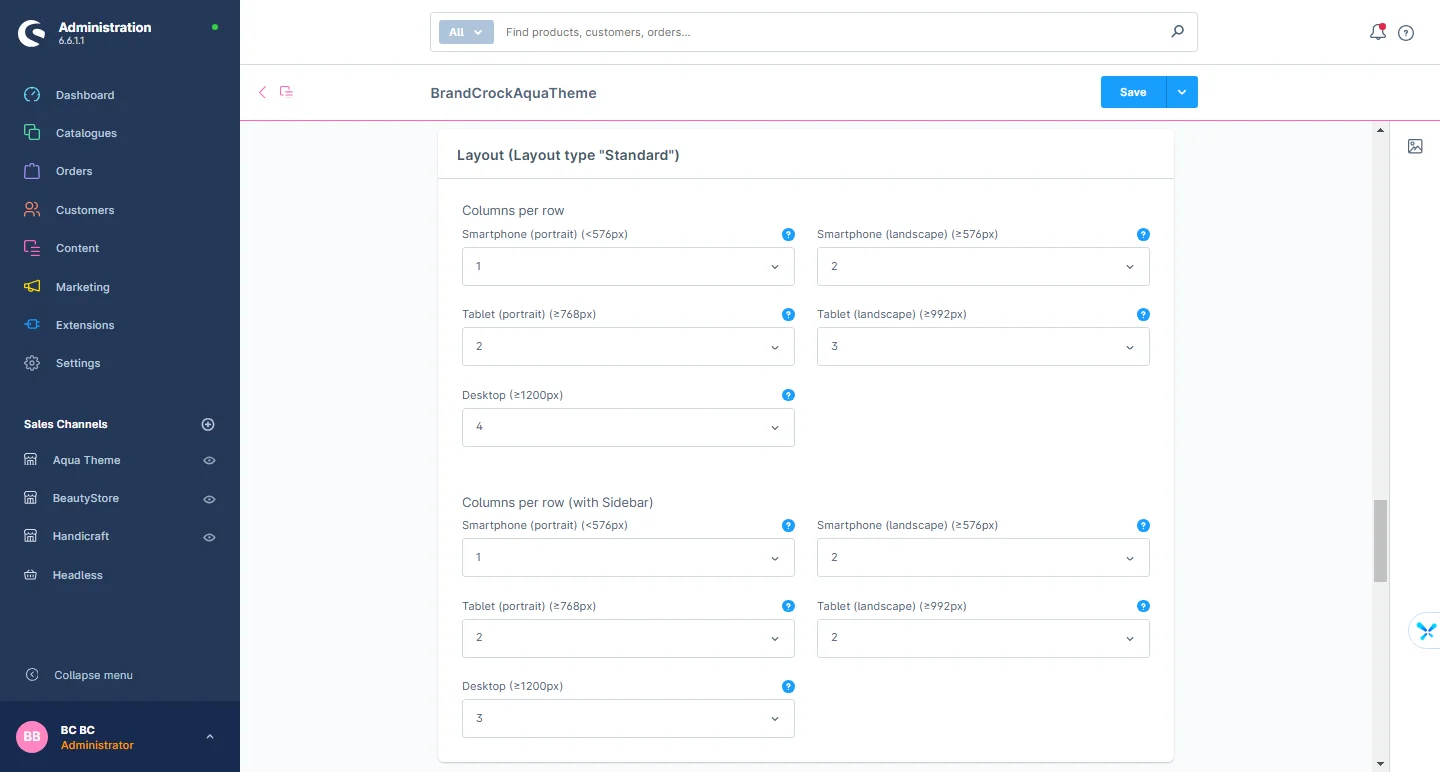
7- Listing Layout settings: You can select the listing layout and adjust the columns per row based on devices and the sidebar listing settings.
Product Detail Configuration
1- Open the product detail tab: Select the product detail configuration from here
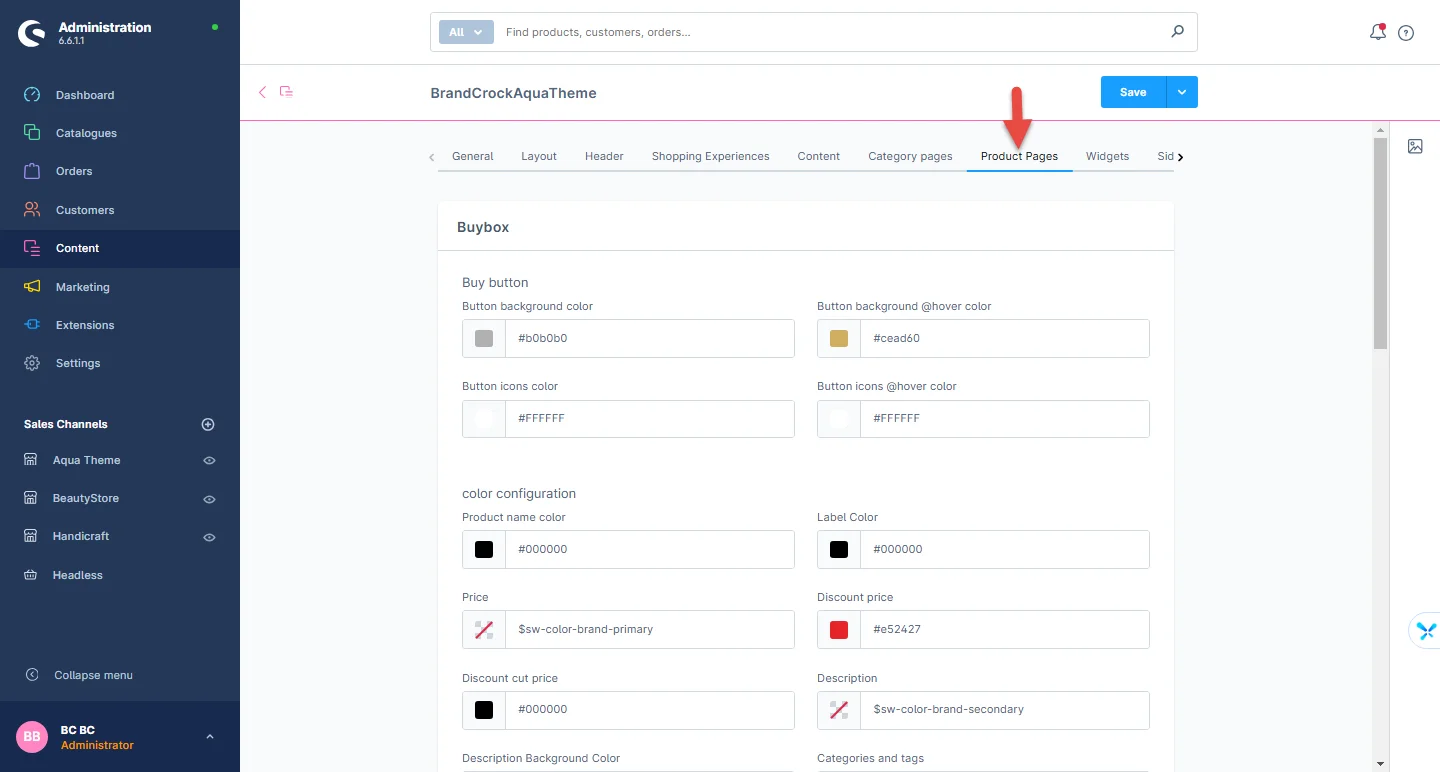
2- Product Section: You can configure the product box by adjusting the background color, border color, border radius, and the color settings for the buy button.
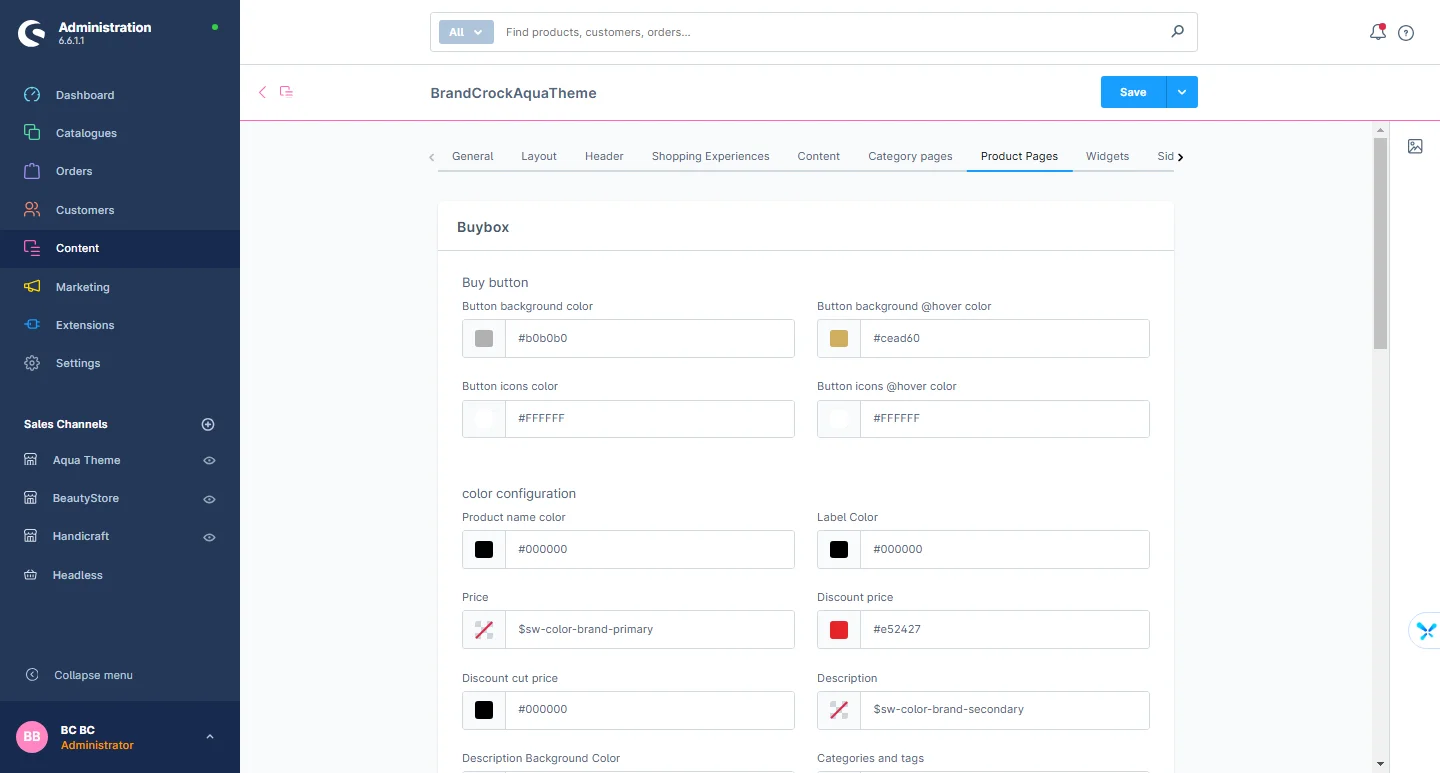
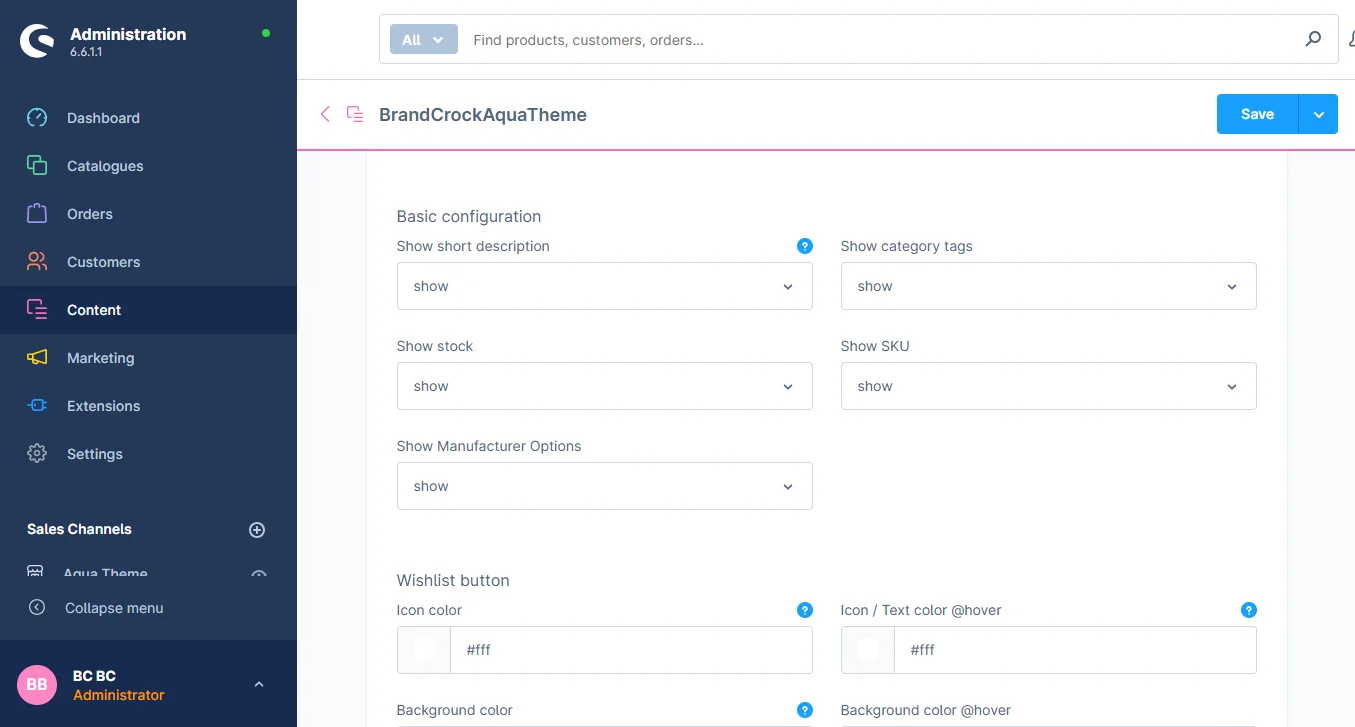
3- Product Basic configuration: You can configure basic settings in the product box, allowing you to enable or disable elements such as the short description, category tags, inventory, SKU, and manufacturer options.
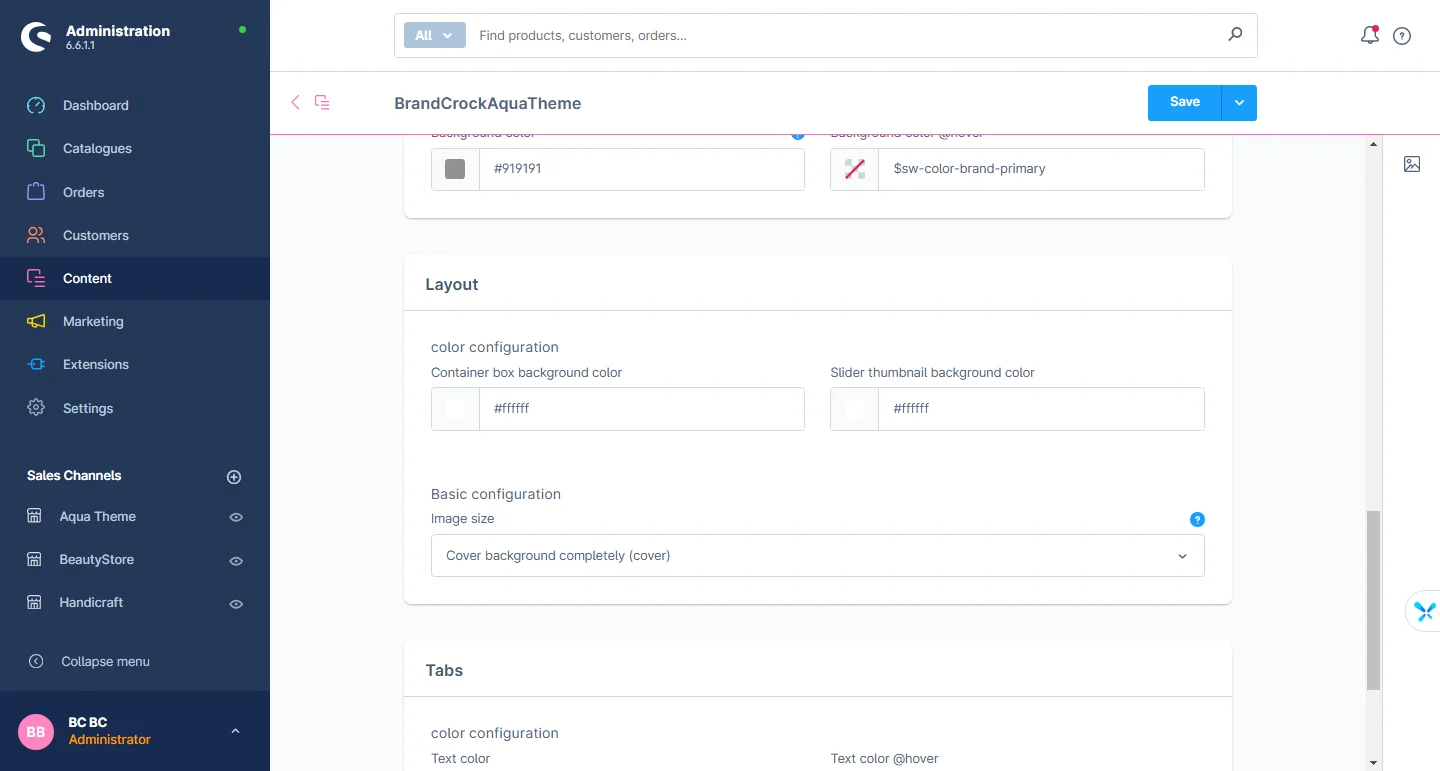
4- Product layout: You can customize the background color, images, and basic layout settings of the product layout.
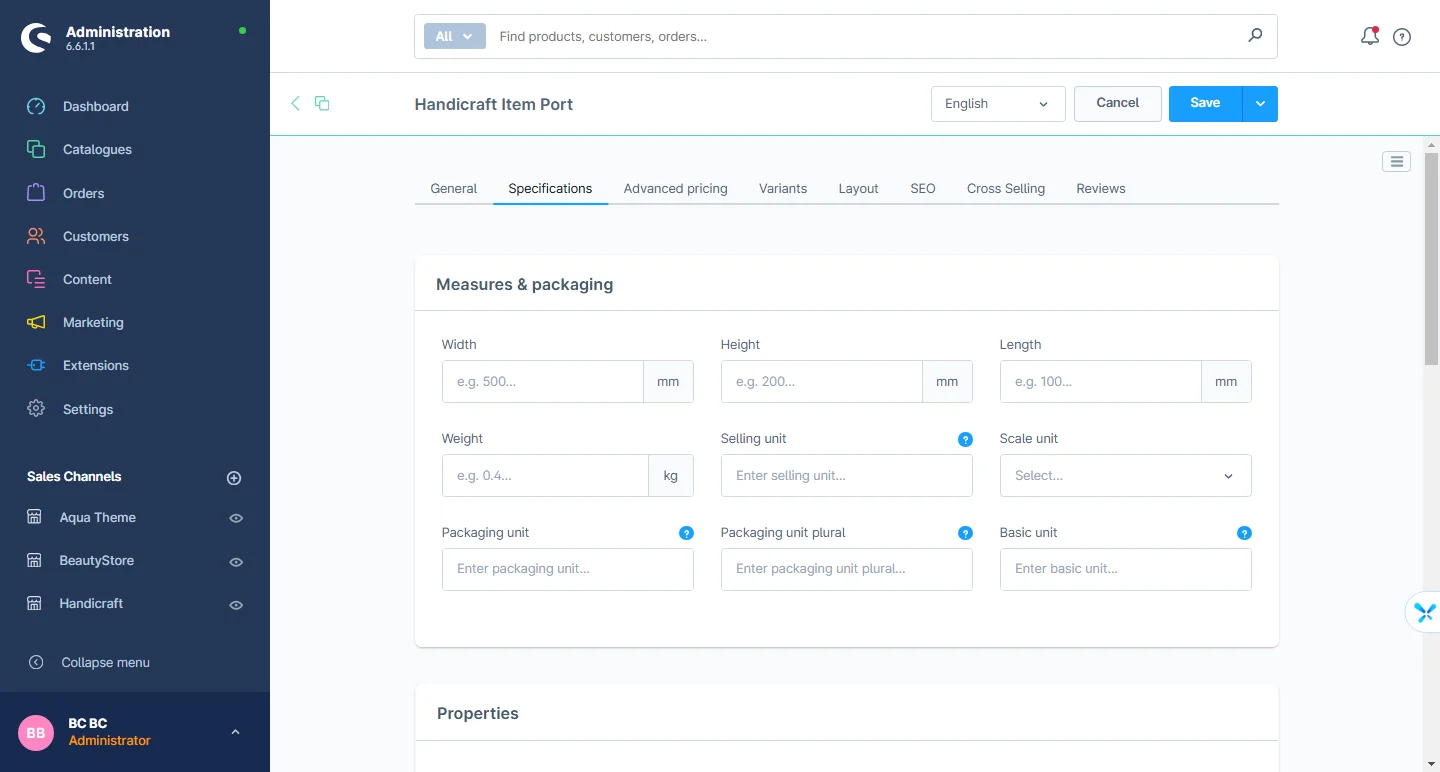
5- Multiple tabs: Select the specification tabs by going to particular product
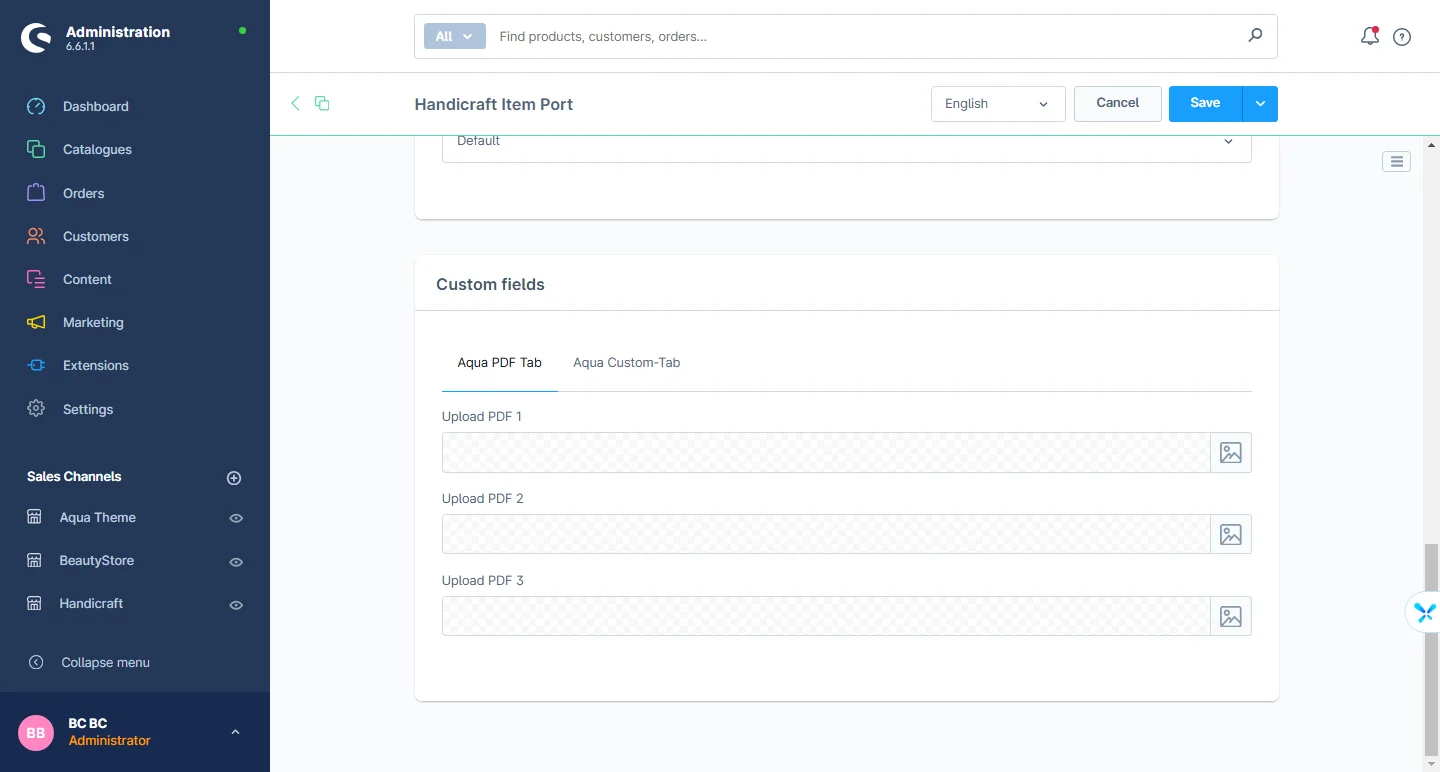
6- PDF Tabs: There are 3 PDF file upload options when you choose the PDF tab
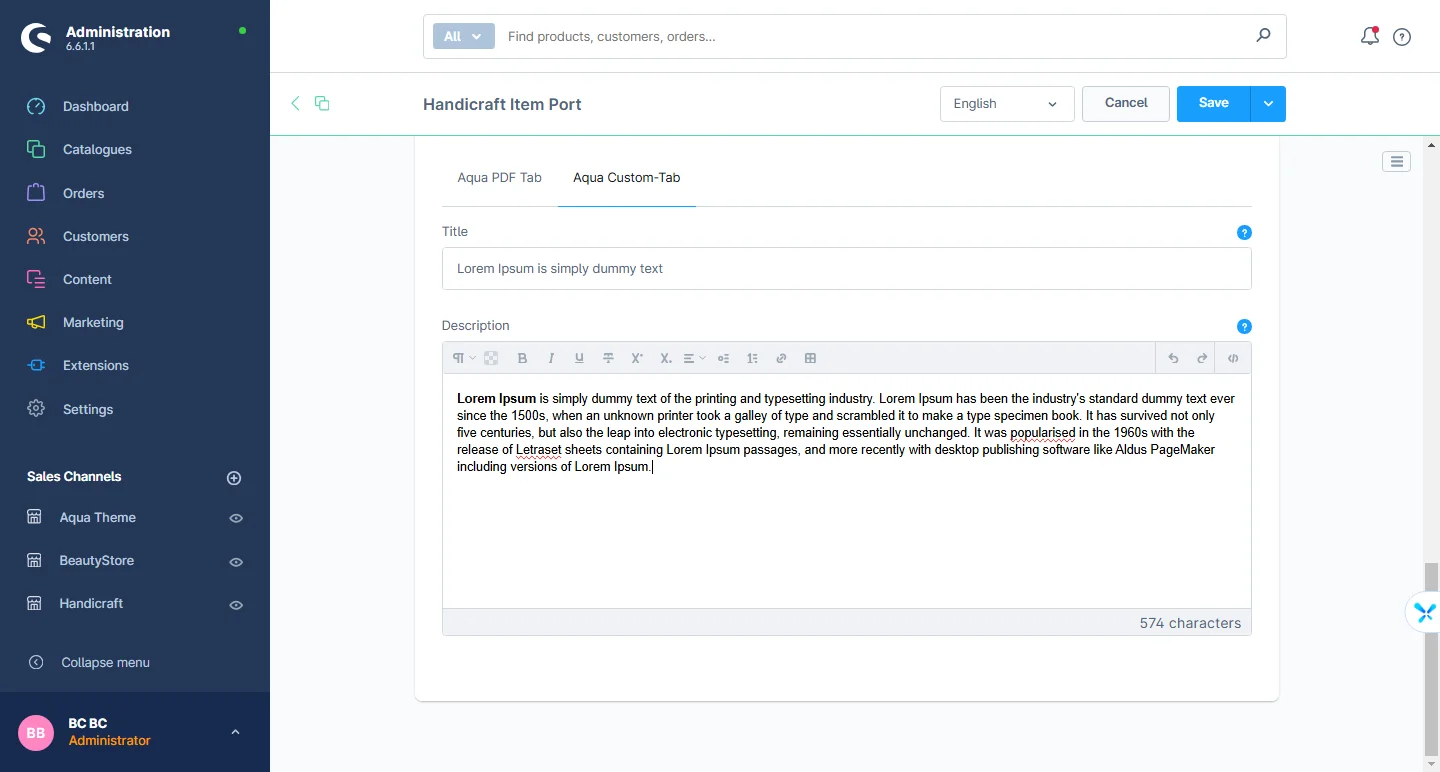
7- Custom Tab: You can add the title and description here
Widgets Configuration
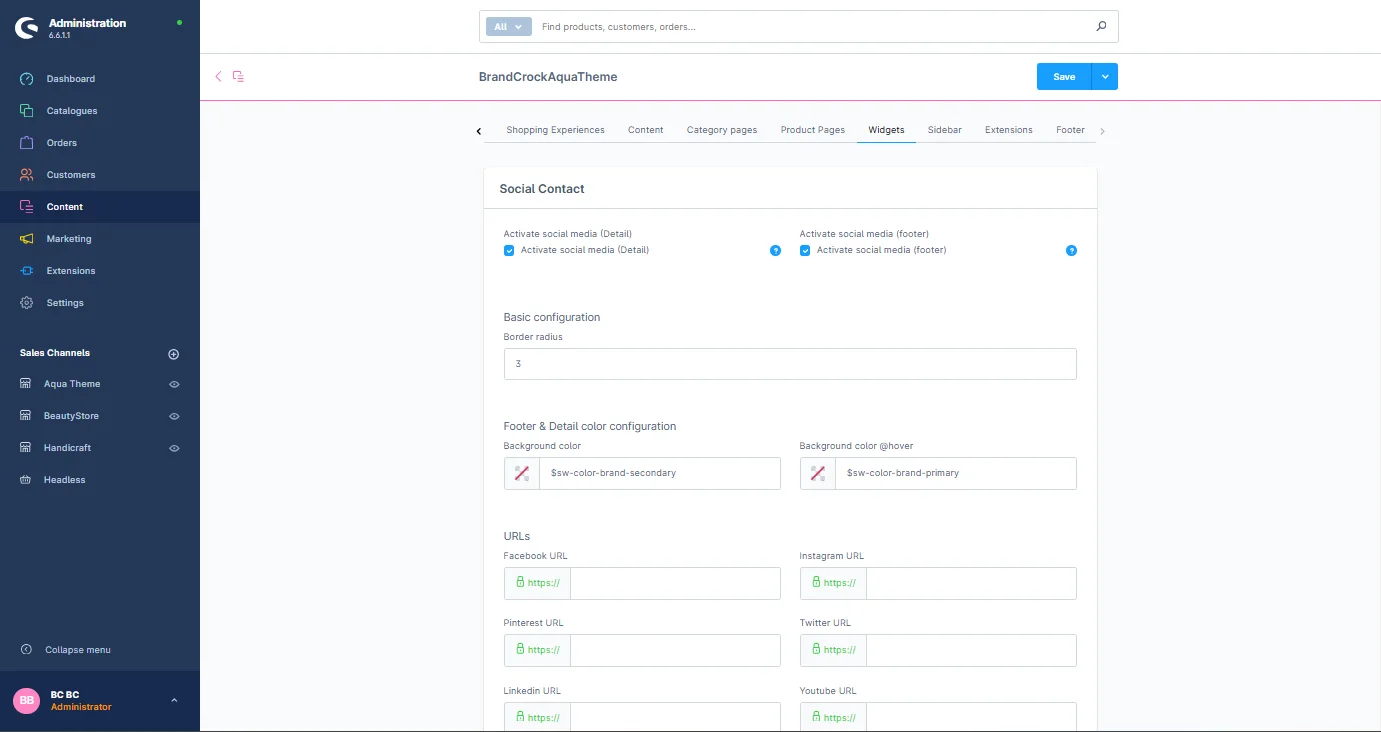
1- Social icon: Add the social media links and check the active and inactive box
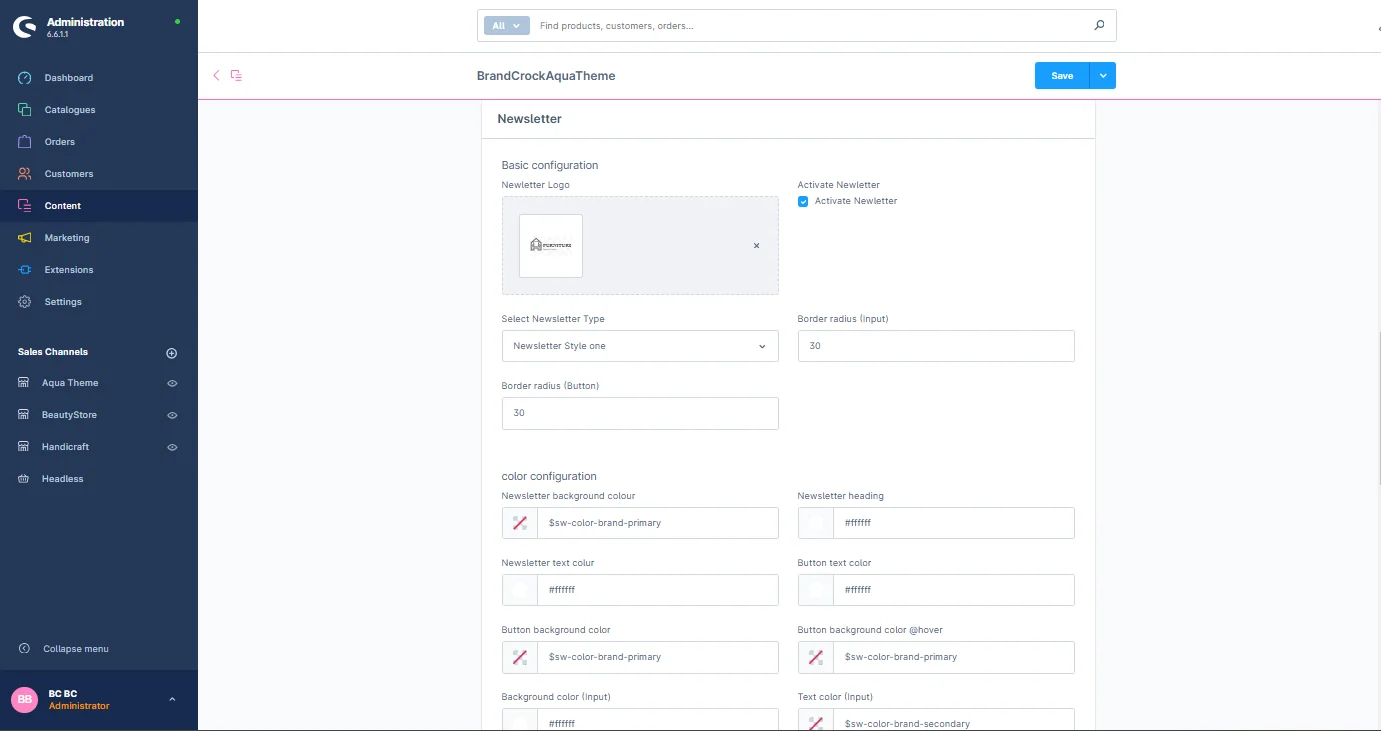
2- Newsletter: You can select the two types of newsletter single line and double line, and change the label color and button background color, check the active and inactive box
3- Layout: You can change the widgets background color, images and basic layout settings
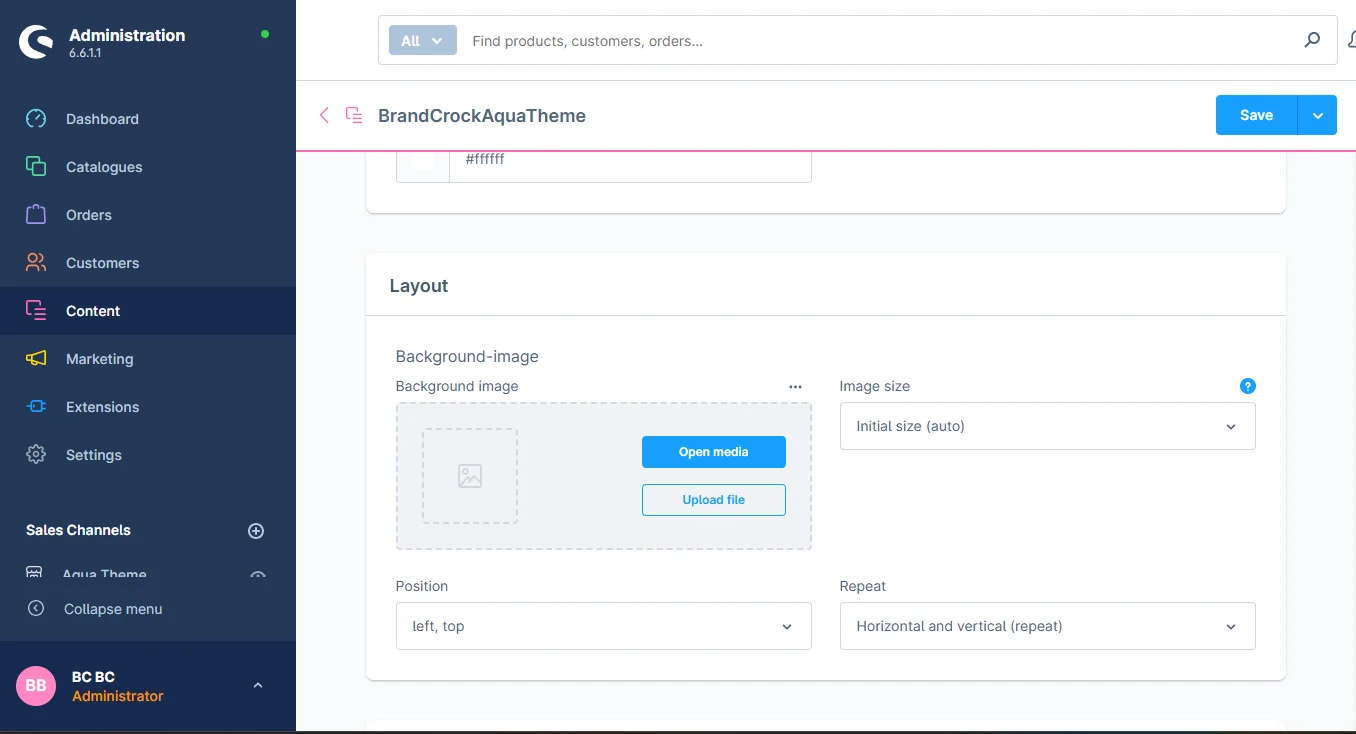
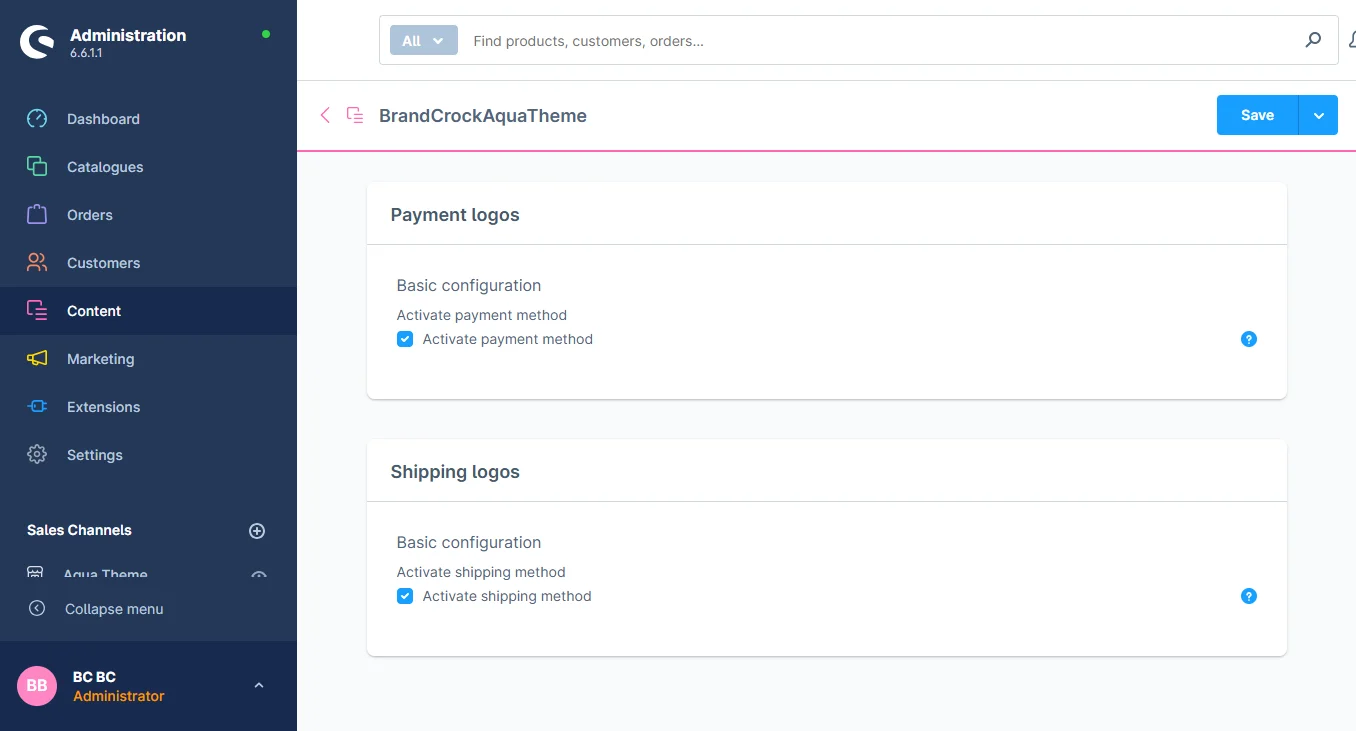
4- Shipping and payment method: You can enable or disable the shipping and payment method logos as needed.
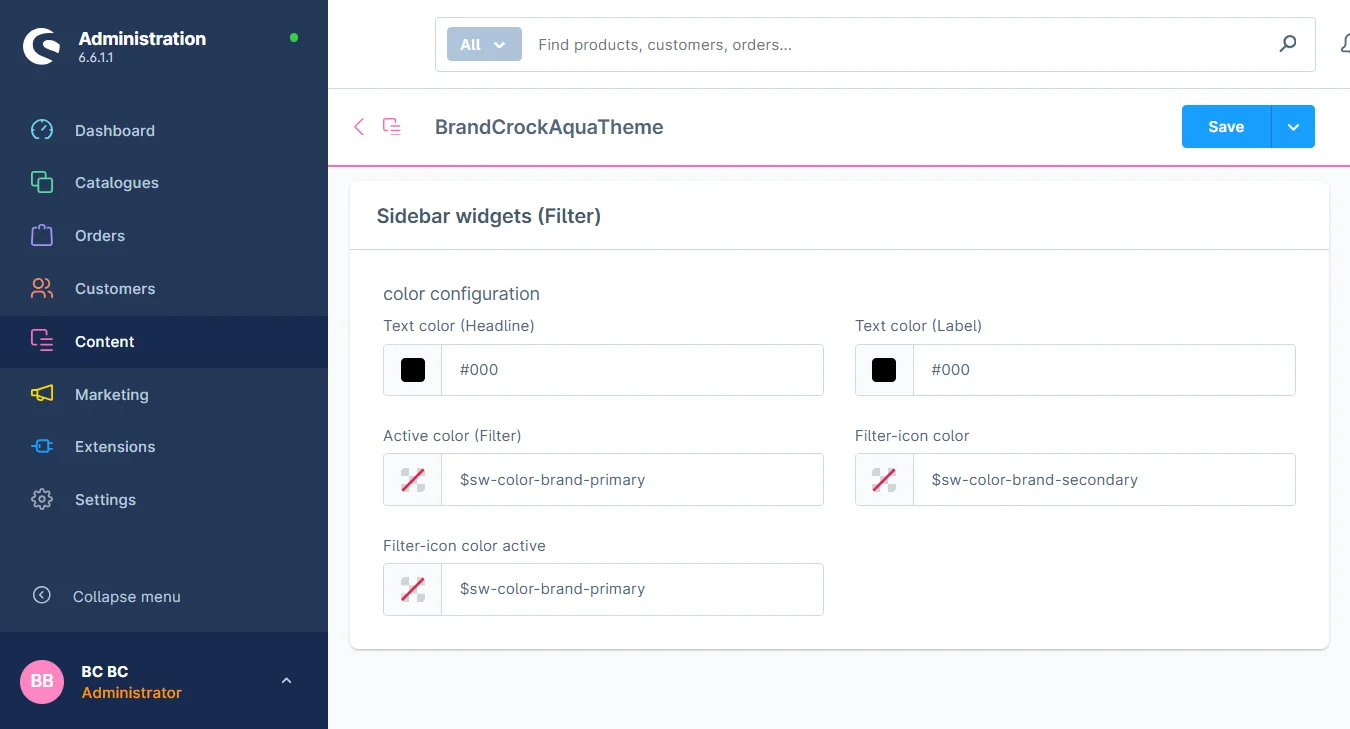
Sidebar Configuration
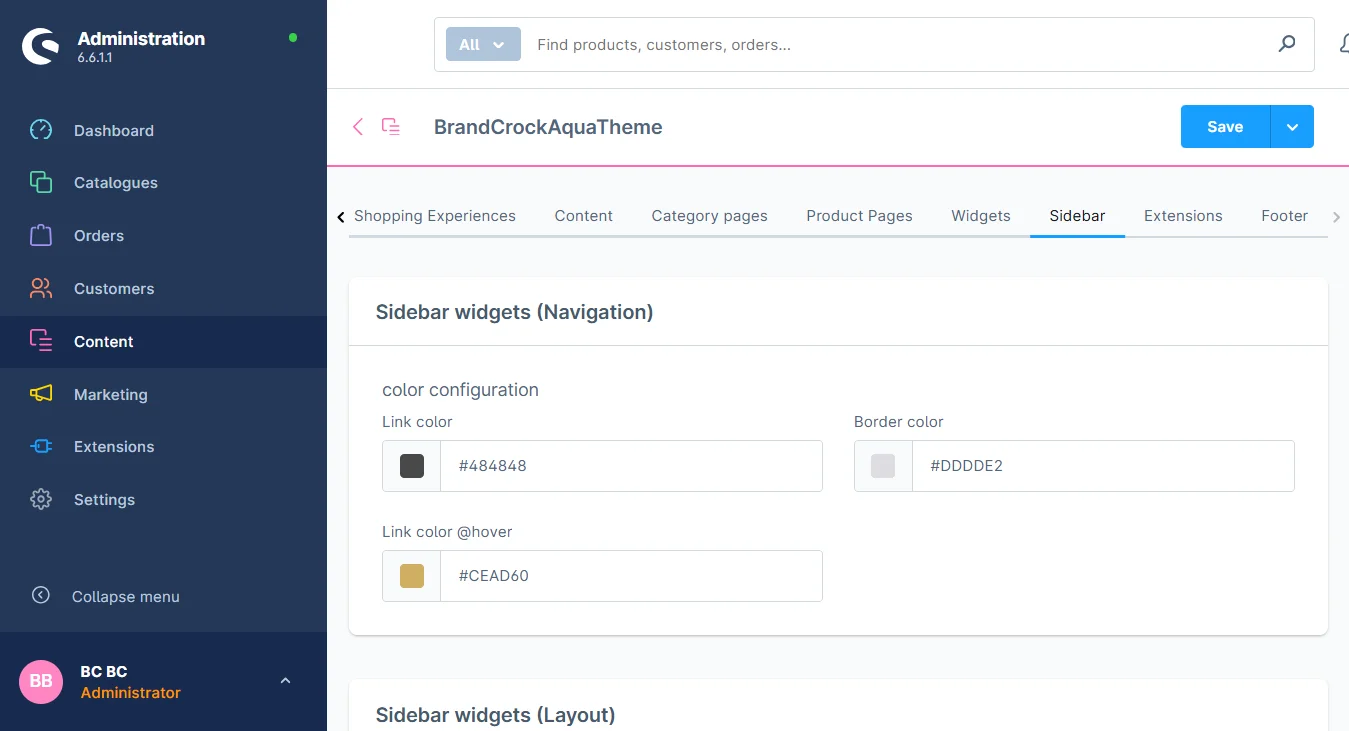
1- Sidebar navigation: You can change the navigation according to your desired theme
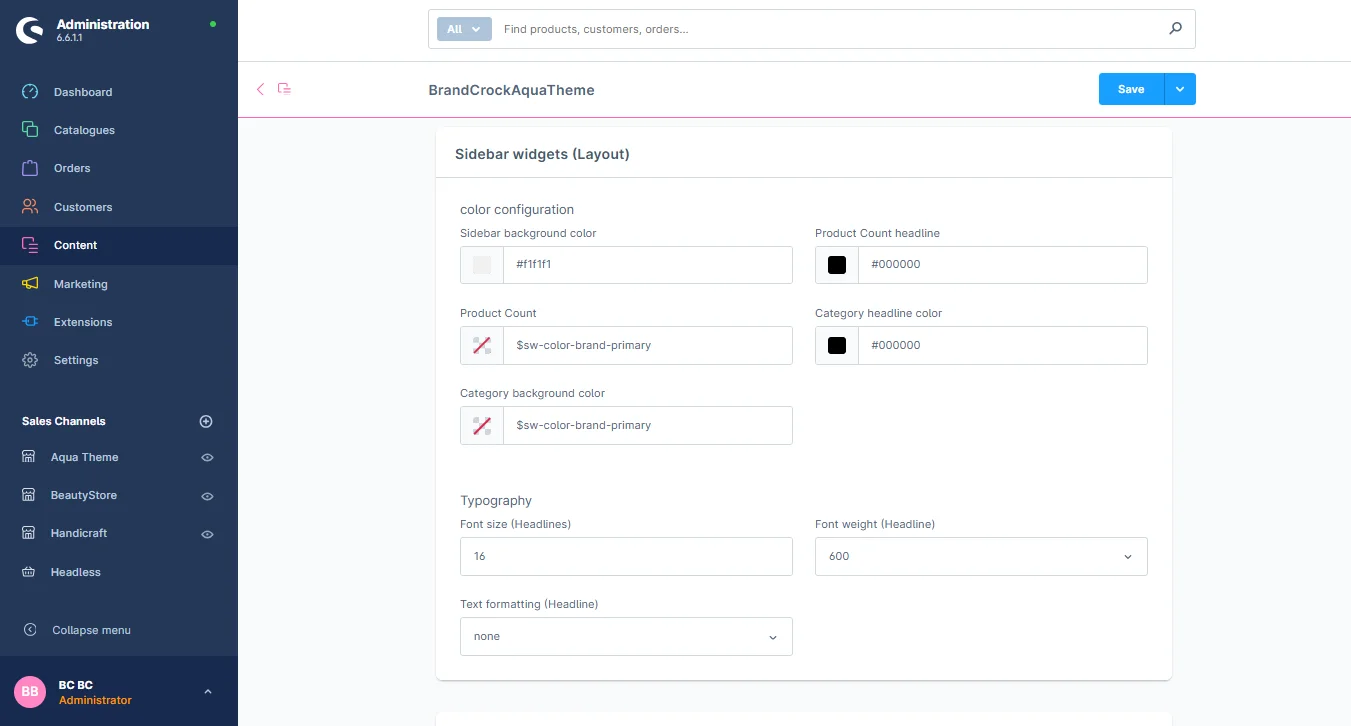
2- Sidebar layout: You can change the sidebar background color, link color, mouse hover link color, frame box color, and text size of the link
3- Sidebar filters: You can change the element color, border color, active color of the filter field, font size, and background color of the filter field
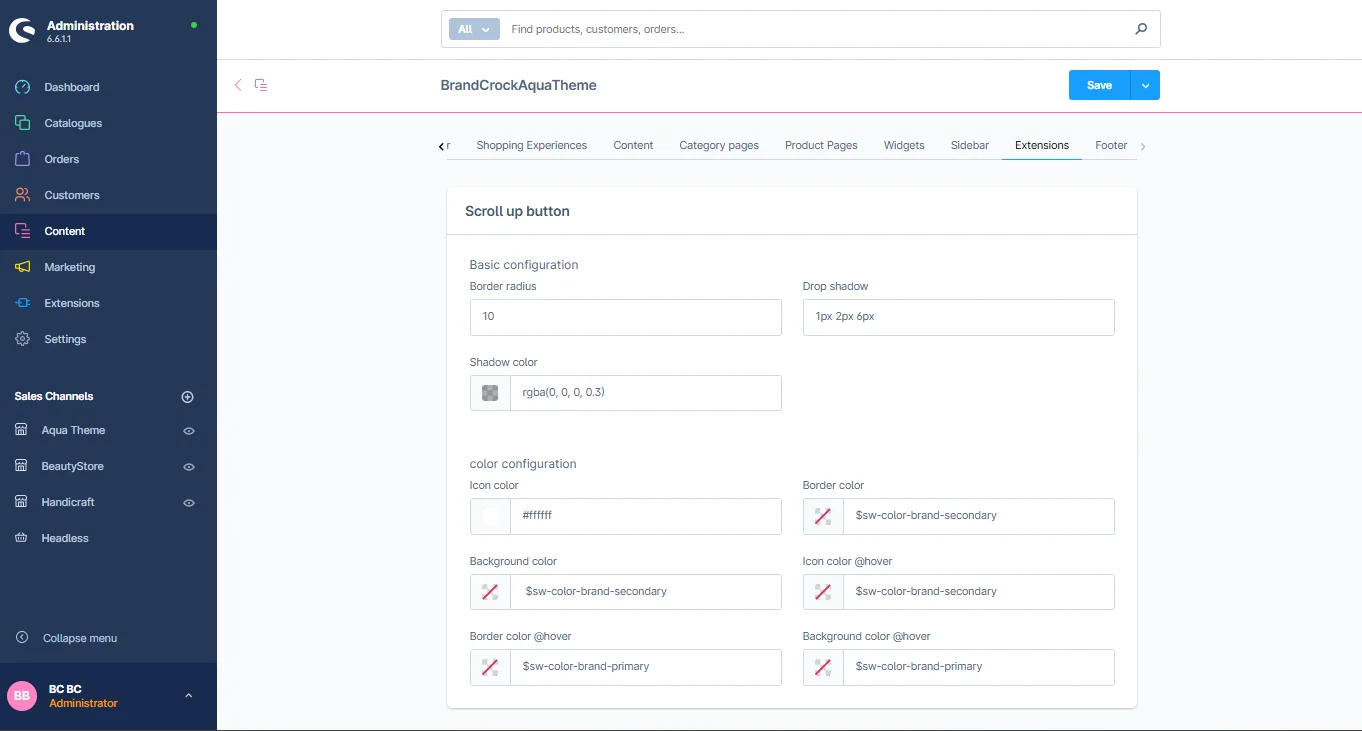
Extensions Configuration
1- Scroll Up Button: You can change the background Scroll-Up button color, mouse hover color, button icon color,shadow color and hover icon color
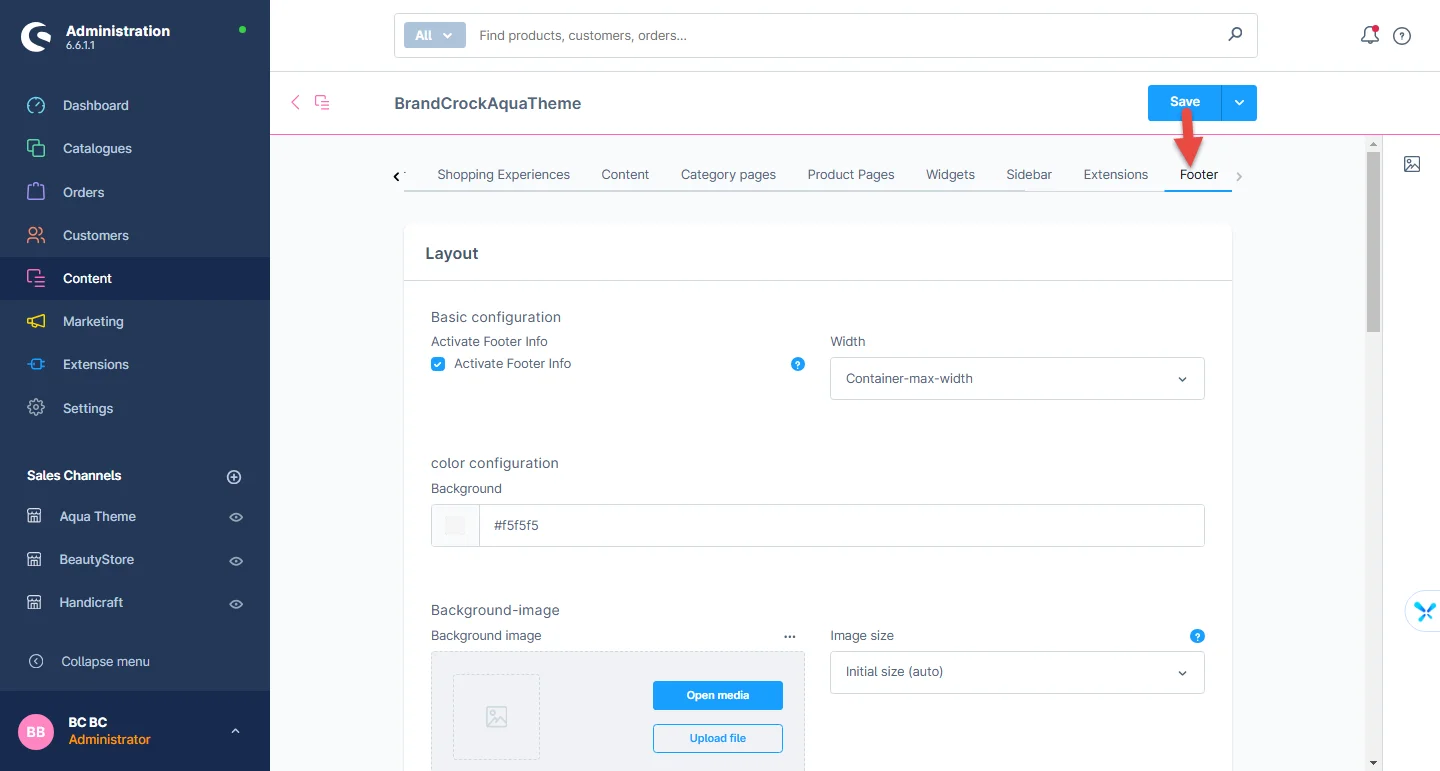
Footer Configuration
1- Open the Footer tab: Select the footer configuration from here
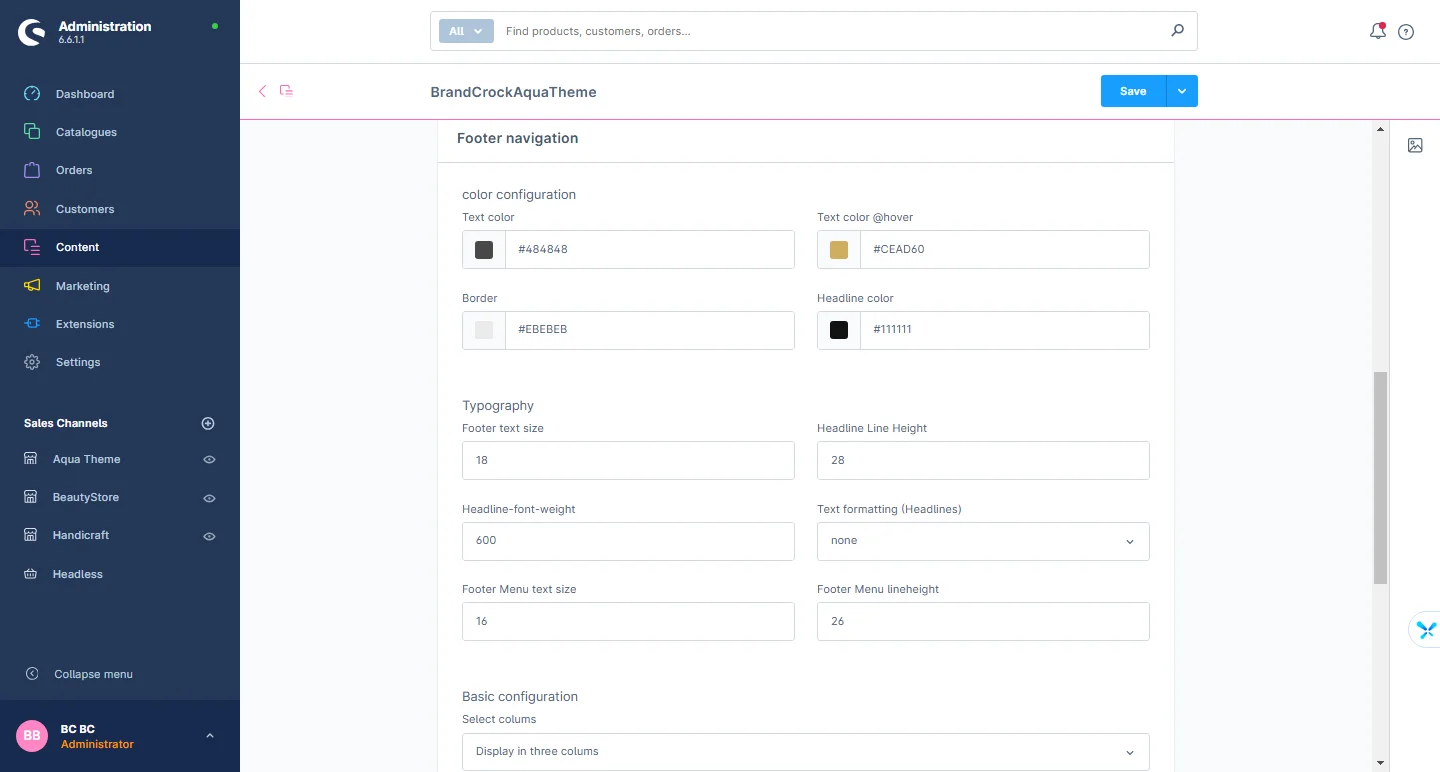
2- Footer Navigation: You can change the footer background color, link color, mouse hover link color, frame box color, and text size of the link
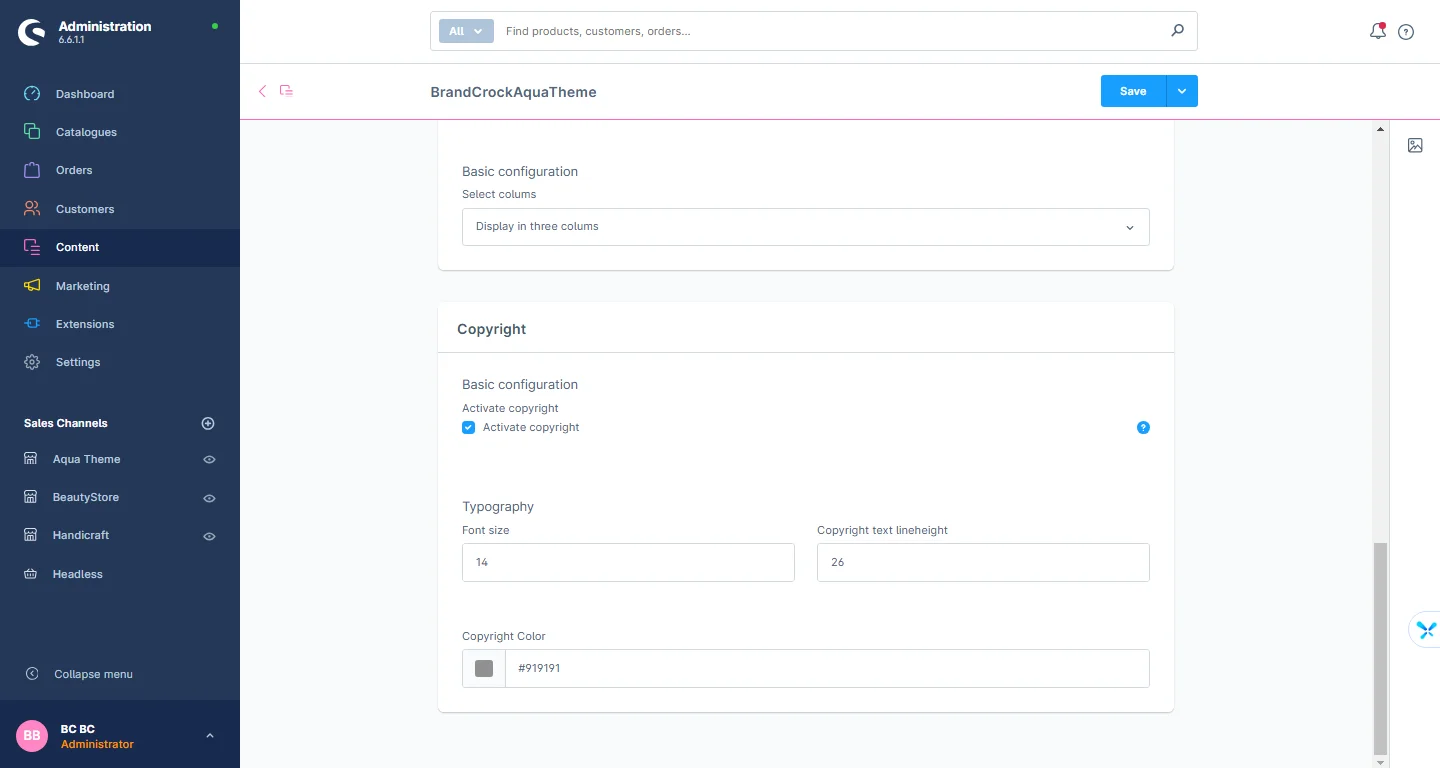
3- Footer Copyright: You can change font size, line height, and color
How to create the shopping world
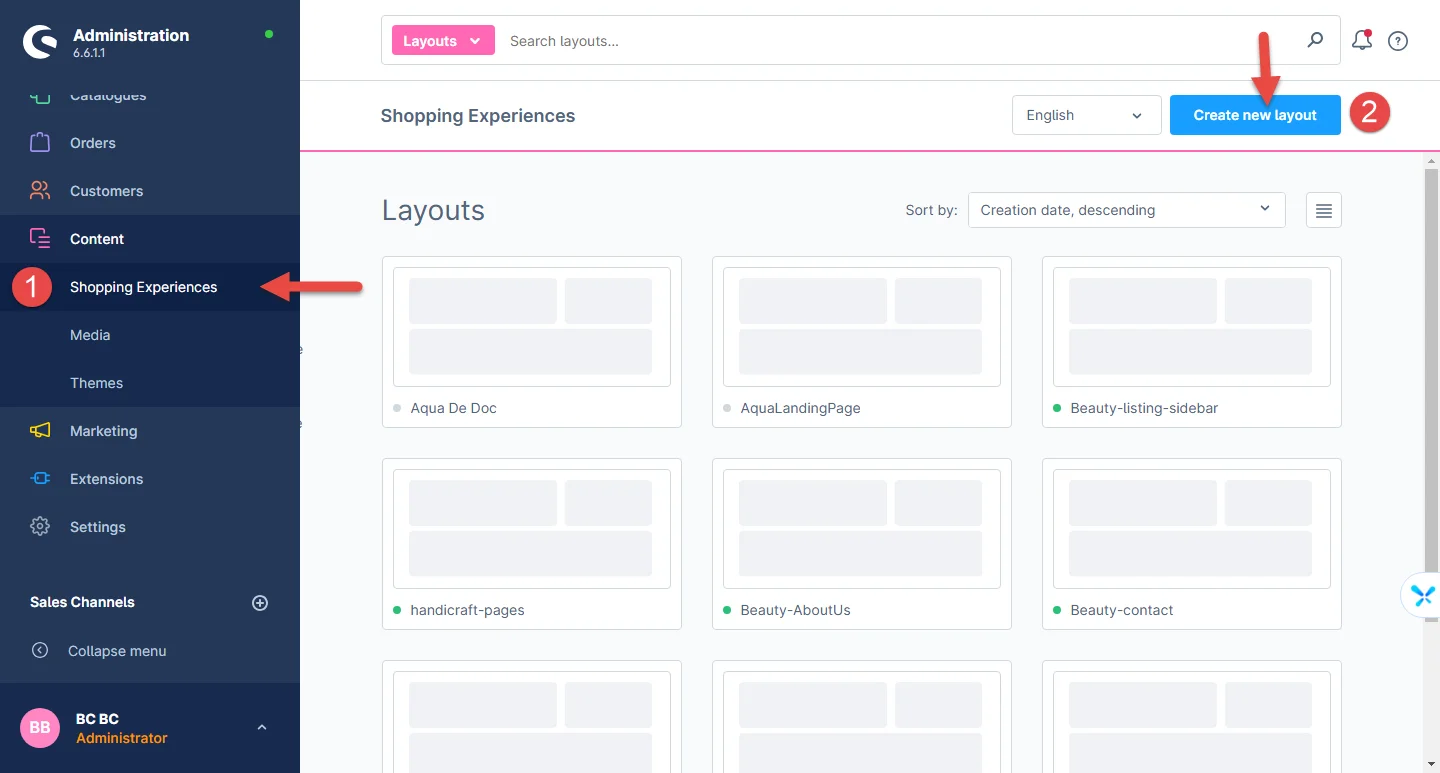
1- In the administration dashboard, go to Shopping Experience and click the Create new layout button.
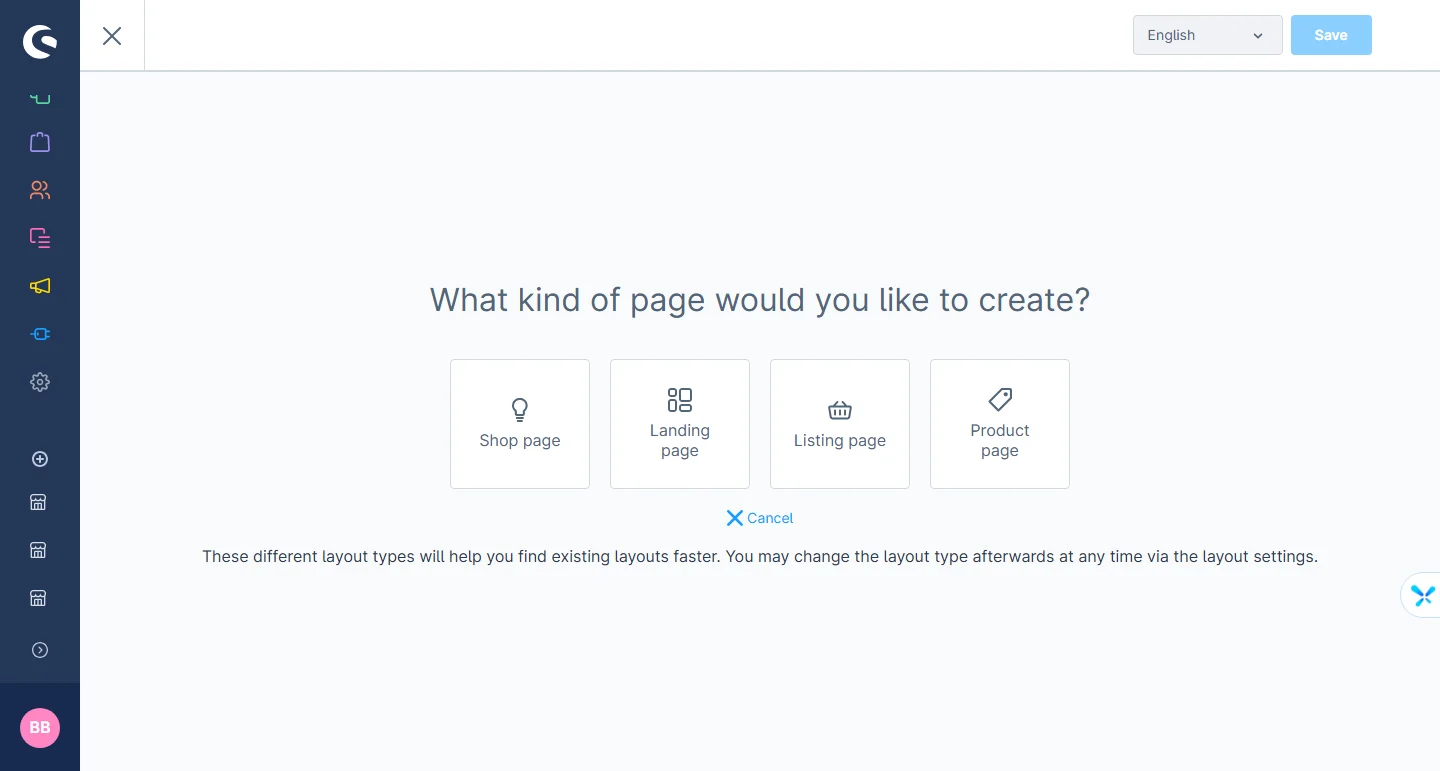
2- Select Landing page or any other layout type of your choice.
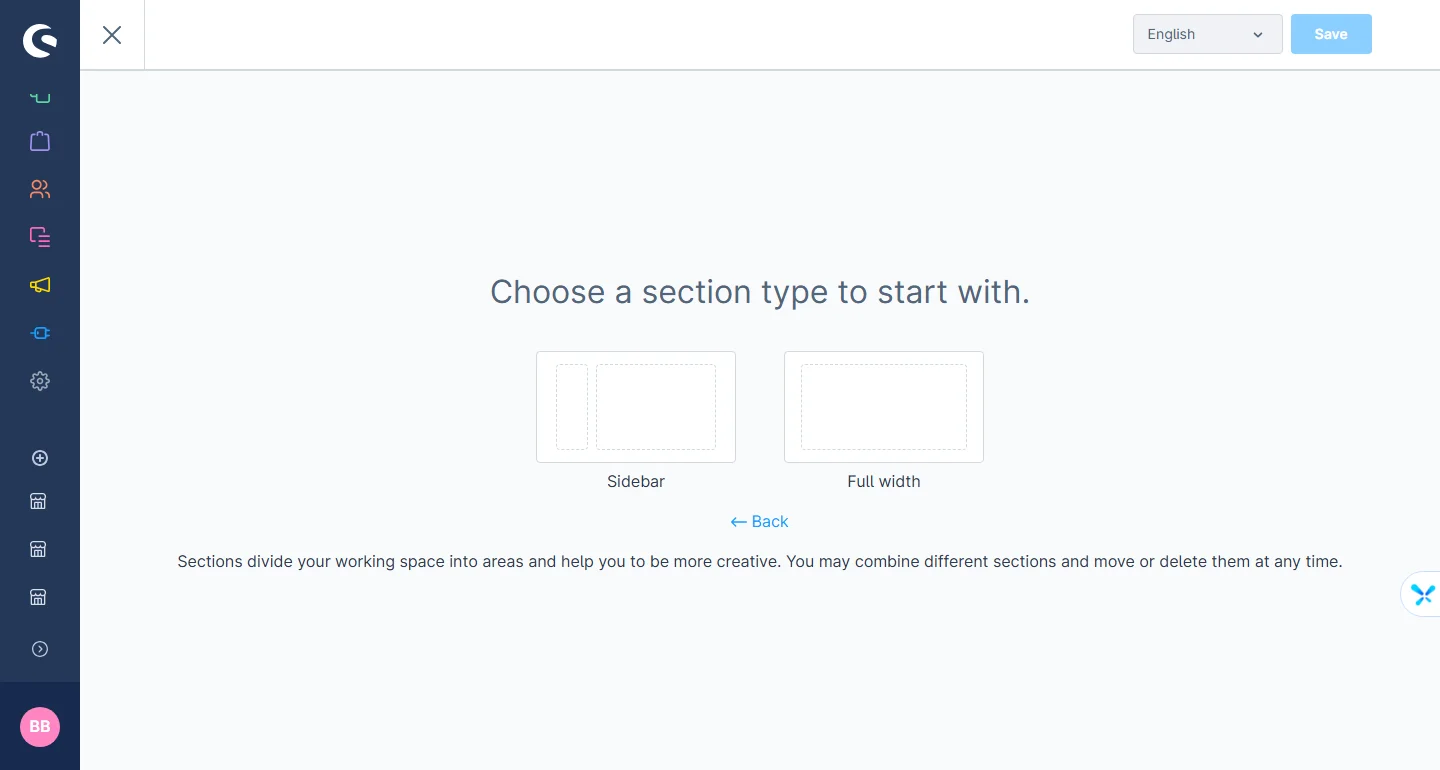
3- Select the desired section type
4- Now set the layout name and click on the Create Layout button.
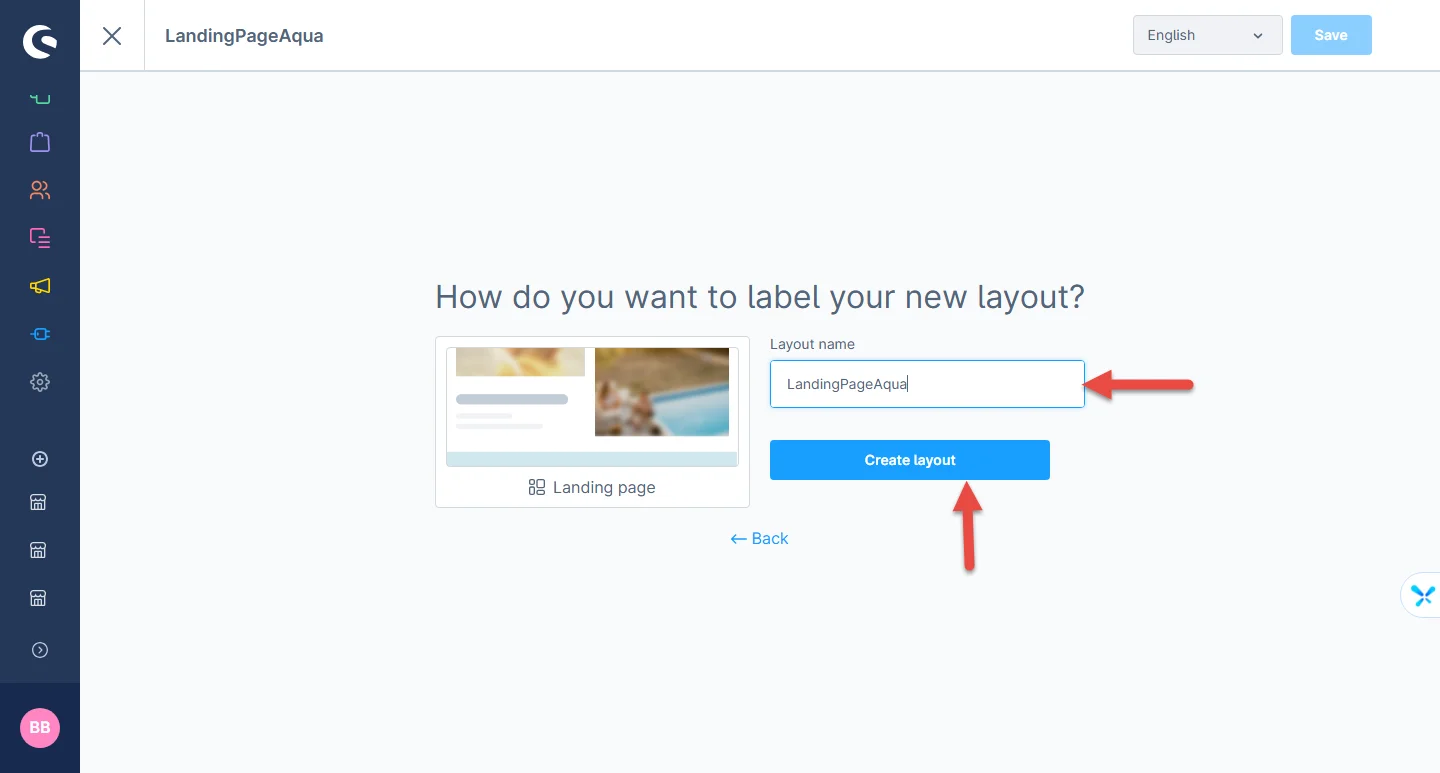
5- After creating your layout, go to Catalogues -> Categories and click on the category you need to assign the previously created layout.
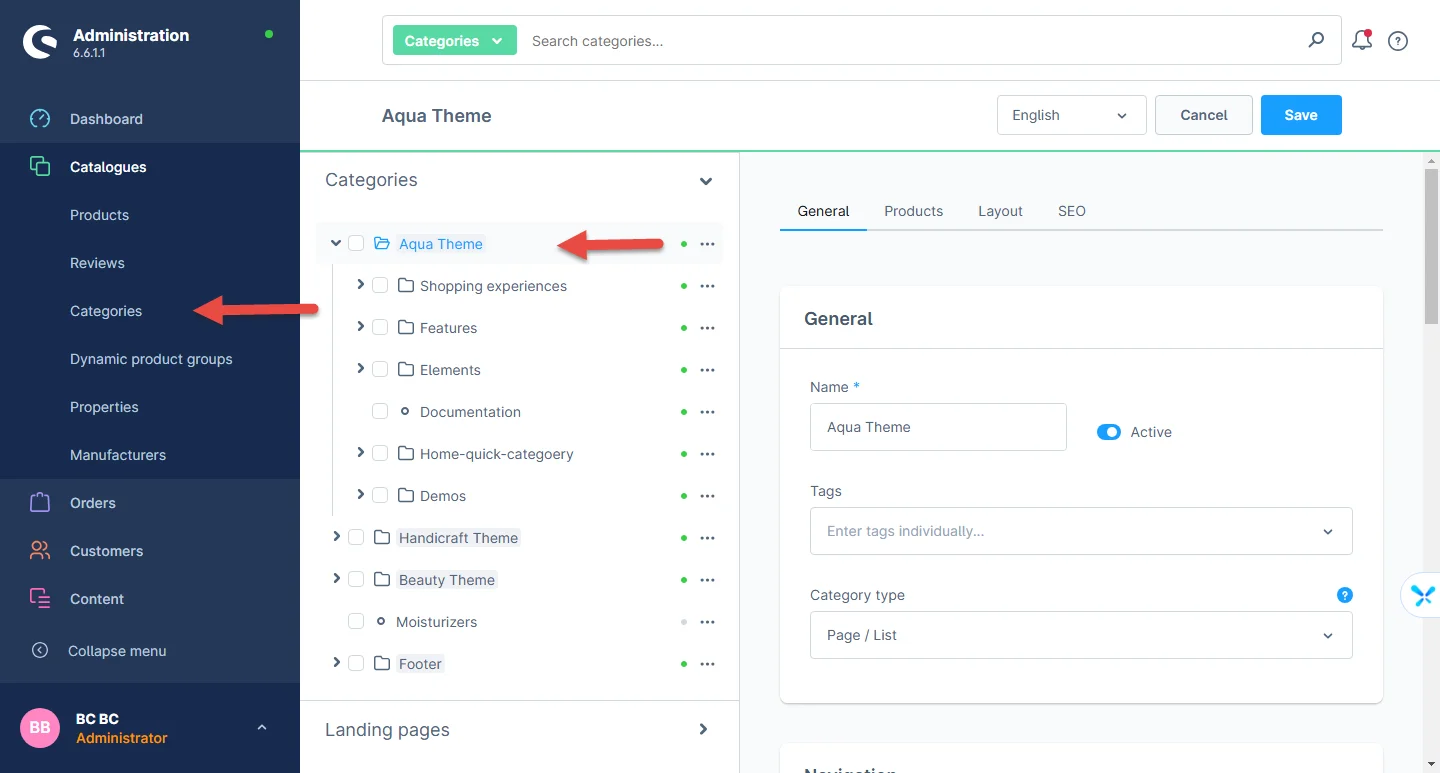
6- Now select the layout tab and click on the change layout button.
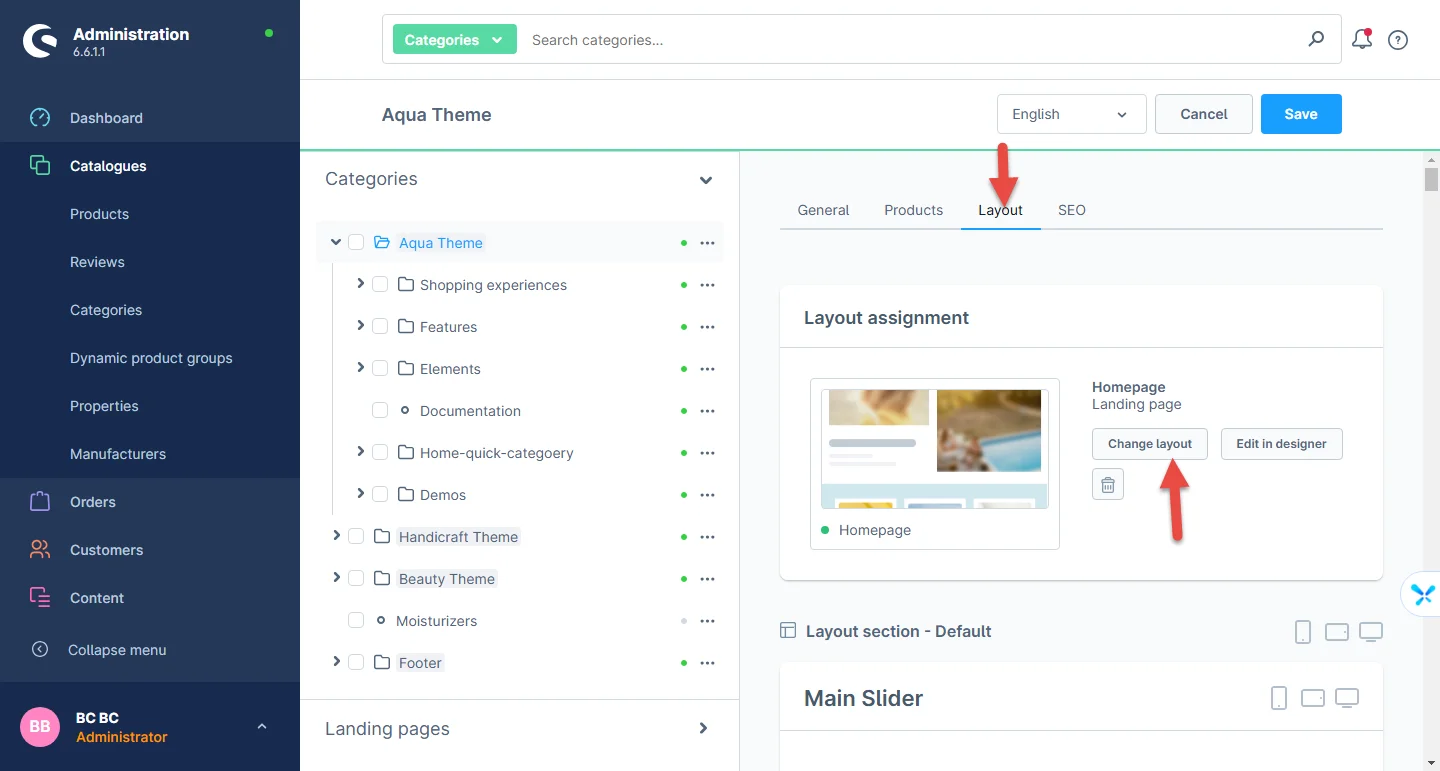
7- Select the recently created layout and hit the save button. You can also search the layout name if it is not initially visible.
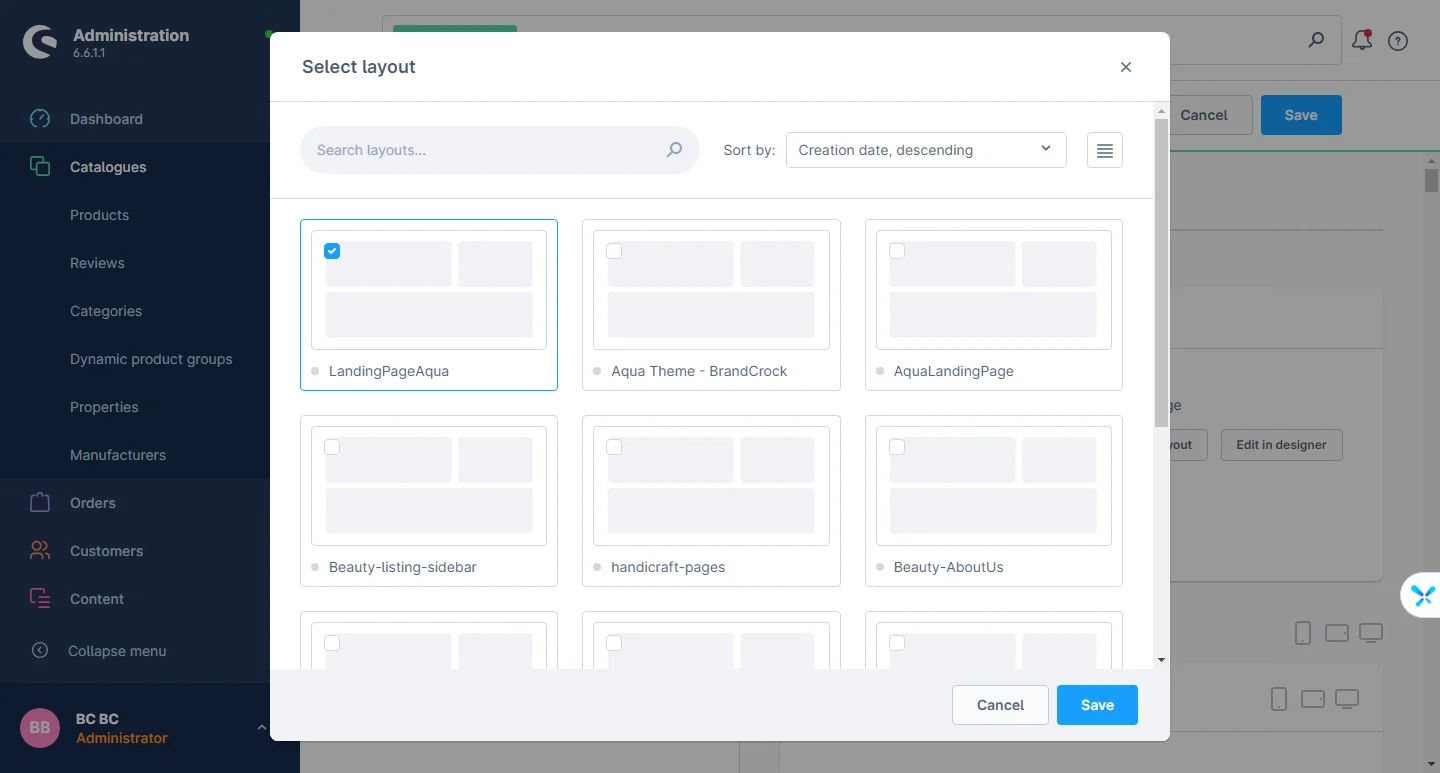
8- After assigning the layout now you can save the category settings.
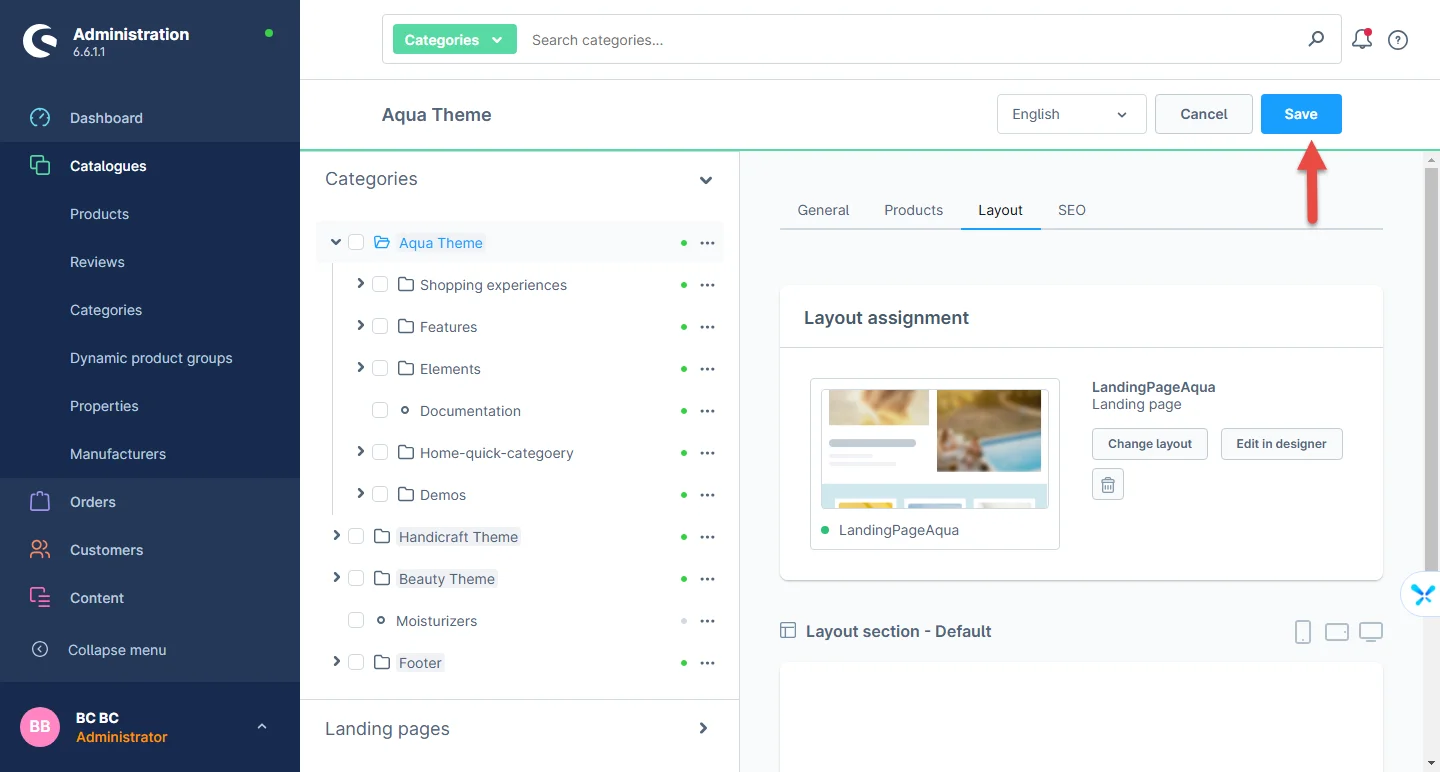
Hence the applied changes will be visible at the storefront.
Main Slider
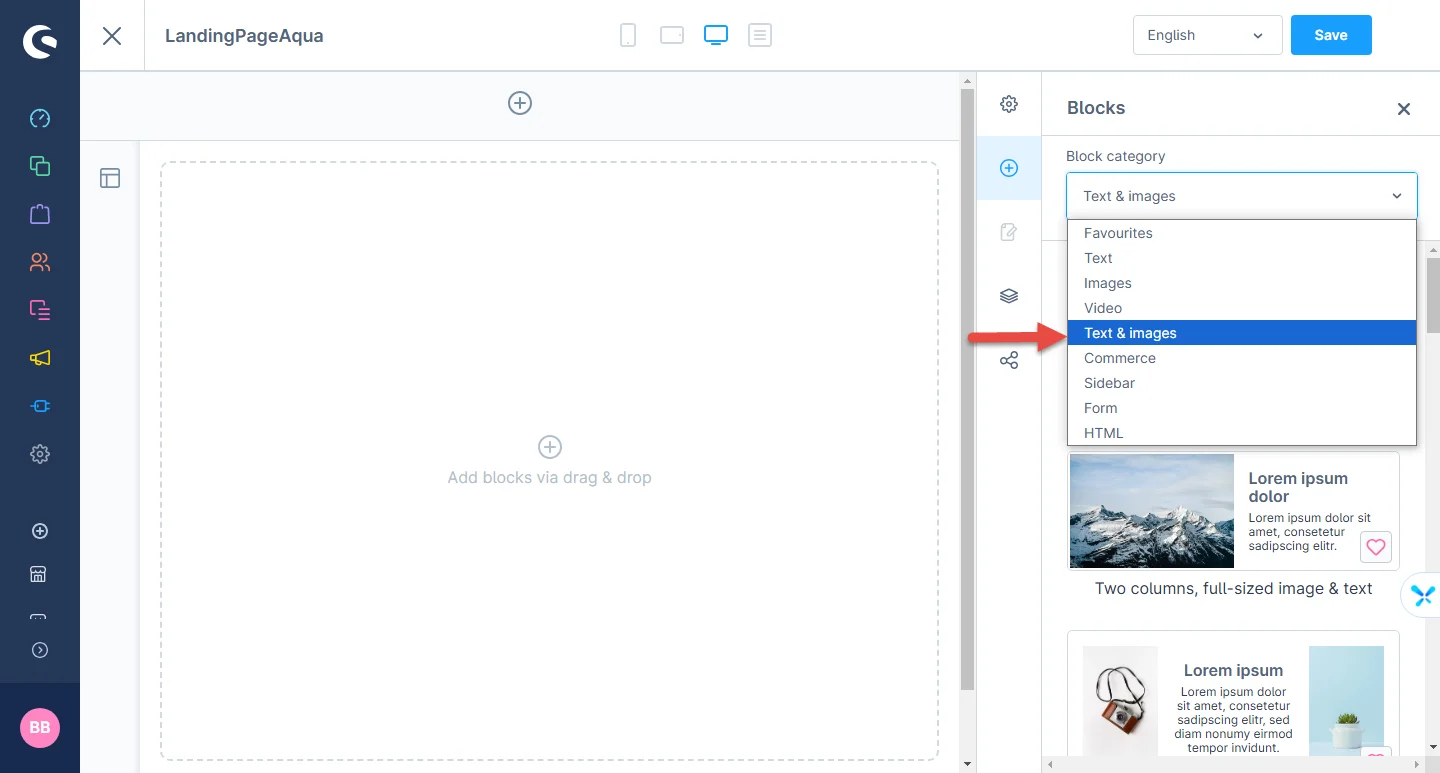
1- Shopping Experience: navigate to the block category and select Text and Images from the dropdown menu.
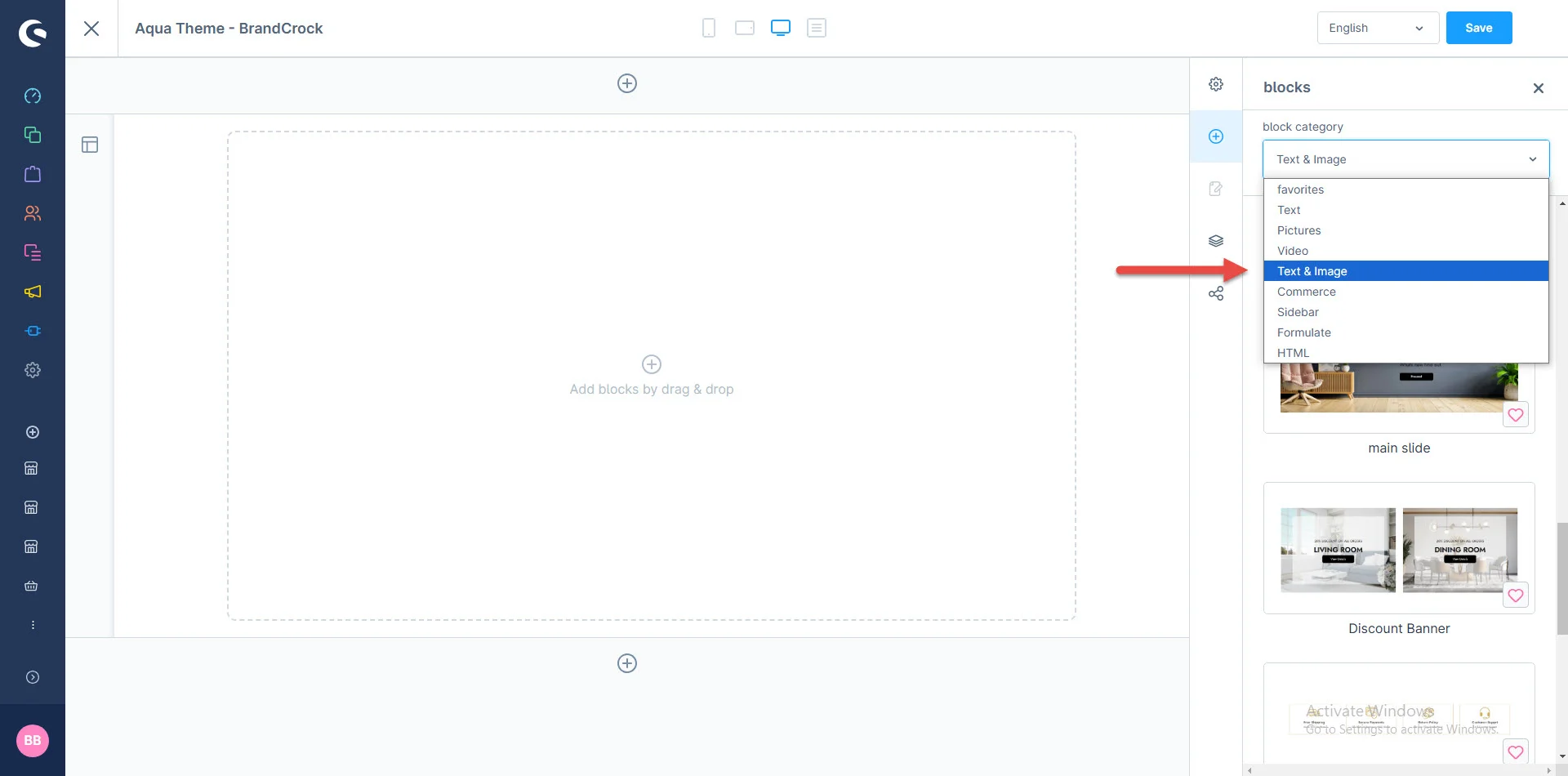
2- Now drag the SEO slider widgets and drop them to the left side in the CMS section you want.
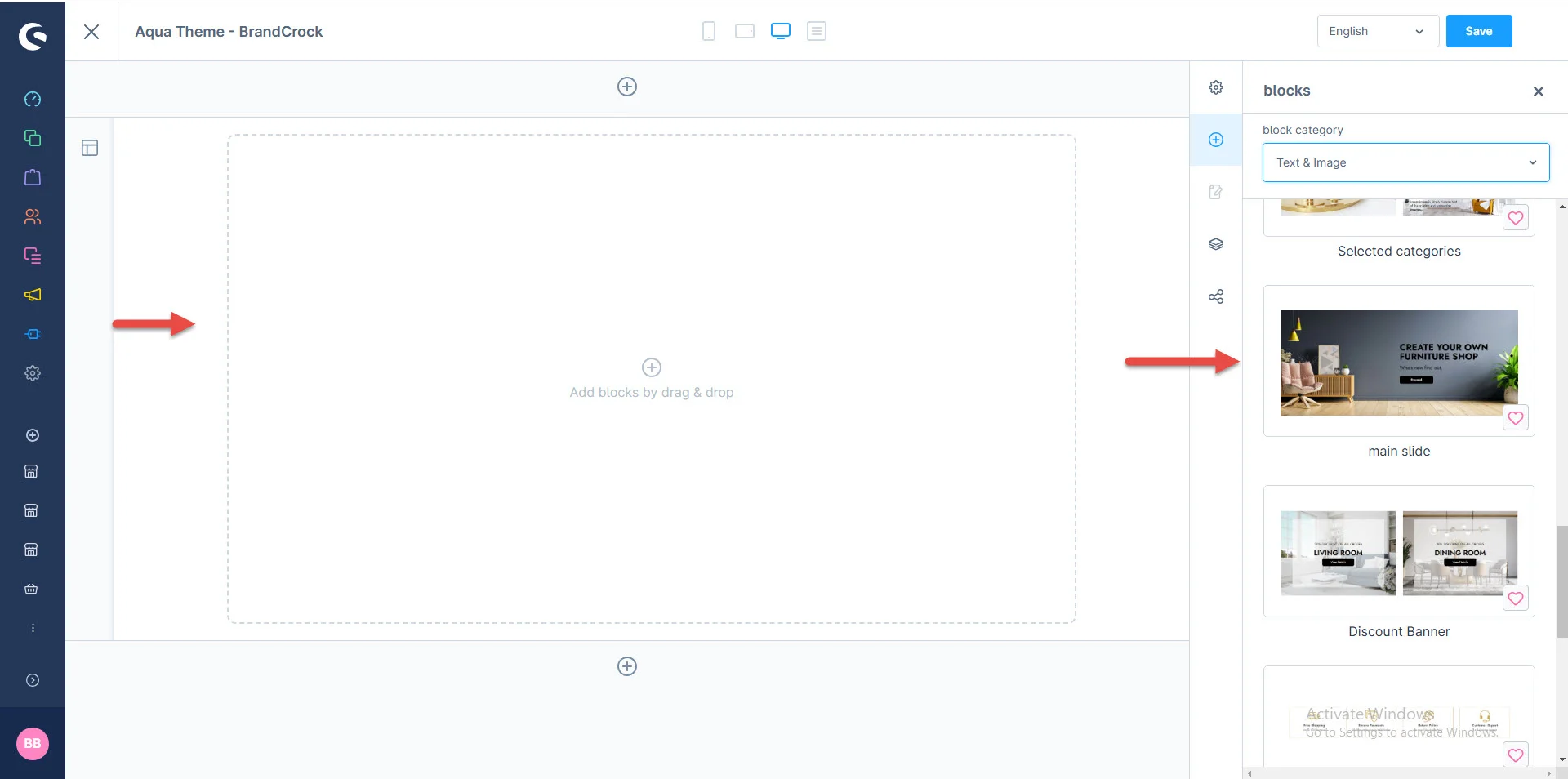
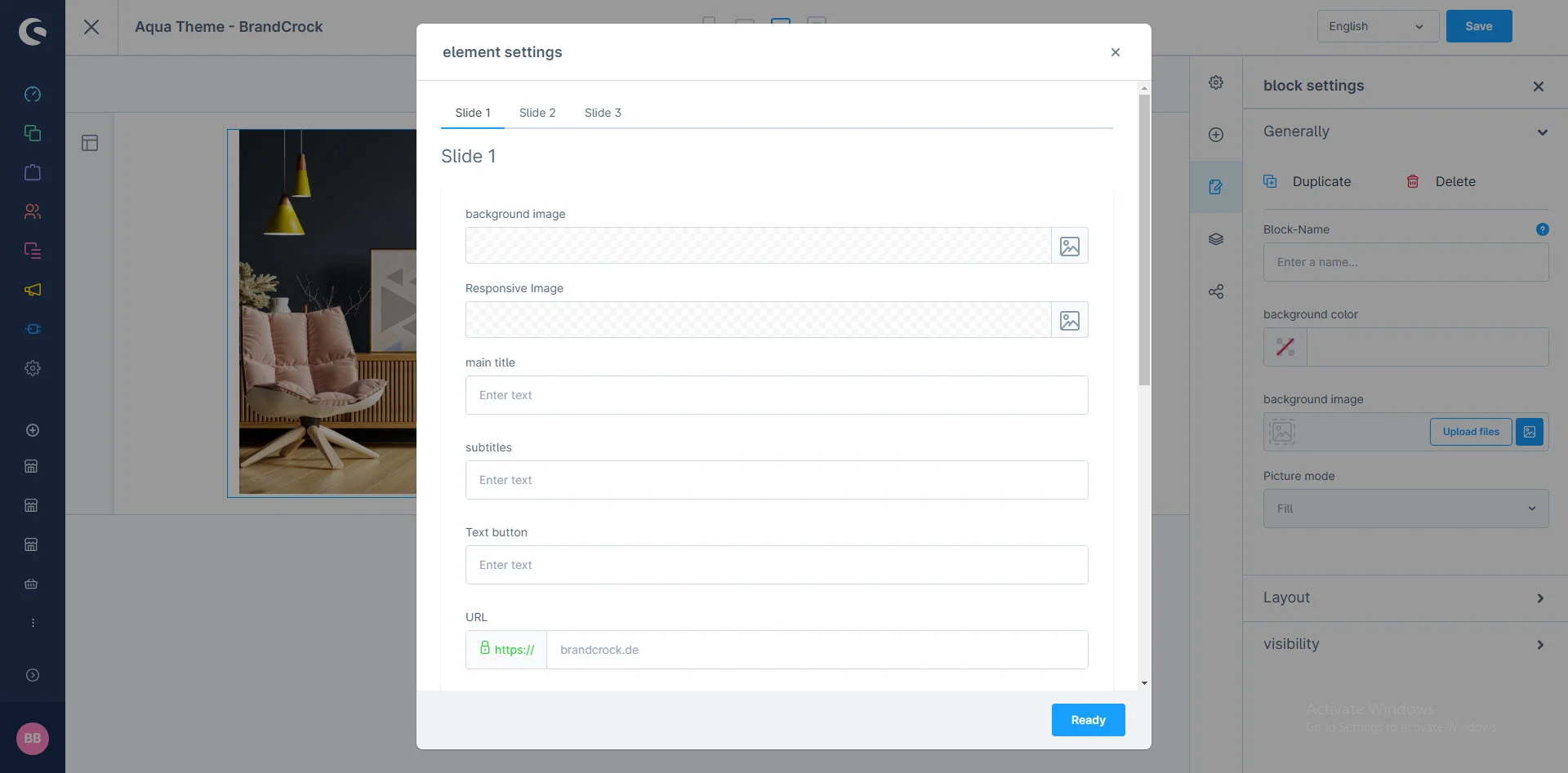
3- After dropping the widget, click the setting icon to open element configurations.
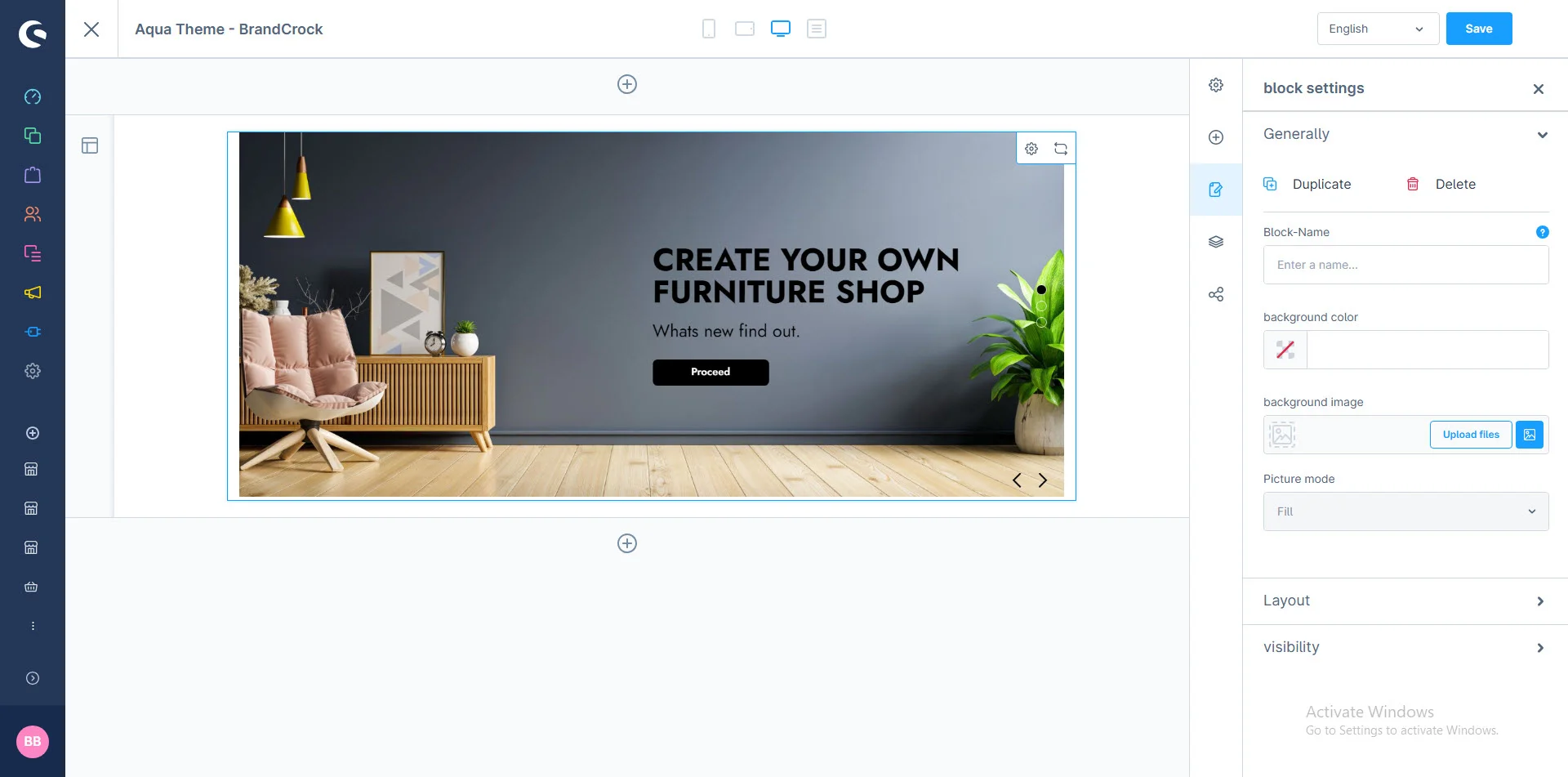
4- In element configurations: You can add the Background image, Main Title, Subtitle, Text button, Text image, and URL here
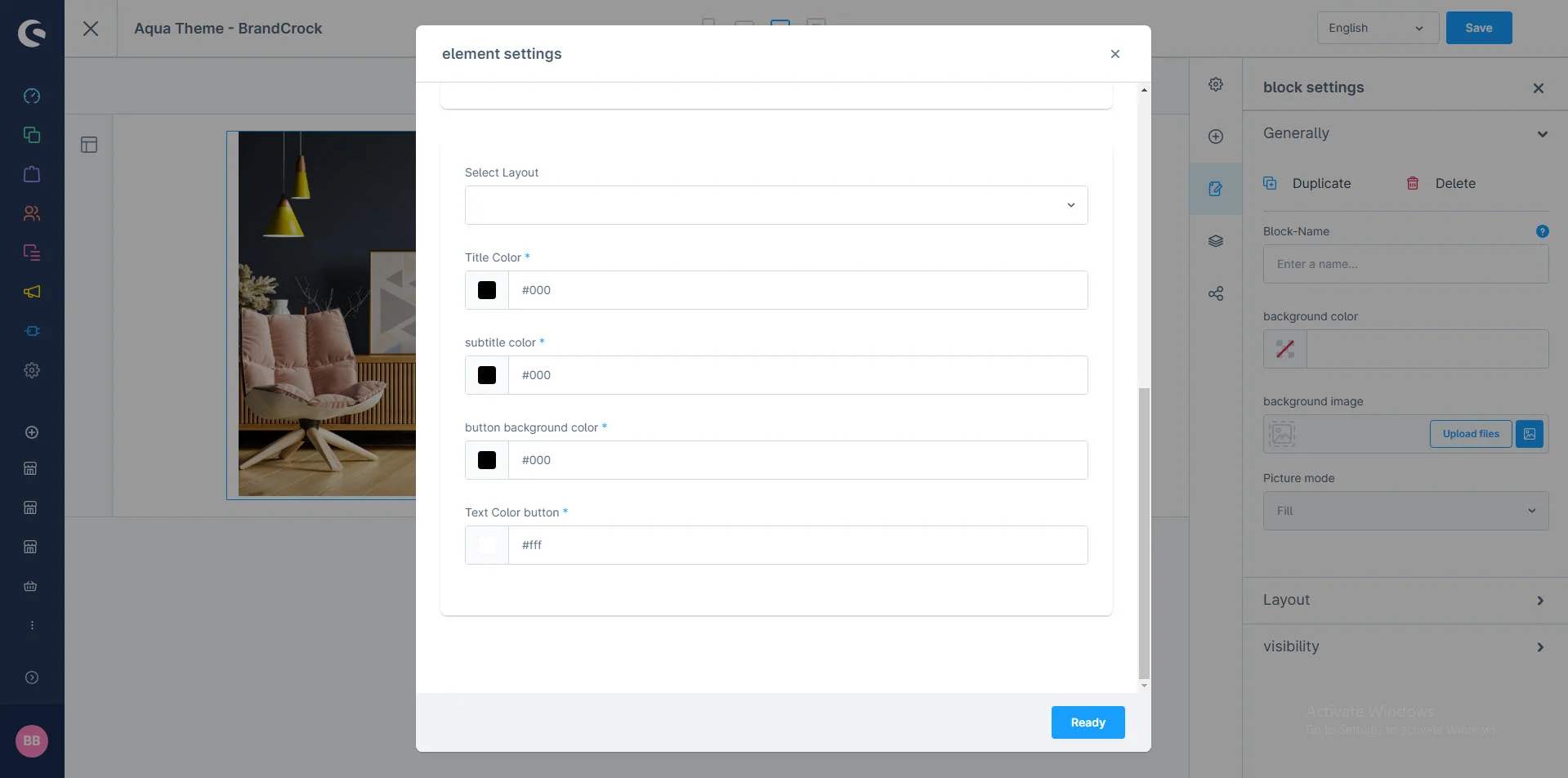
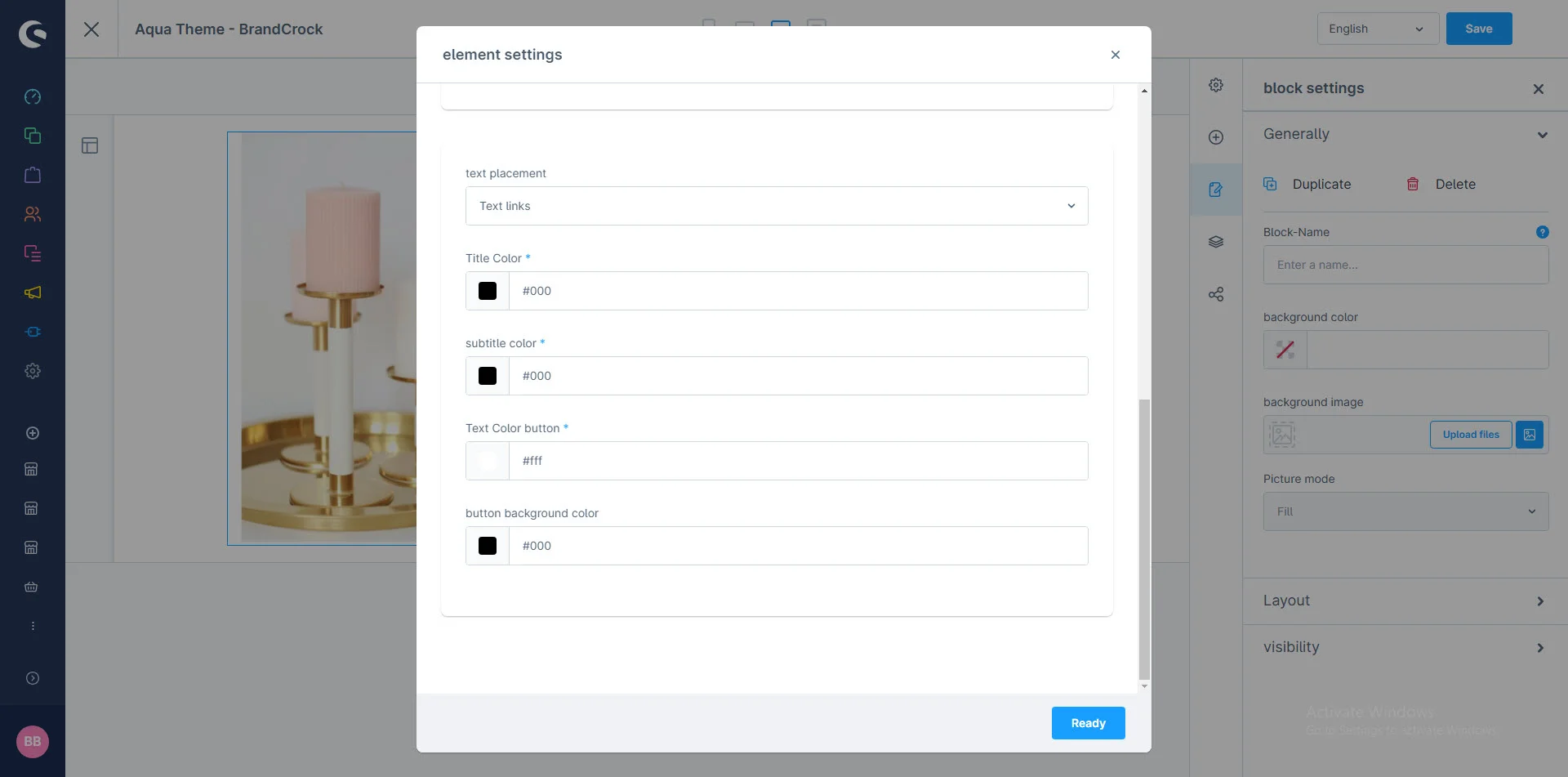
5- After that: You can select the drop-down for text layout, title color, subtitle color background color button, and text color button
Category Teaser
1- Shopping Experience: navigate to the block category and select Text and Images from the dropdown menu.
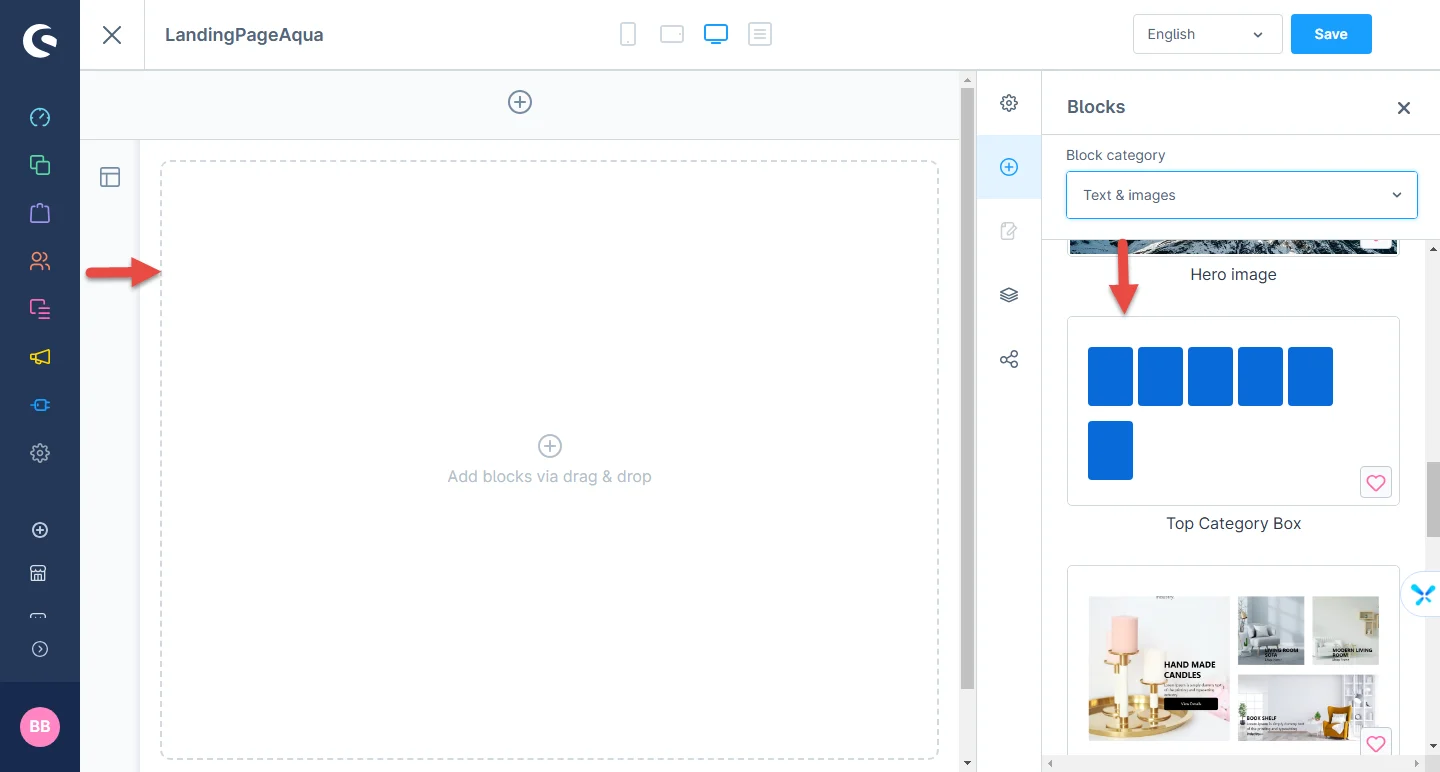
2- Now drag the category widgets and drop them to the left side in the CMS section you want.
3- After dropping the widget: Click the setting icon to open element configurations.
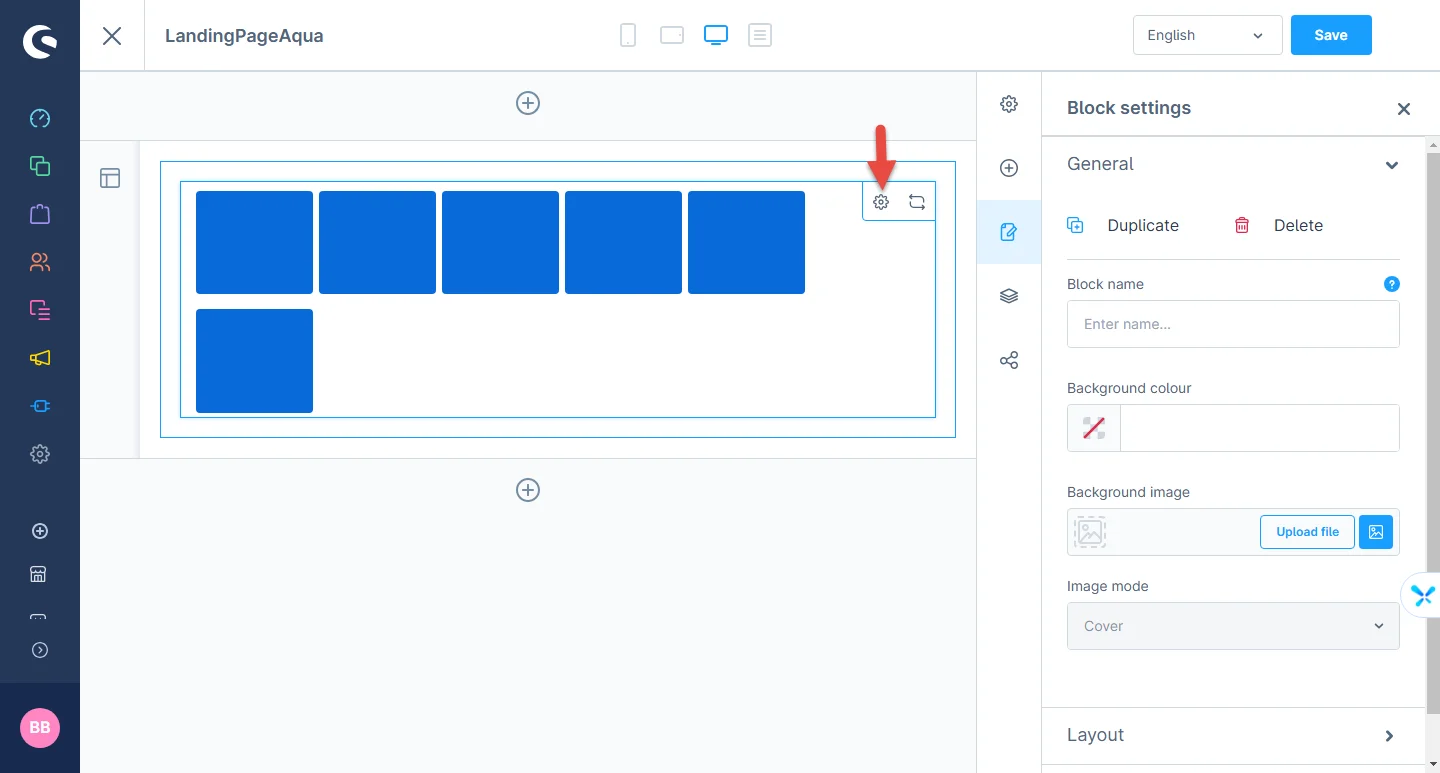
4- In element configurations: You can select the category here and choose your desired categories to create slider
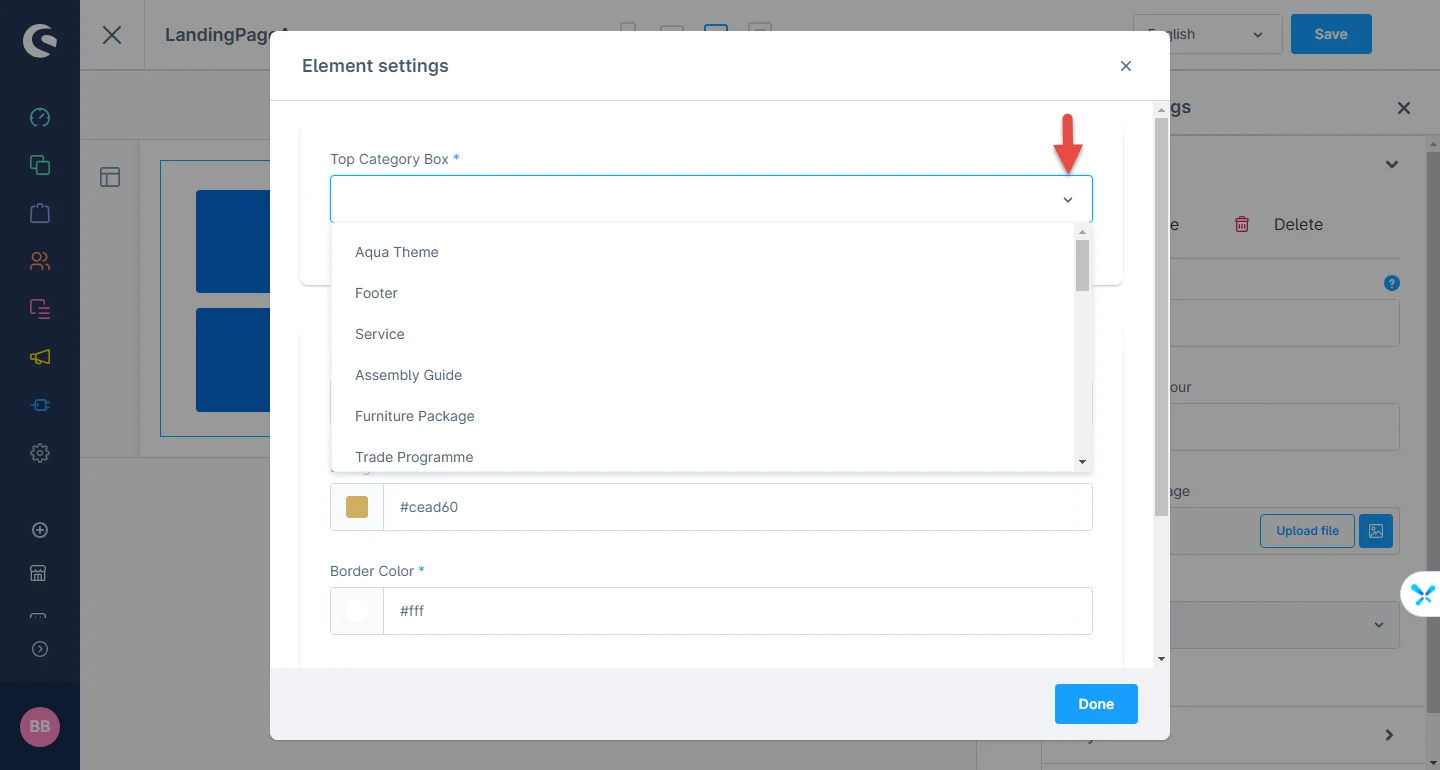
5- After that: You can select the layout here and choose your desired layer rounded and box shape
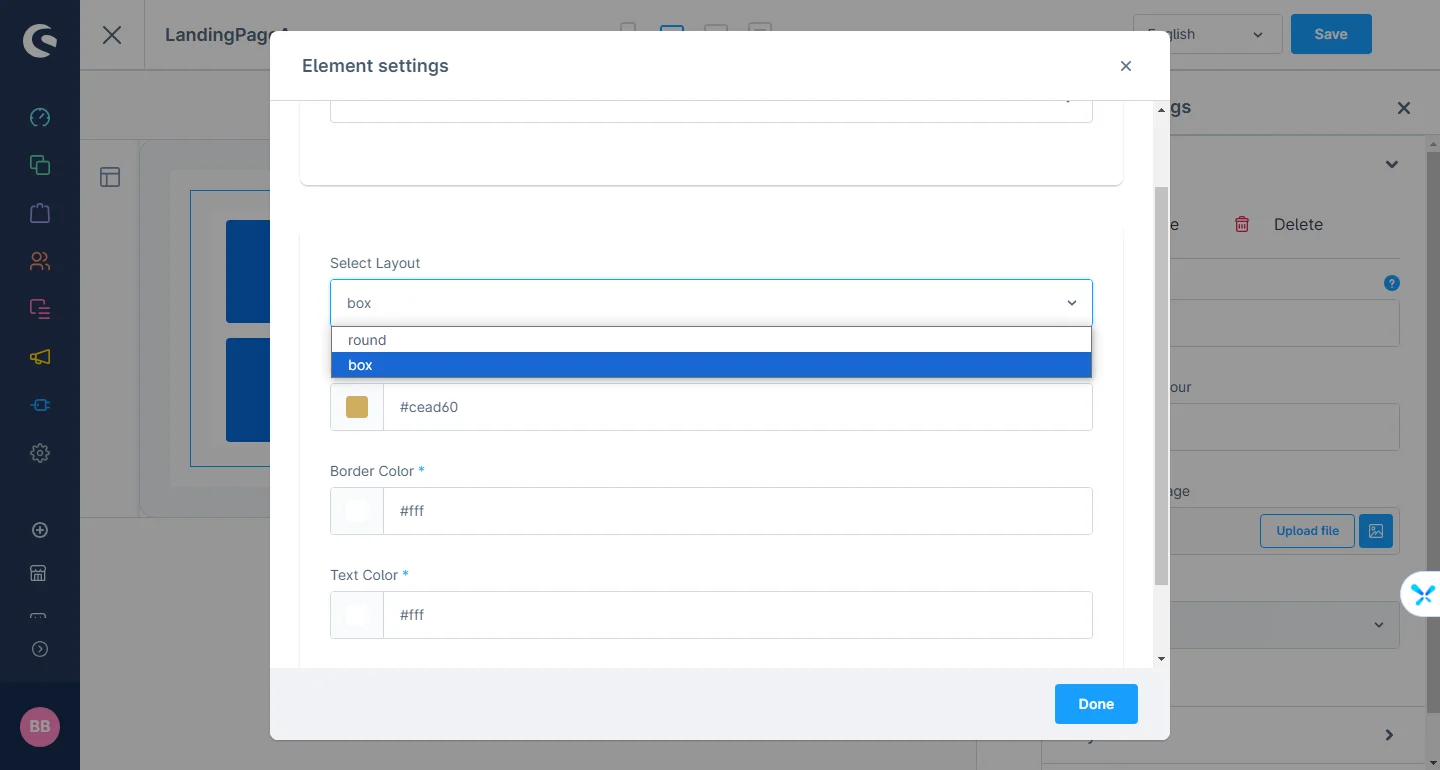
6- After that: You can change the background and text color here
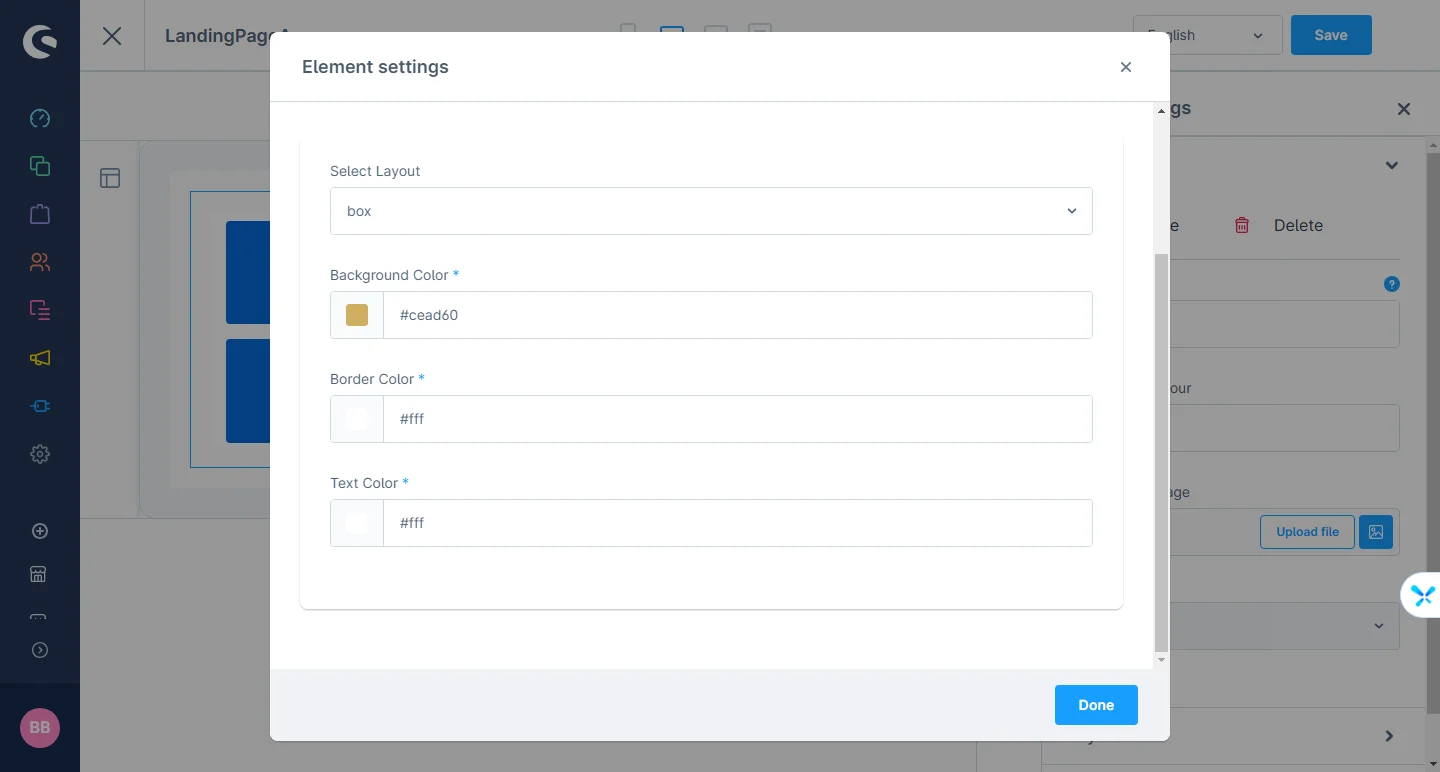
After saving the configurations of the CMS page, this block will be visible in the storefront at the respective layout.
Feature SEO 4-Column Grid Layout
1- Shopping Experience: navigate to the block category and select Text and Images from the dropdown menu.
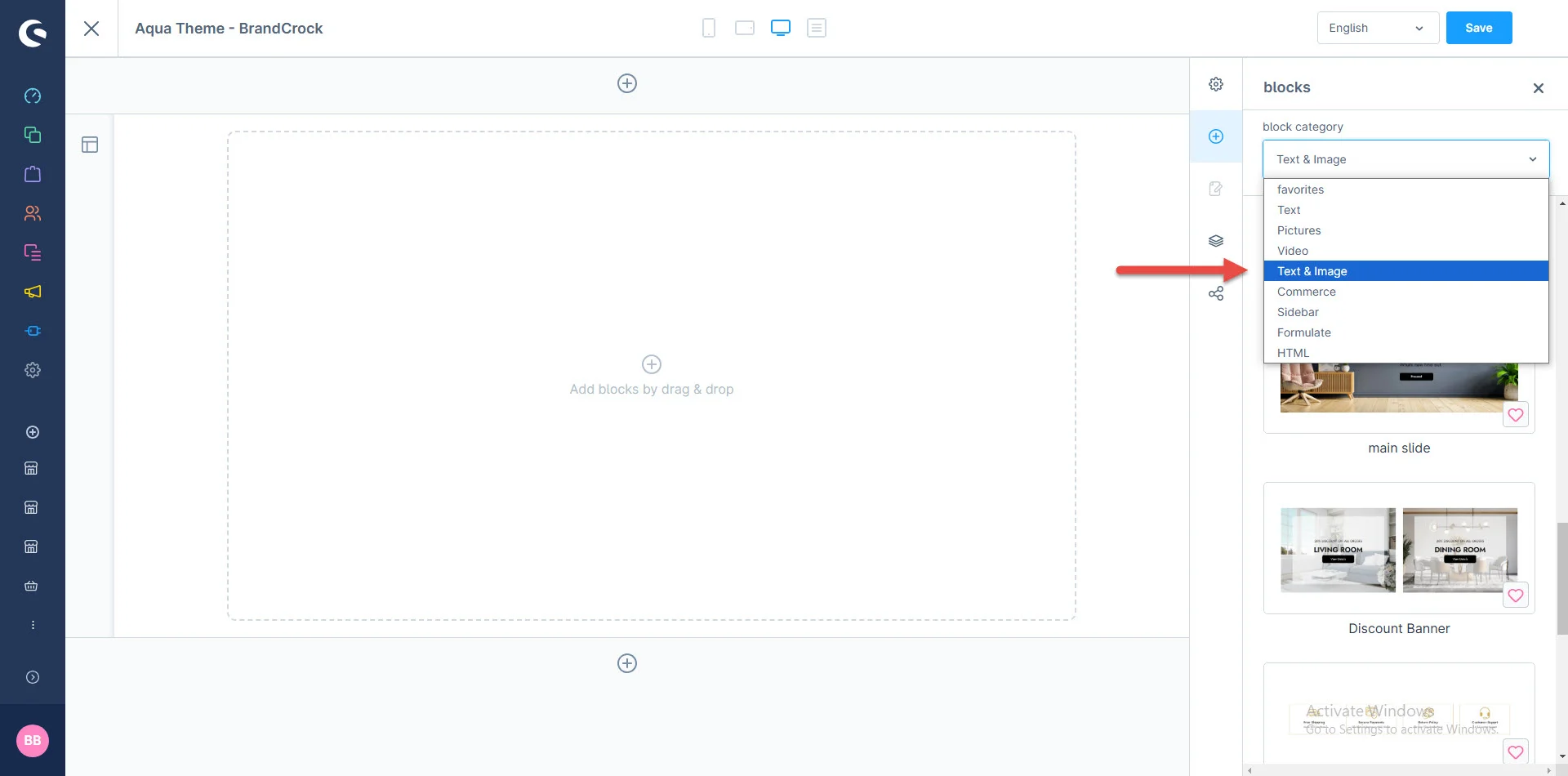
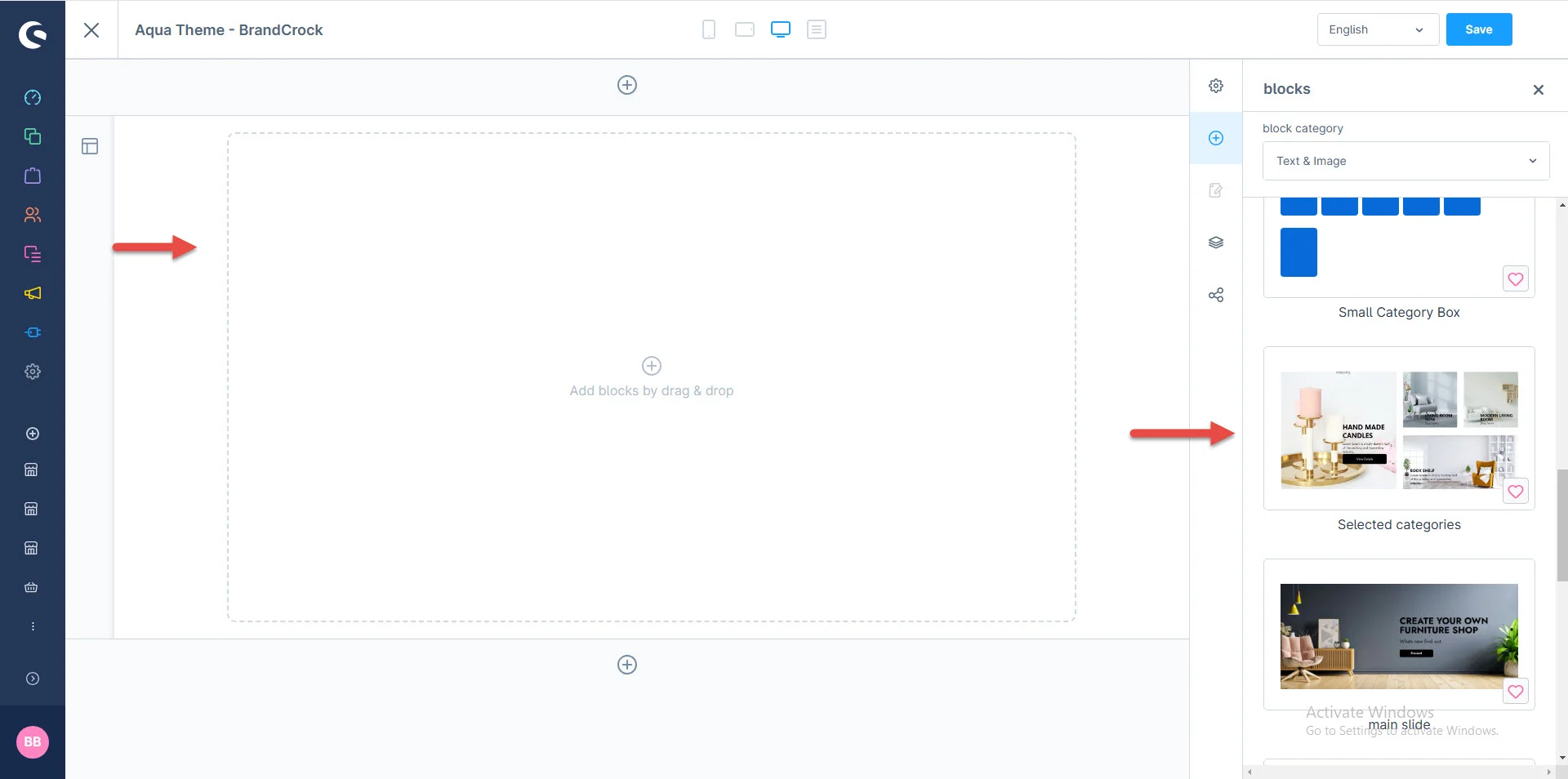
2- Now drag the widget and drop it to the left side in the CMS section you want.
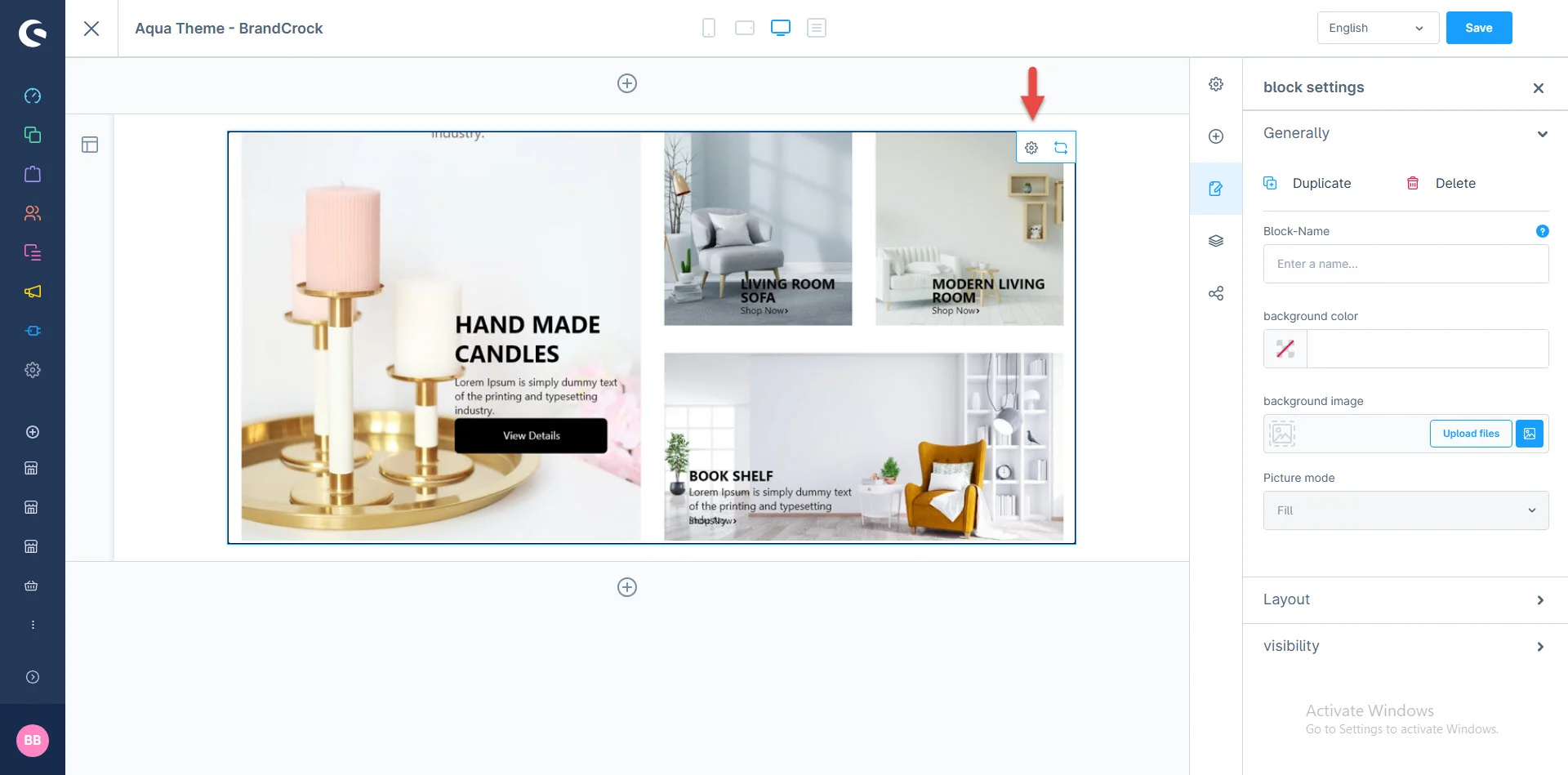
3- After dropping the widget: Click the setting icon to open element configurations.
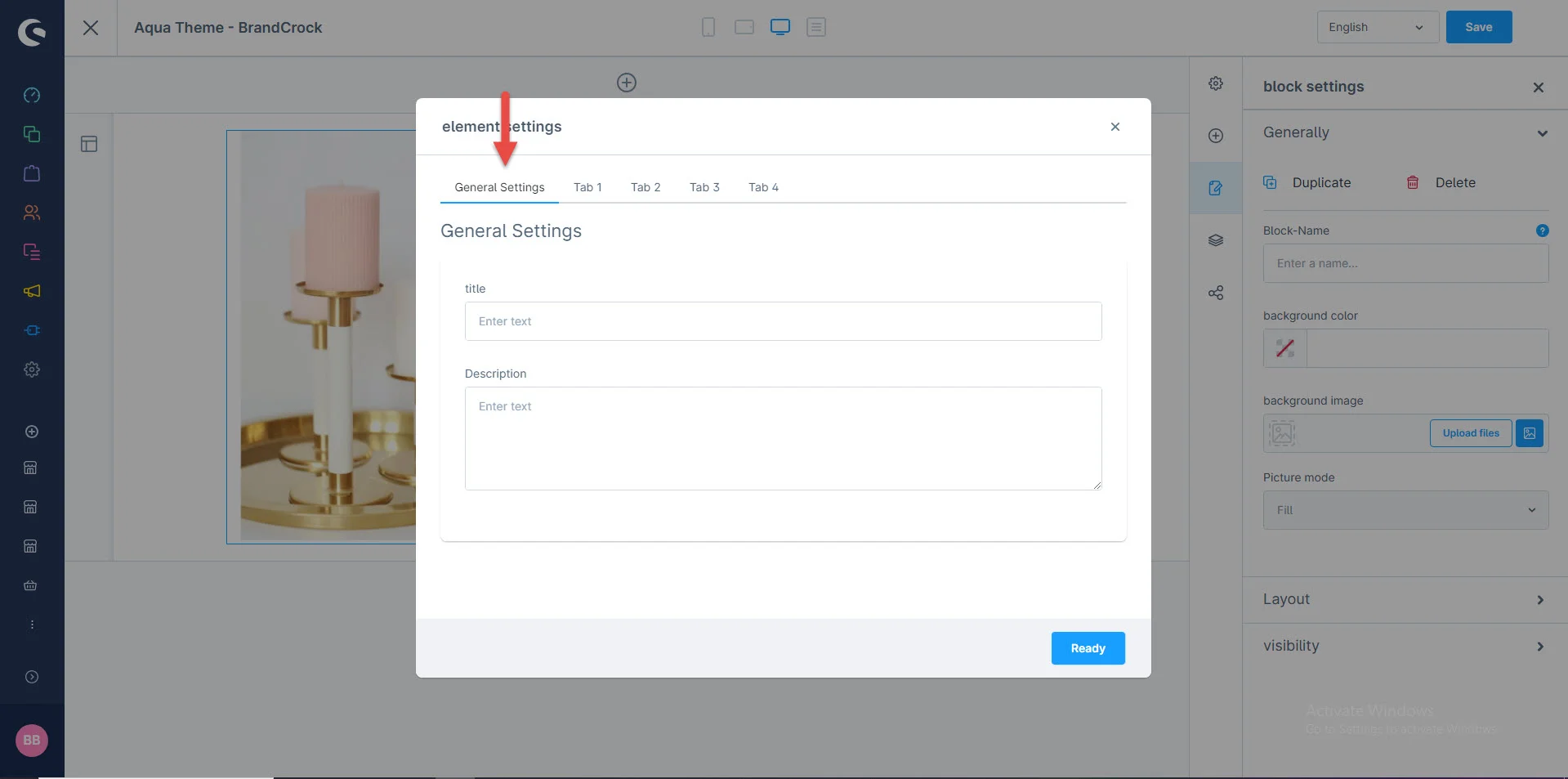
4- In element configurations: You can edit the widget title and description in general settings.
5- After that: You can add the title, you can edit the first grid, and change the background image, title, and description
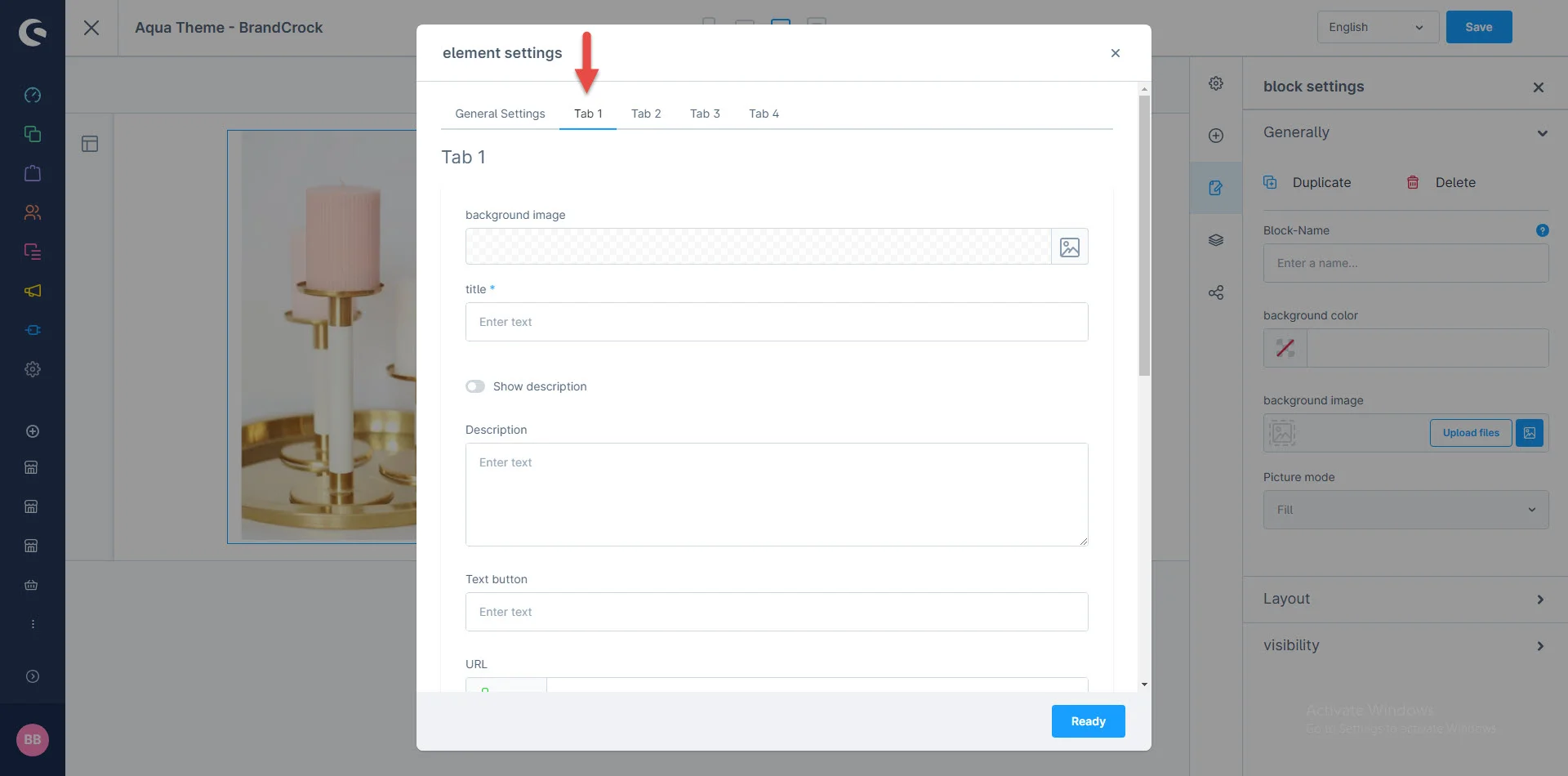
6- You can add the text button: URL, Title and Subtitle Color, Text and Background color button
7- You can follow the same procedure for other tabs
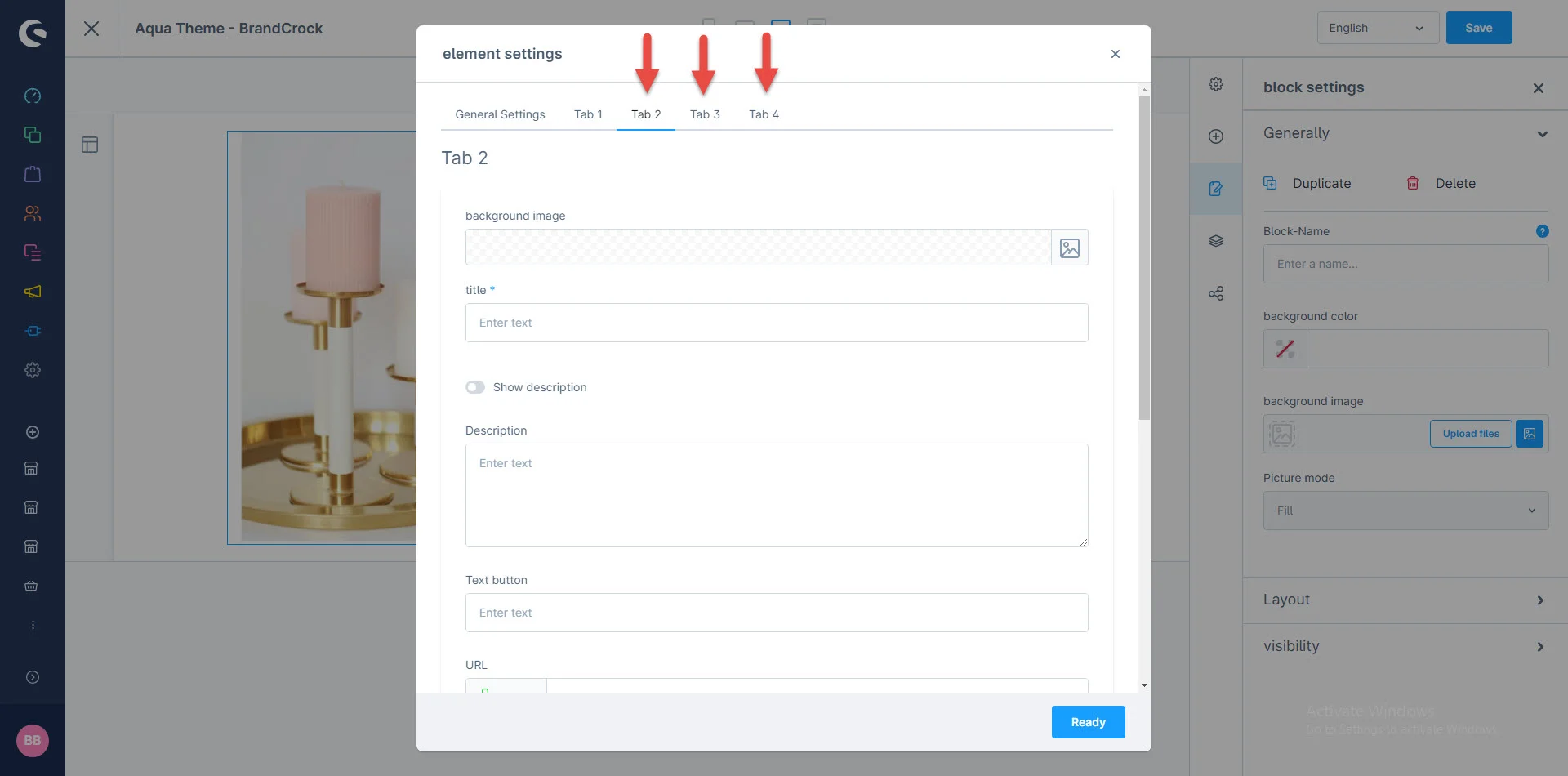
Configure each tab similarly for multiple slides.
After saving the configurations of the CMS page, this block will be visible in the storefront at the respective layout.
Unique Selling Point Bar
1- Shopping Experience: navigate to the block category and select Text and Images from the dropdown menu.
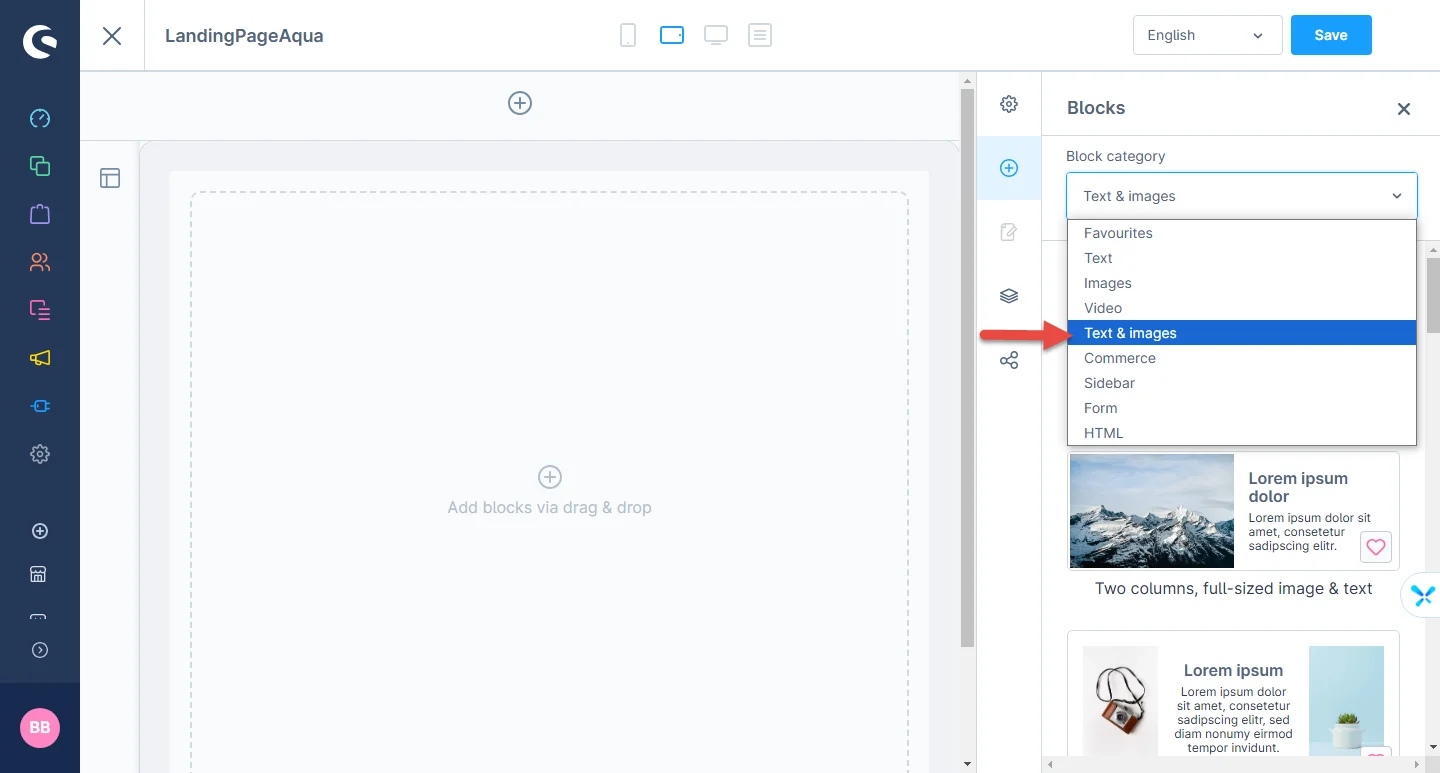
2- Now drag the USP widget and drop it to the left side in the CMS section you want.
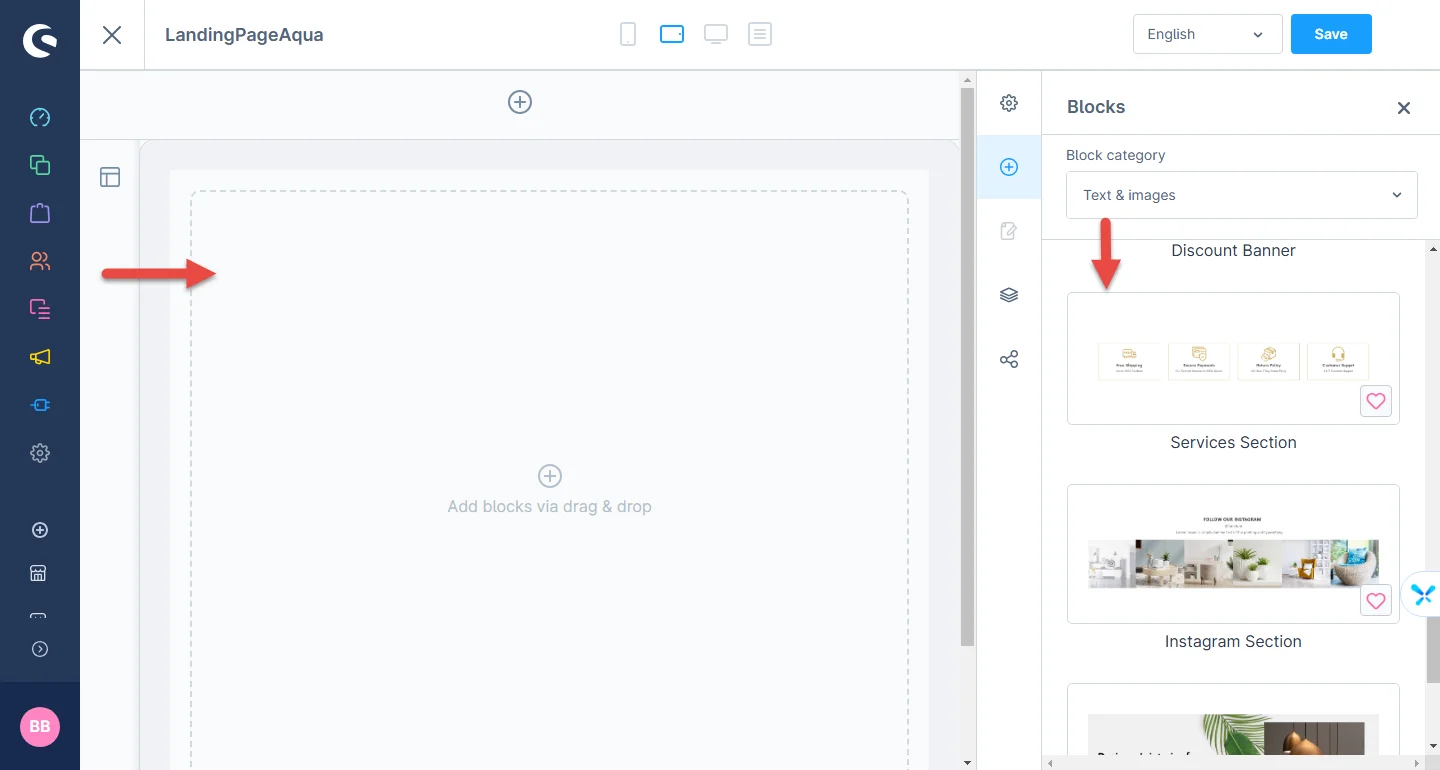
3- After dropping the widget: Click the setting icon to open element configurations for each box.
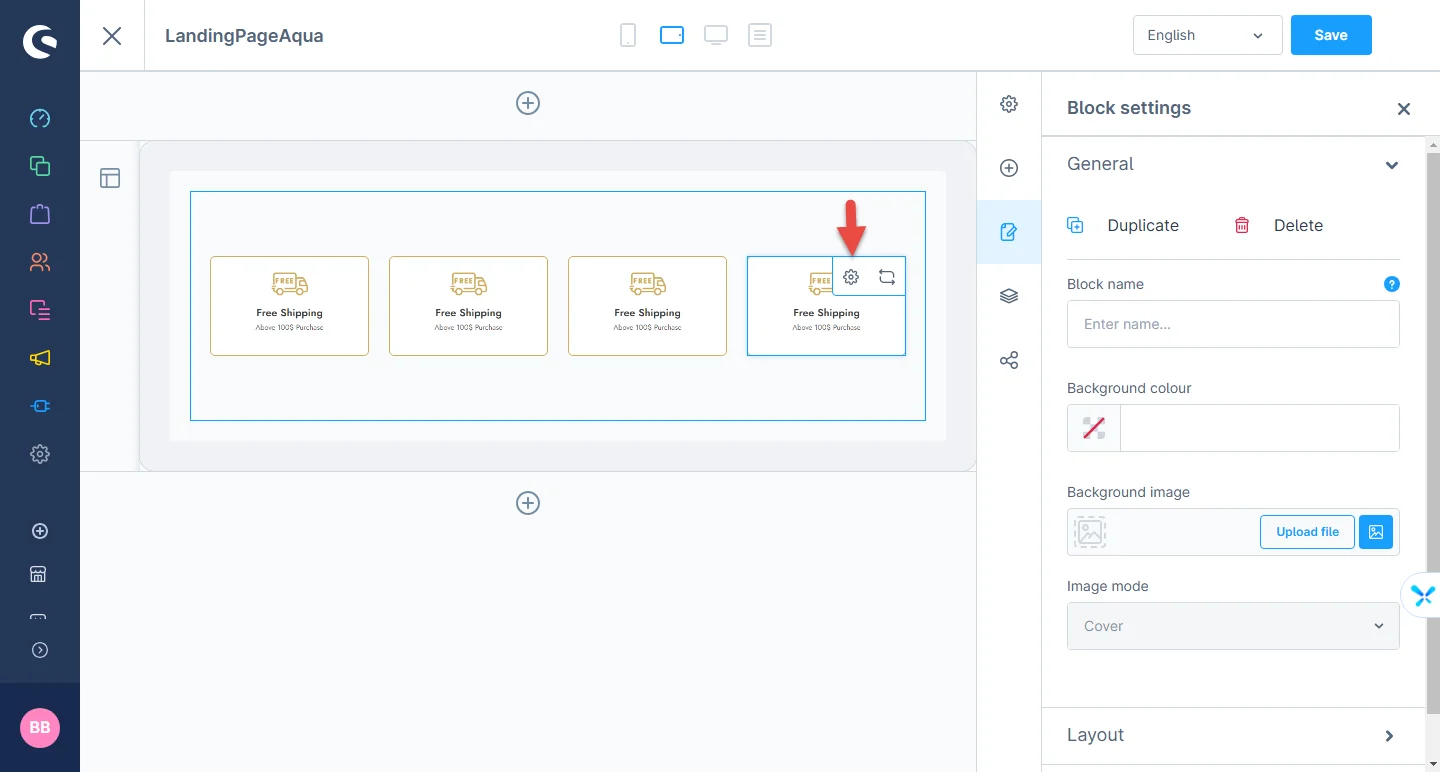
4- In element configuration: You can add the background, title, and subtitle image
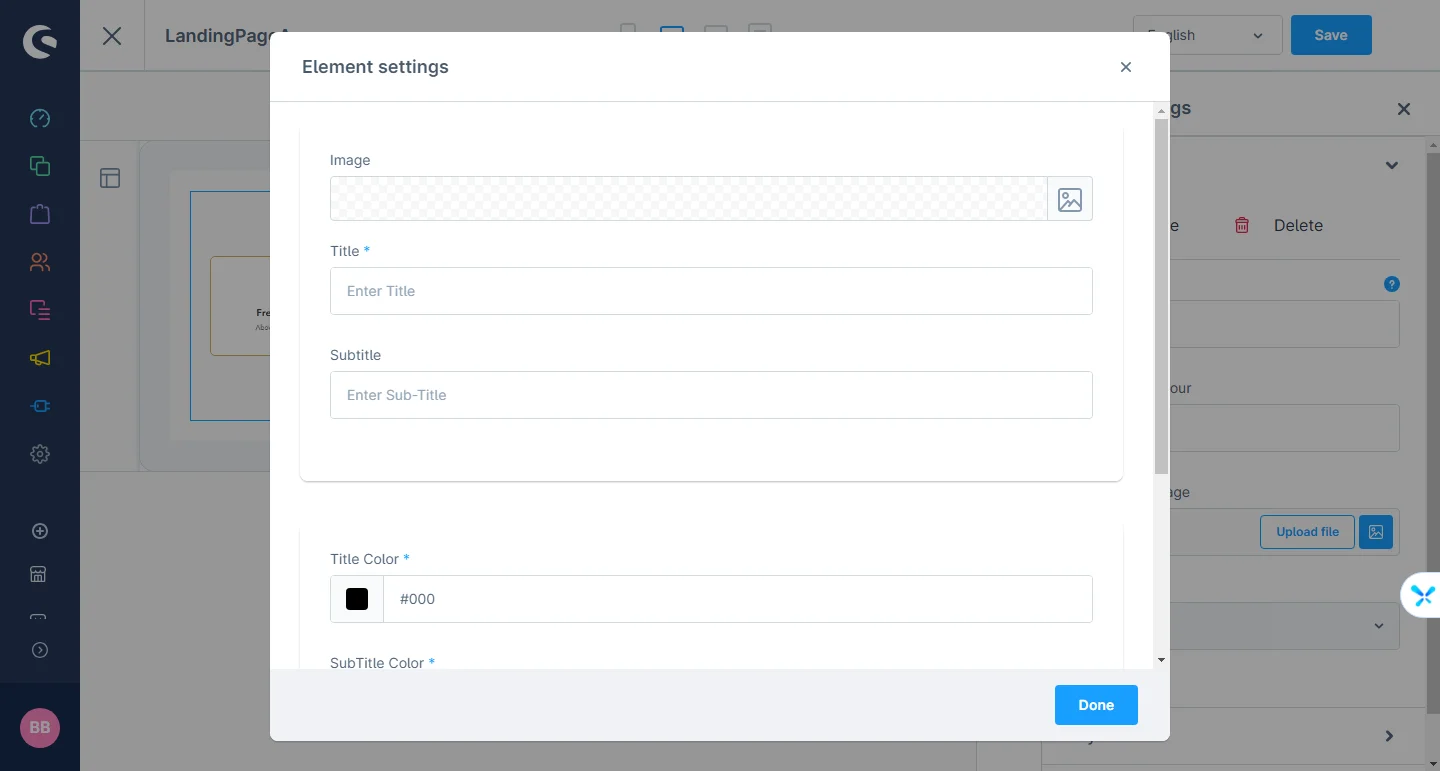
5- After that: You can also change the title color, subtitle color, and border-color
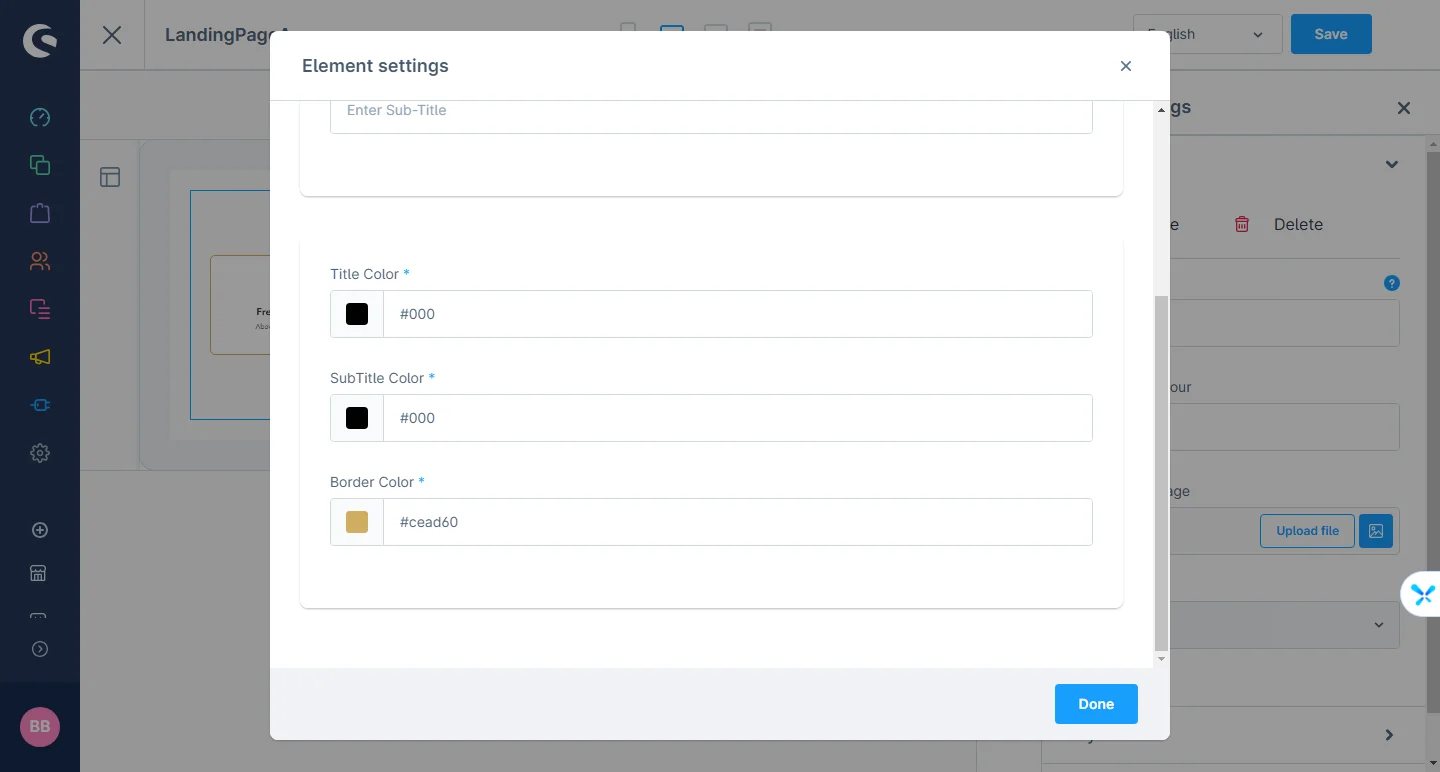
After saving the configurations of the CMS page, this block will be visible in the storefront at the respective layout.
Inquiry Form Element
1- Shopping Experience: navigate to the block category and select Form from the dropdown menu.
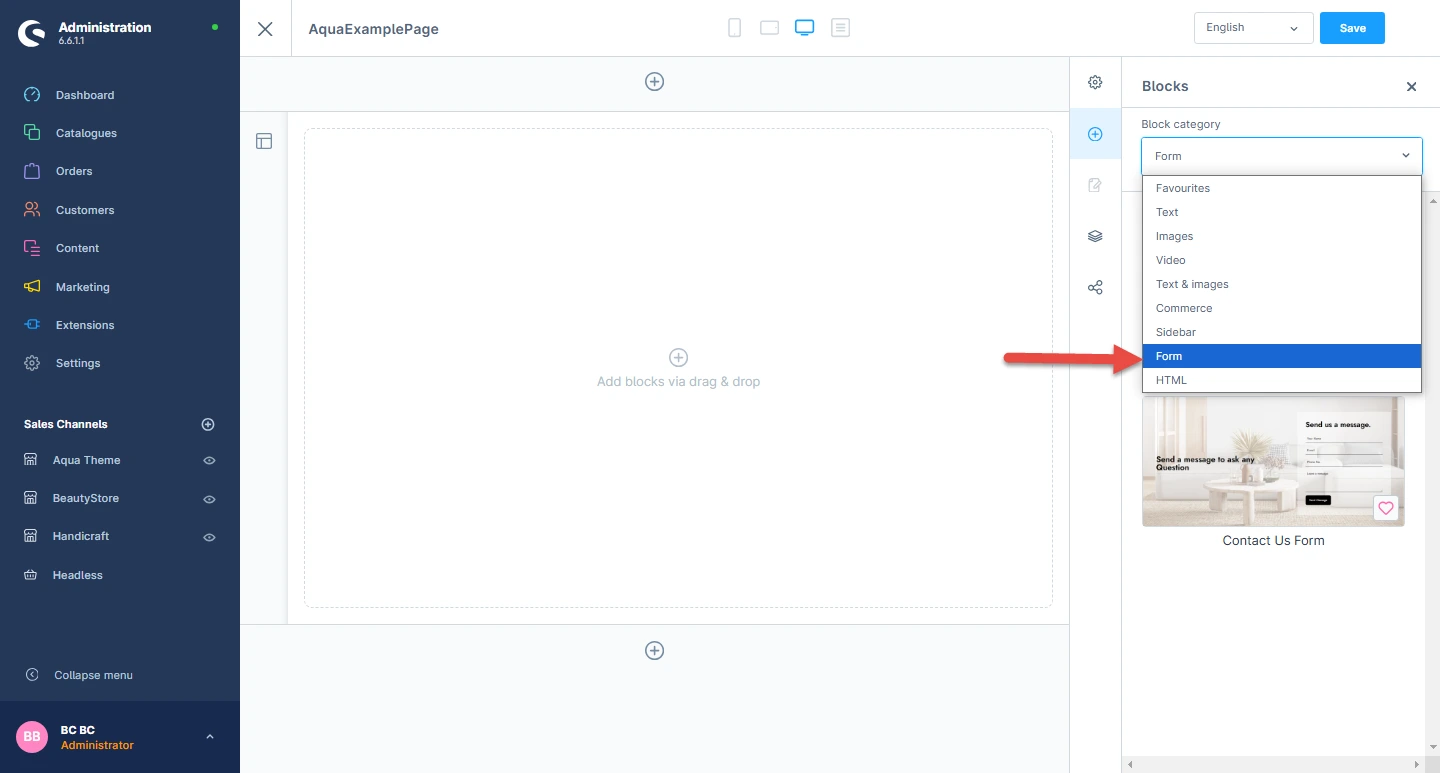
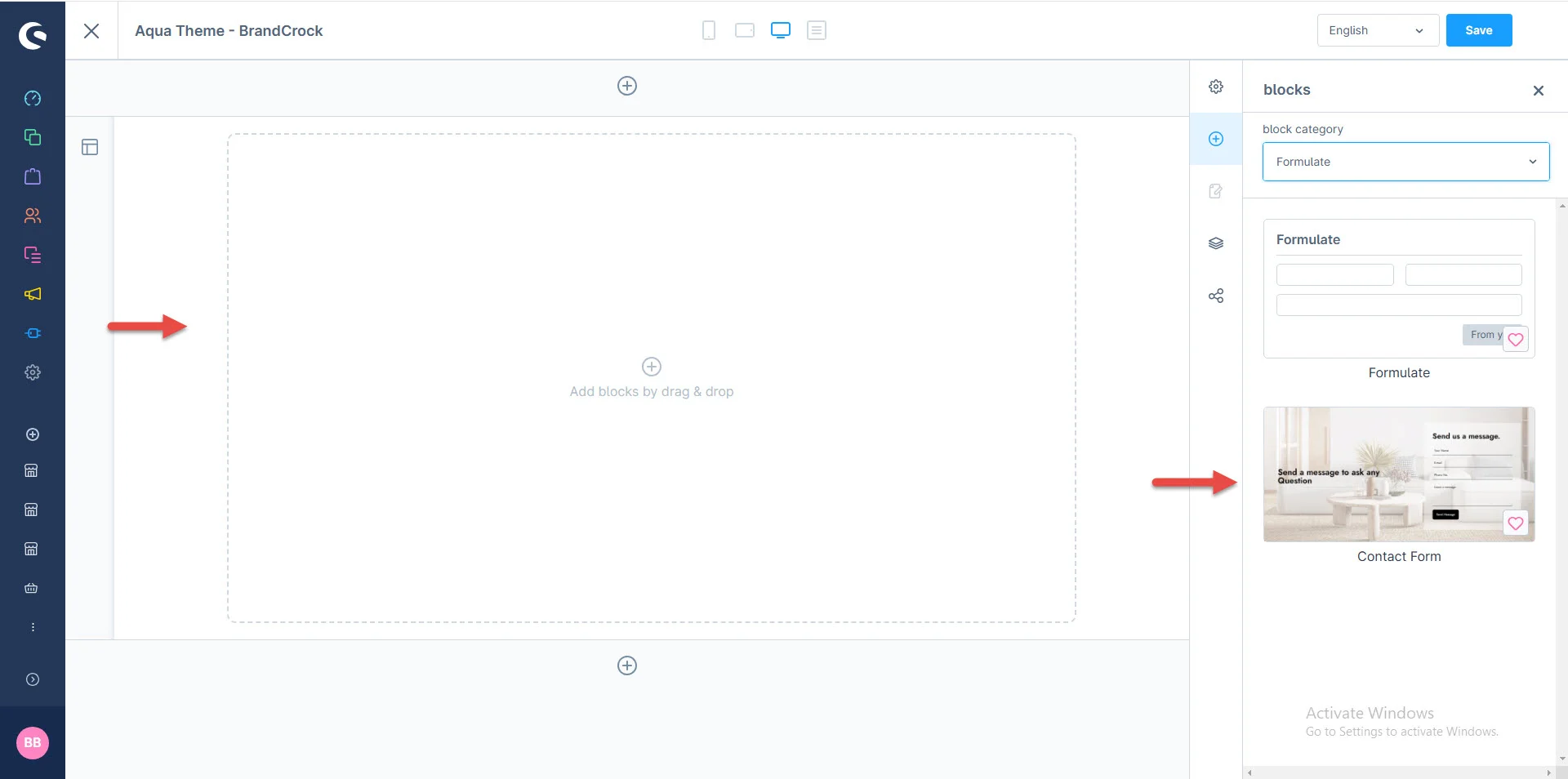
2- Now drag the form widget and drop it to the left side into the CMS section you want.
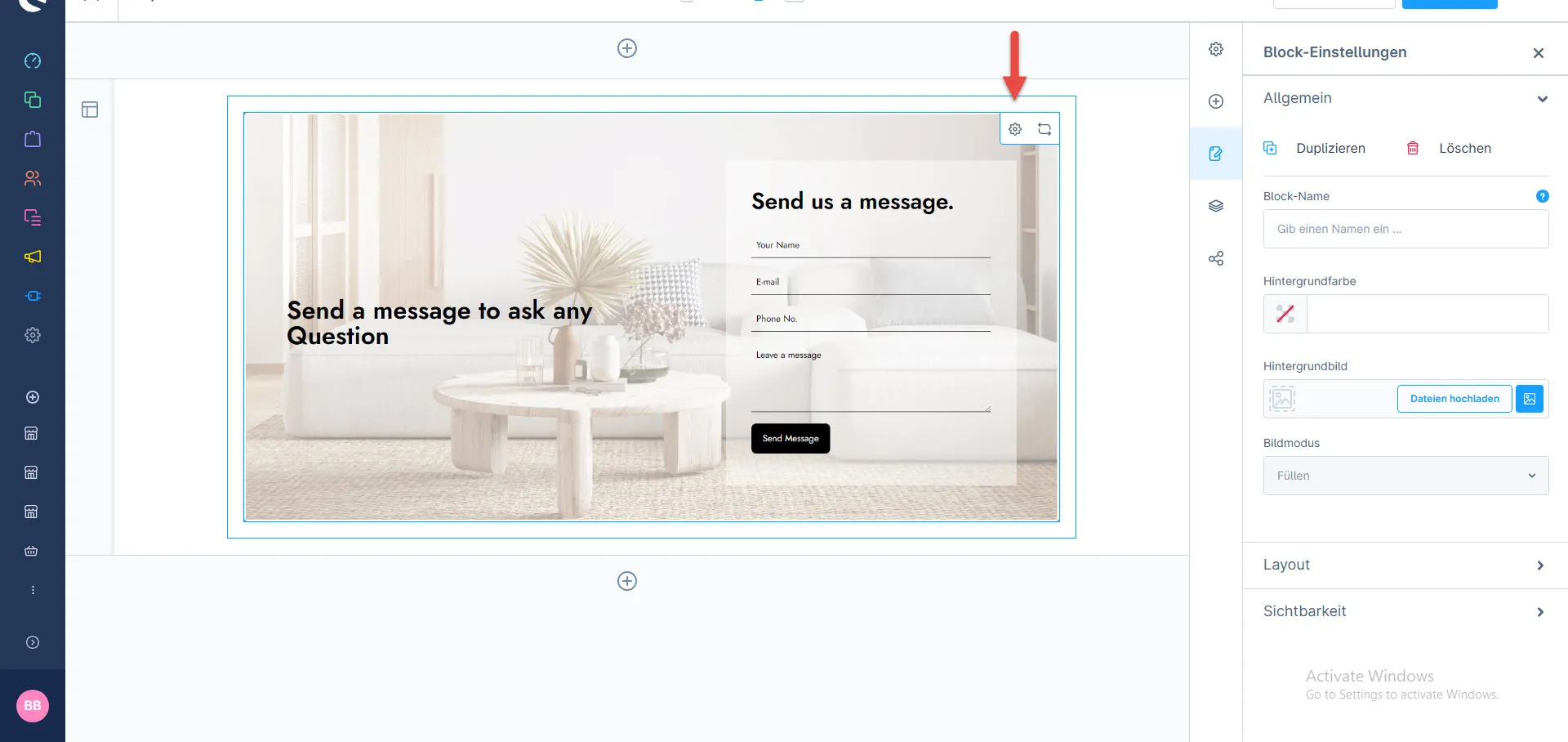
3- After dropping the widget: Click the setting icon to open element configurations
4- In element configuration: You can add the image, title, and Form Title
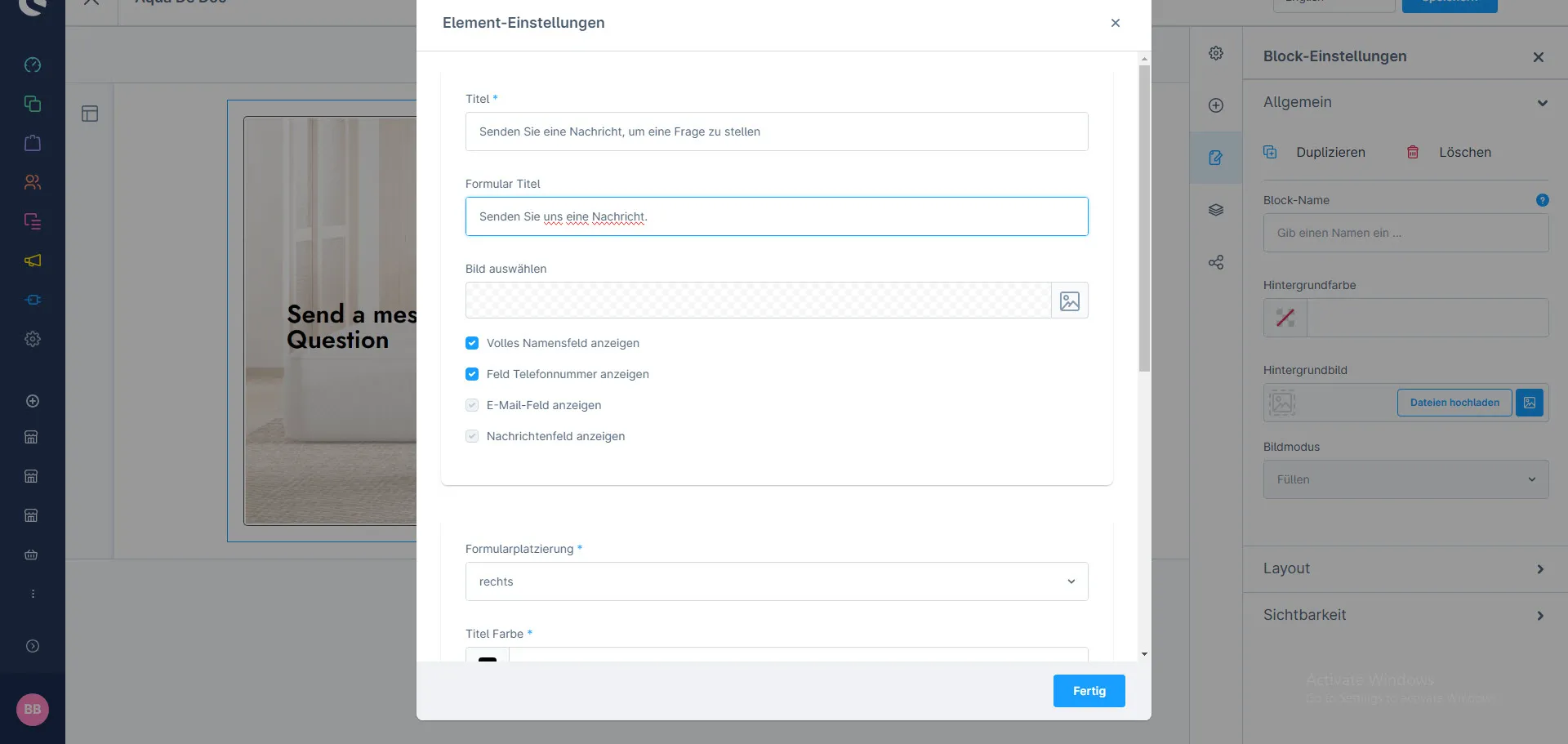
5- After that: You can change the form placement, title color, form color, Form title color label color, and button color
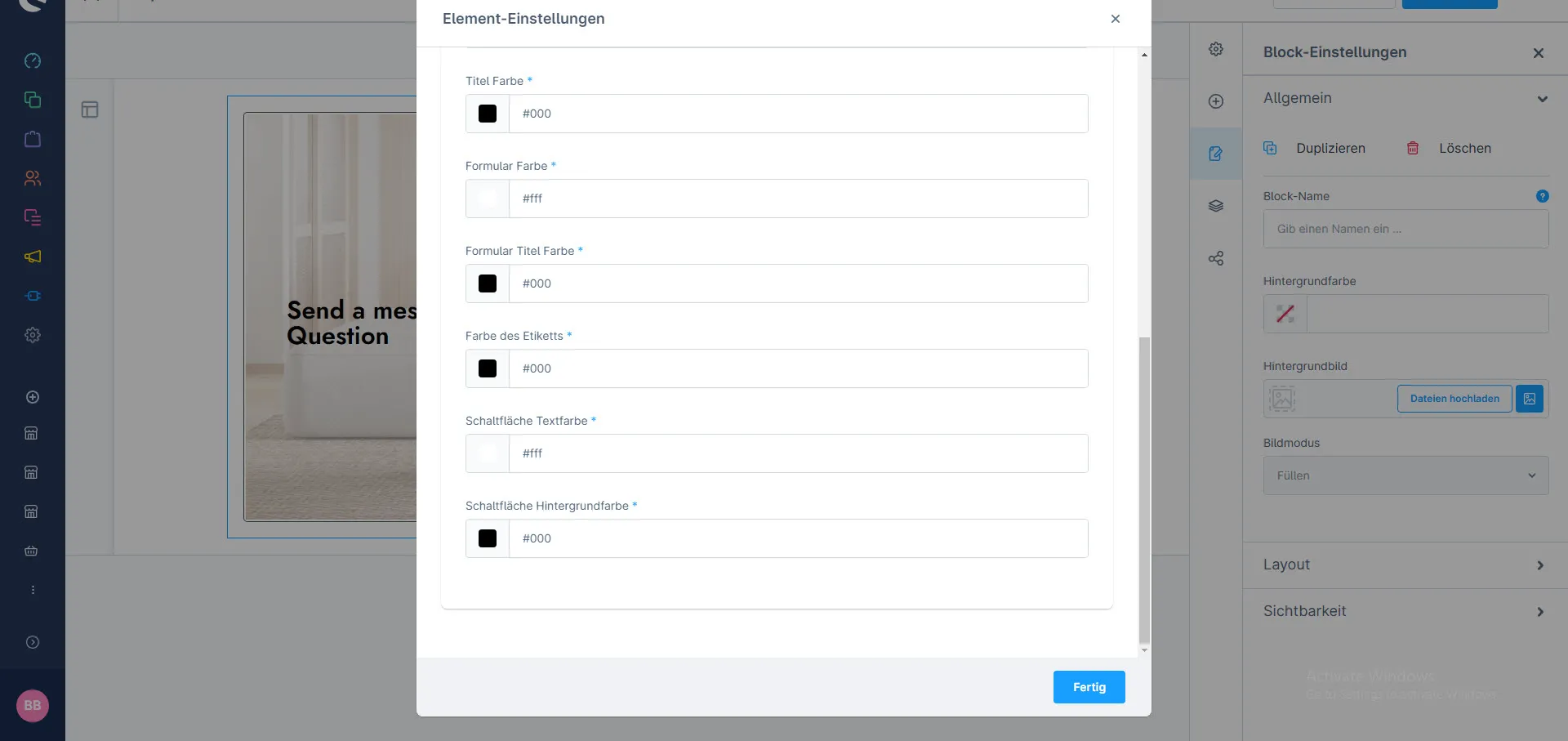
After saving the configurations of the CMS page, this block will be visible in the storefront at the respective layout.
Instagram Element
1- Shopping Experience: navigate to the block category and select Text and Images from the dropdown menu.
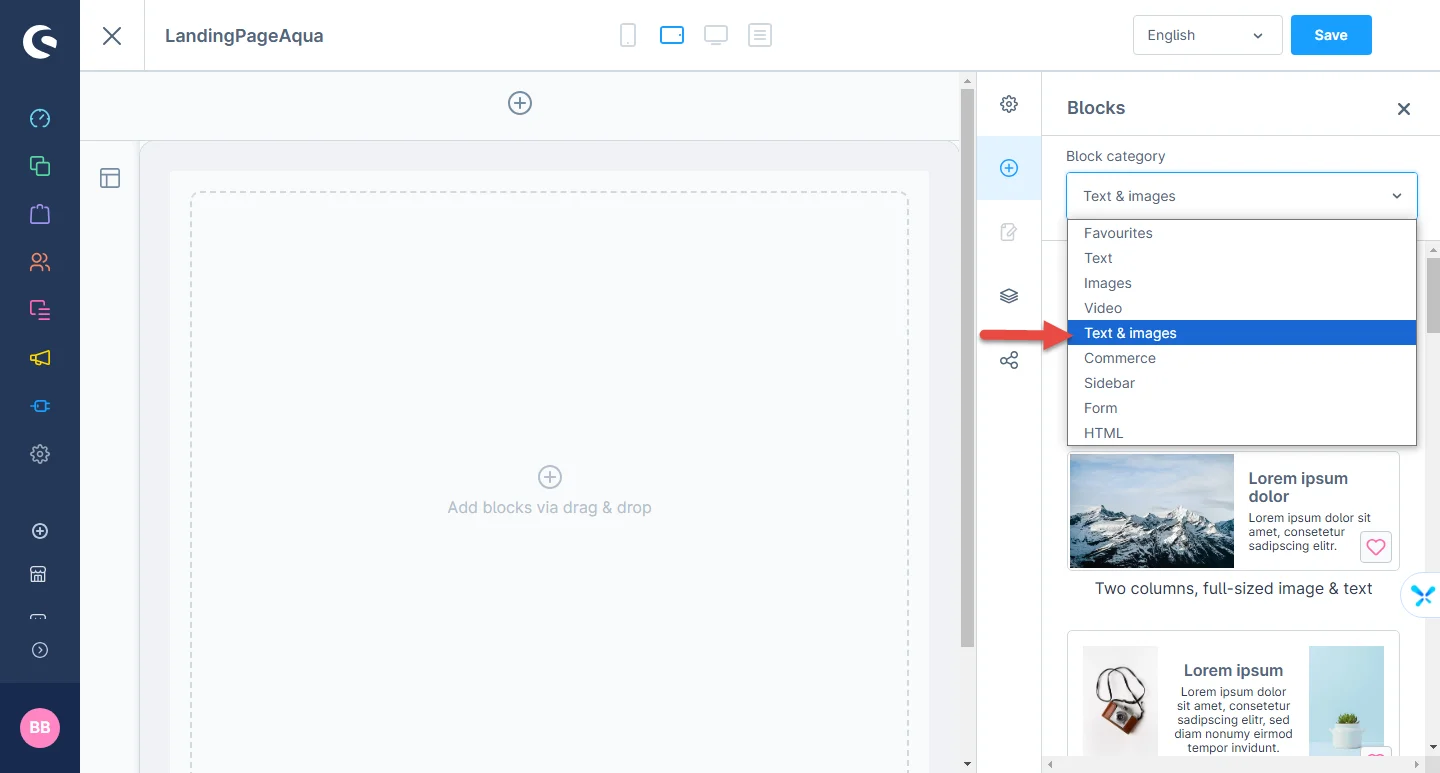
2- Now drag the Instagram widget and drop it to the left side in the CMS section you want.
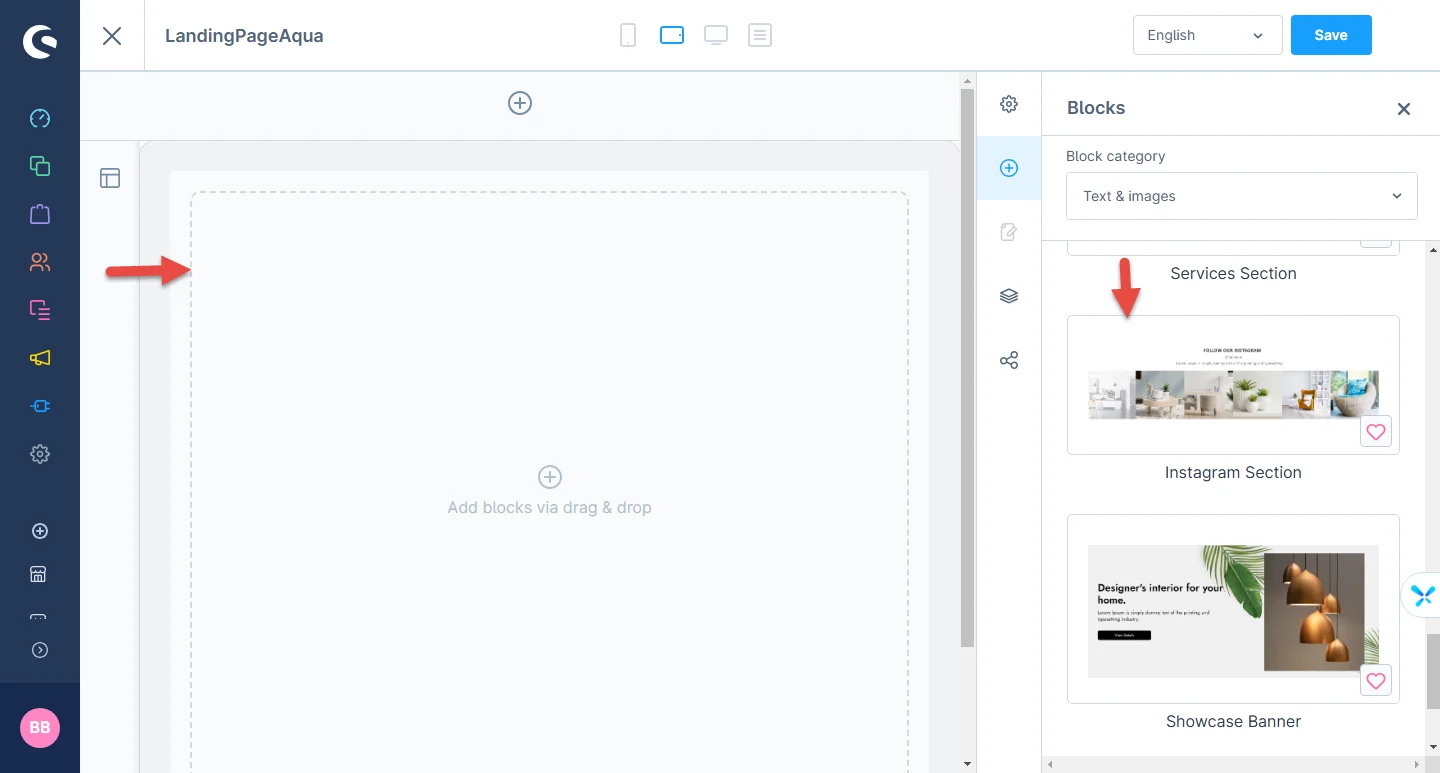
3- After dropping the widget: Click the setting icon to open the element configuration
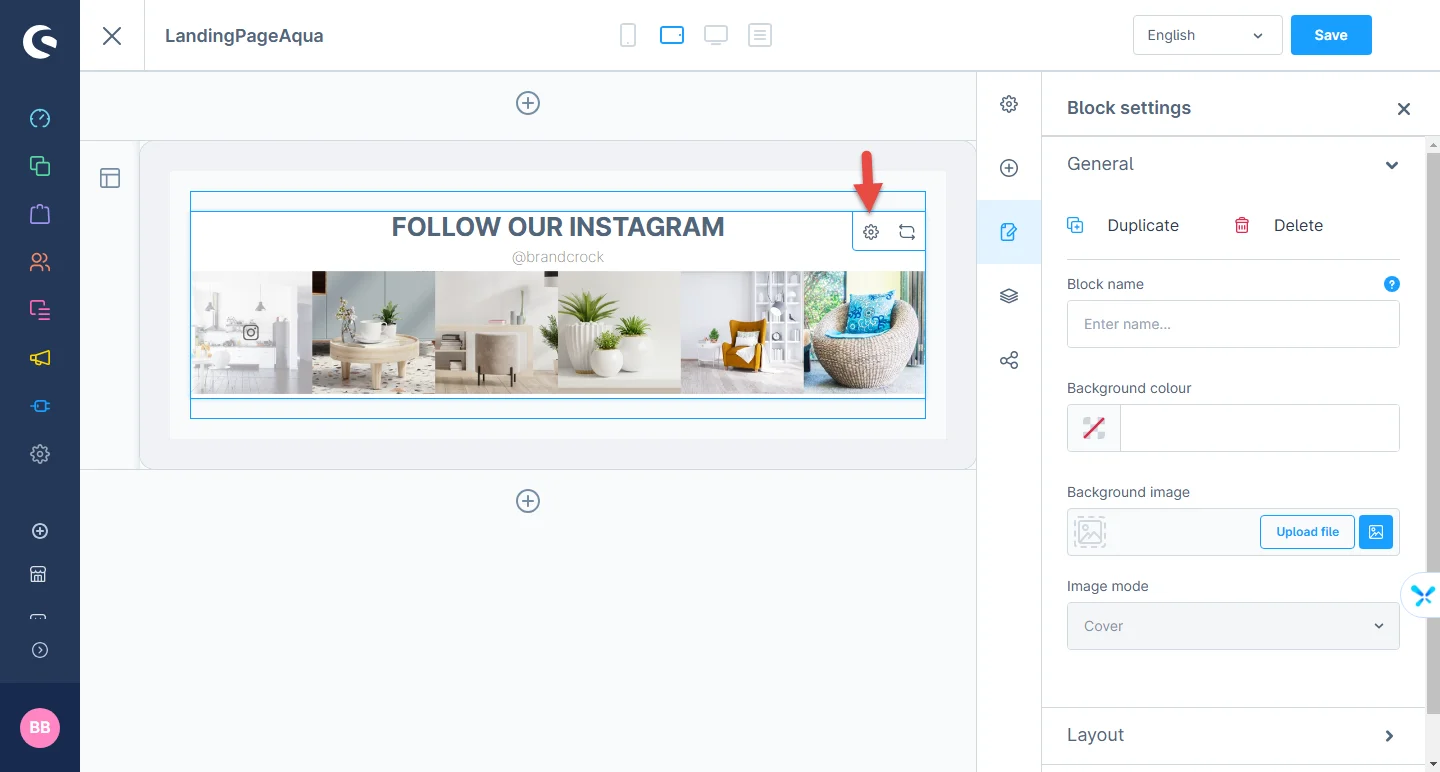
4- In element configuration: You can add the title, subtitle, username, and access token
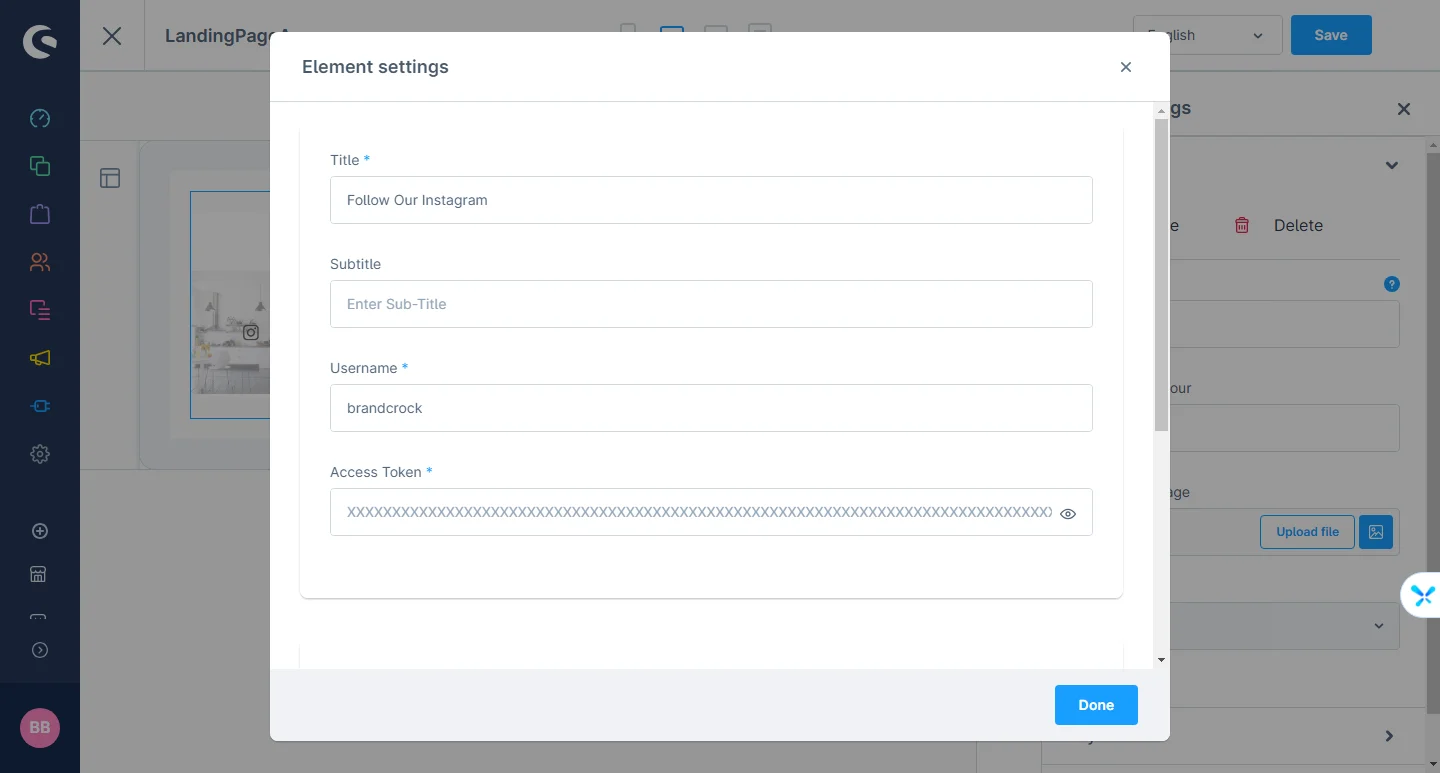
5- After that: You can also change the heading, username, and subtitle color
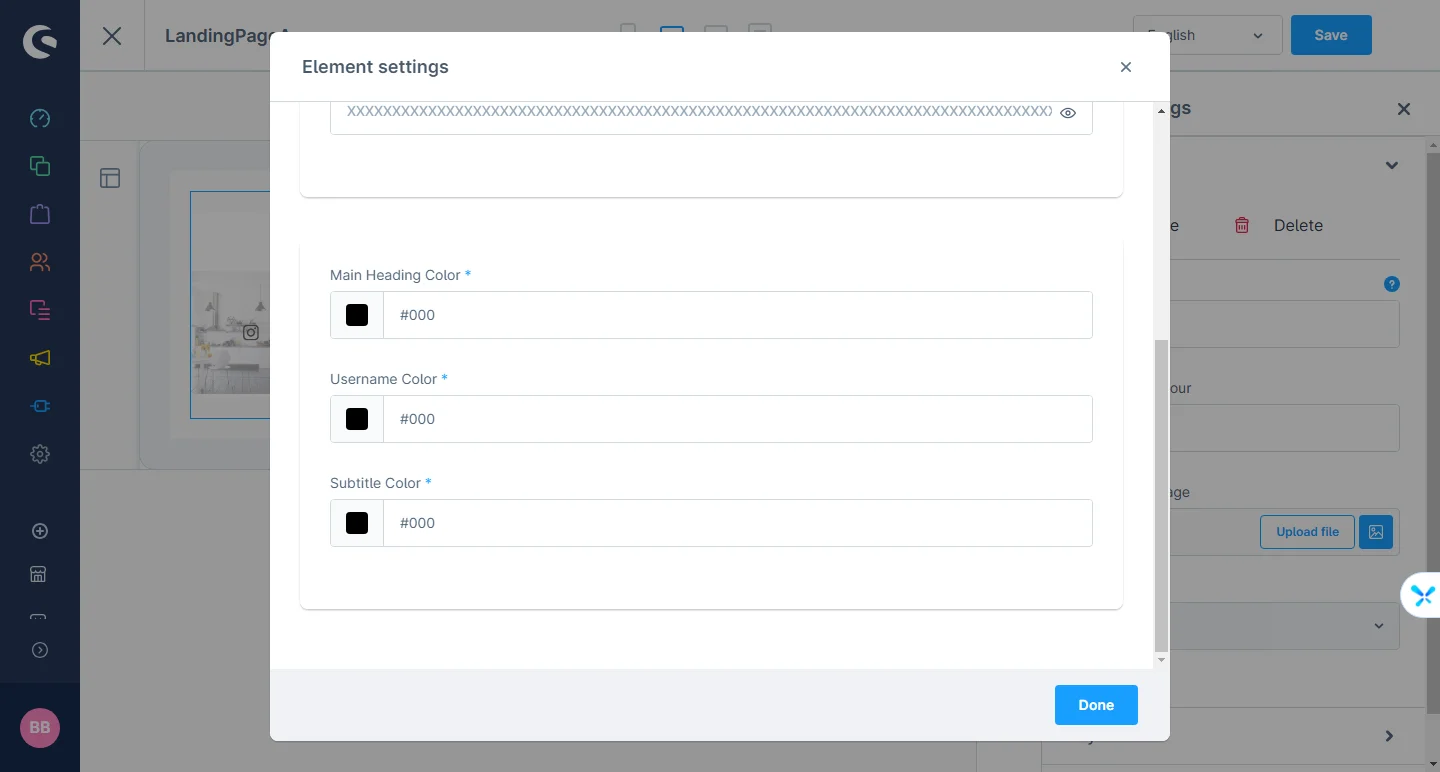
After saving the configurations of the CMS page, this block will be visible in the storefront at the respective layout.
Manufacturer Slider Element
1- Shopping Experience: navigate to the block category and select Text and Images from the dropdown menu.
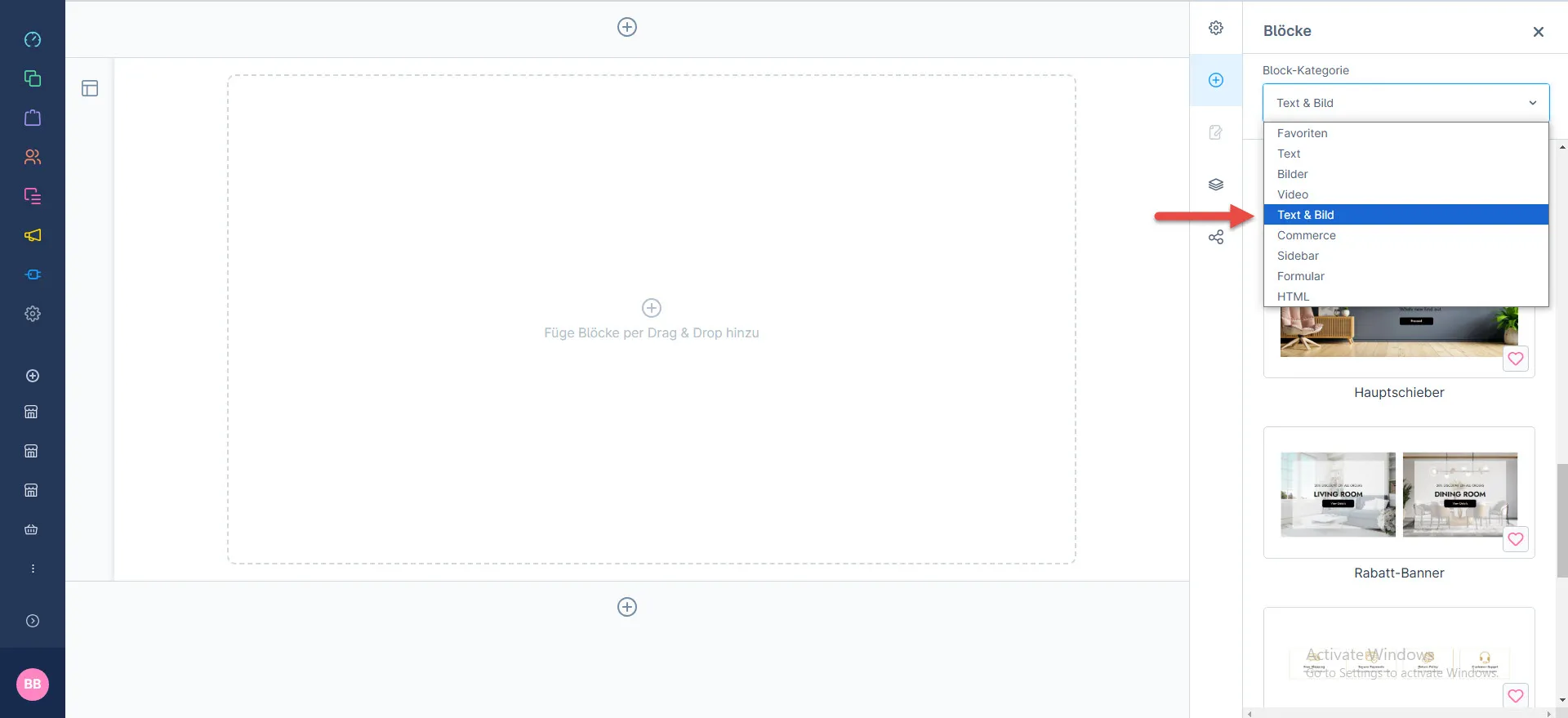
2- Now drag the slider widget and drop it to the left side in the CMS section you want.
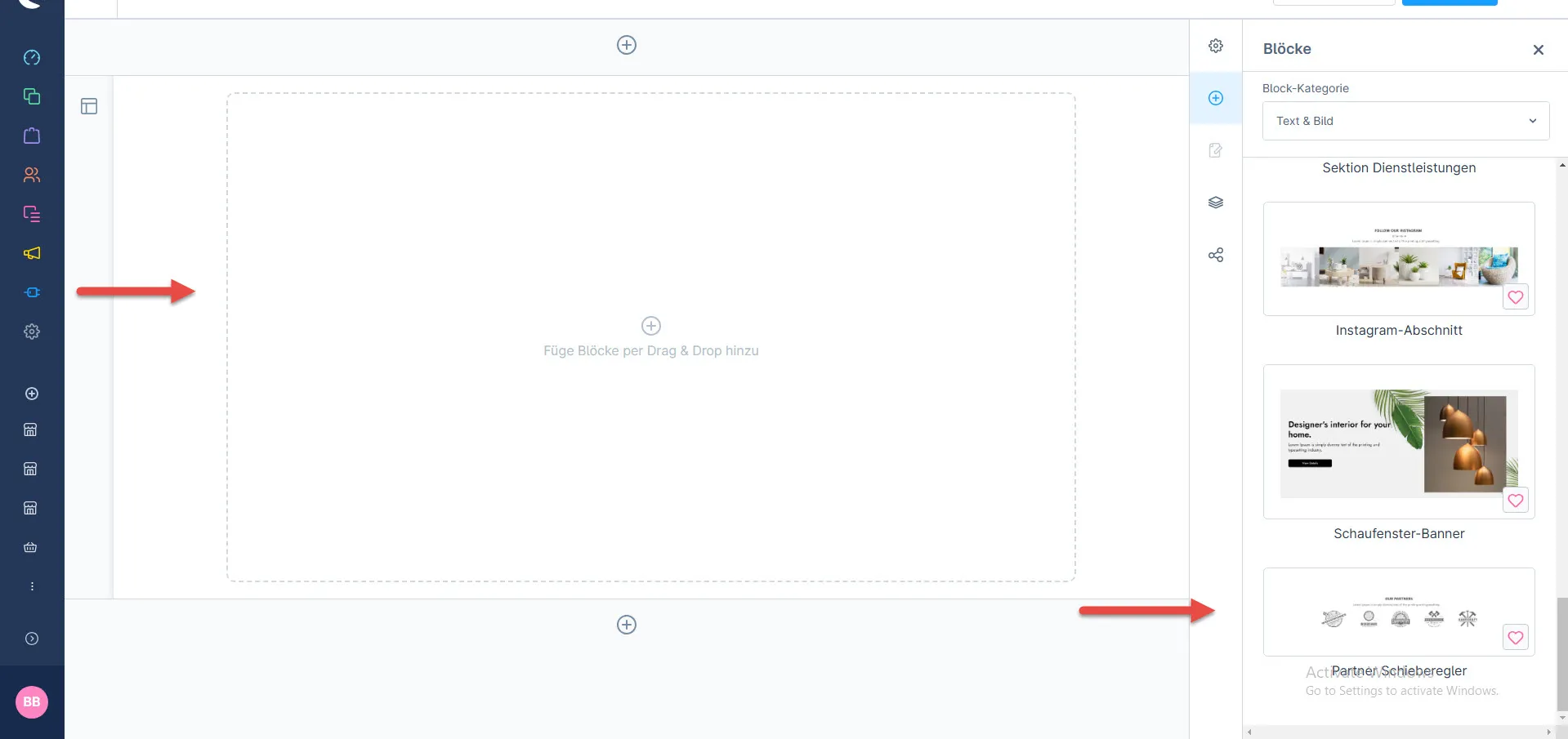
3- After dropping the widget: Click the setting icon to open element configurations.
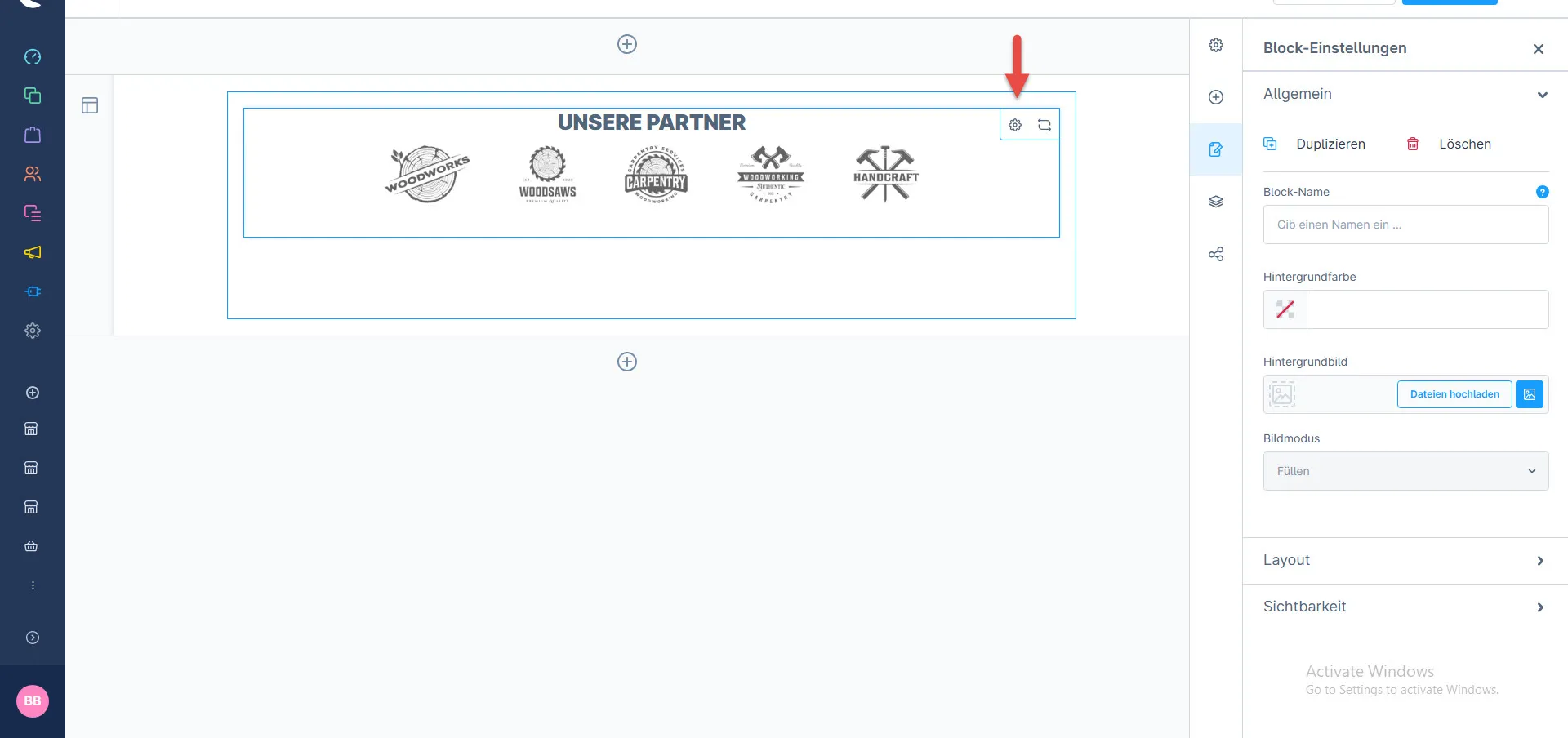
4- In element configuration: You can add the title, and description, select the partner heading and description color
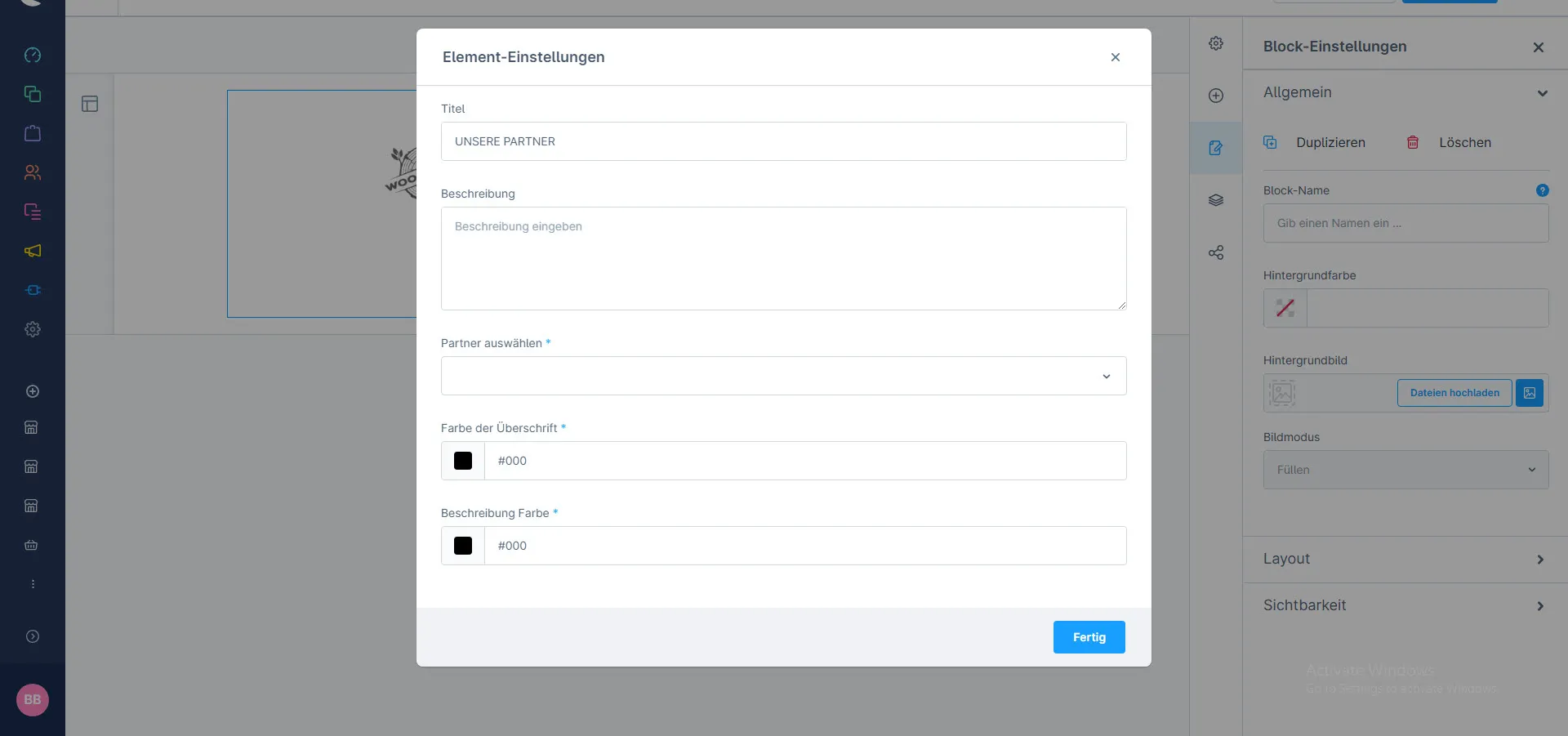
After saving the configurations of the CMS page, this block will be visible in the storefront at the respective layout.
Discount Banner
1- Shopping Experience: navigate to the block category and select Text and Images from the dropdown menu.
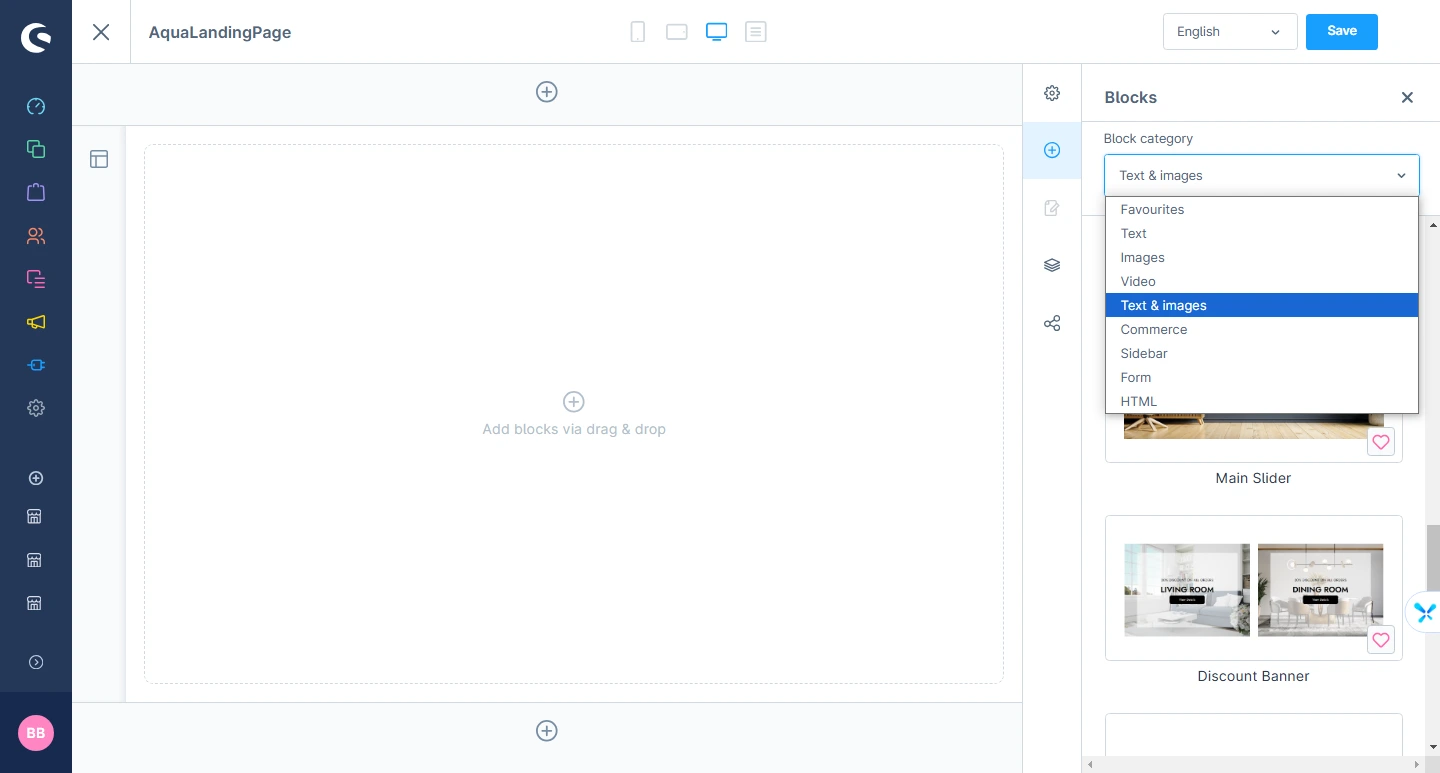
2- Now drag the banner widget and drop it to the left side in the CMS section you want.
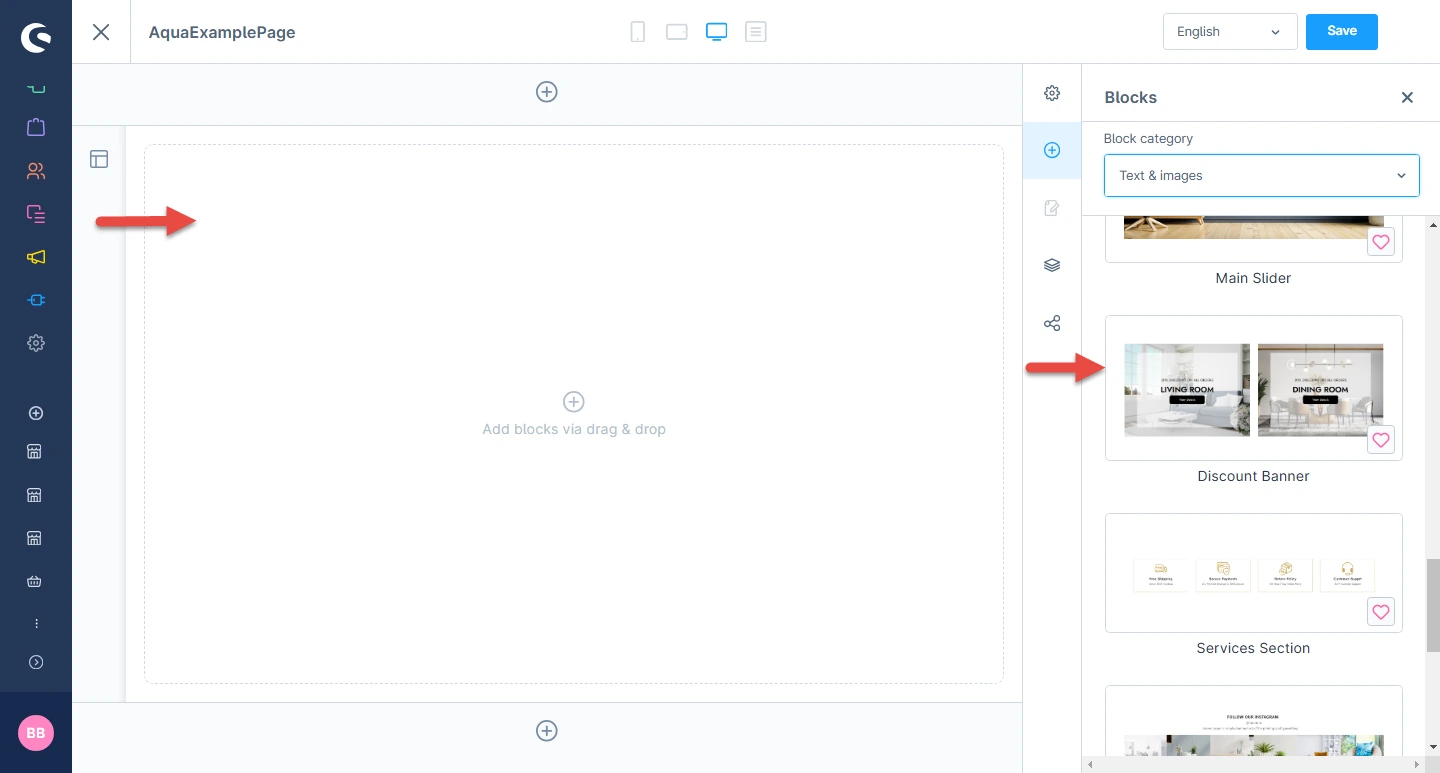
3- After dropping the widget: Click the setting icon to open element configurations.
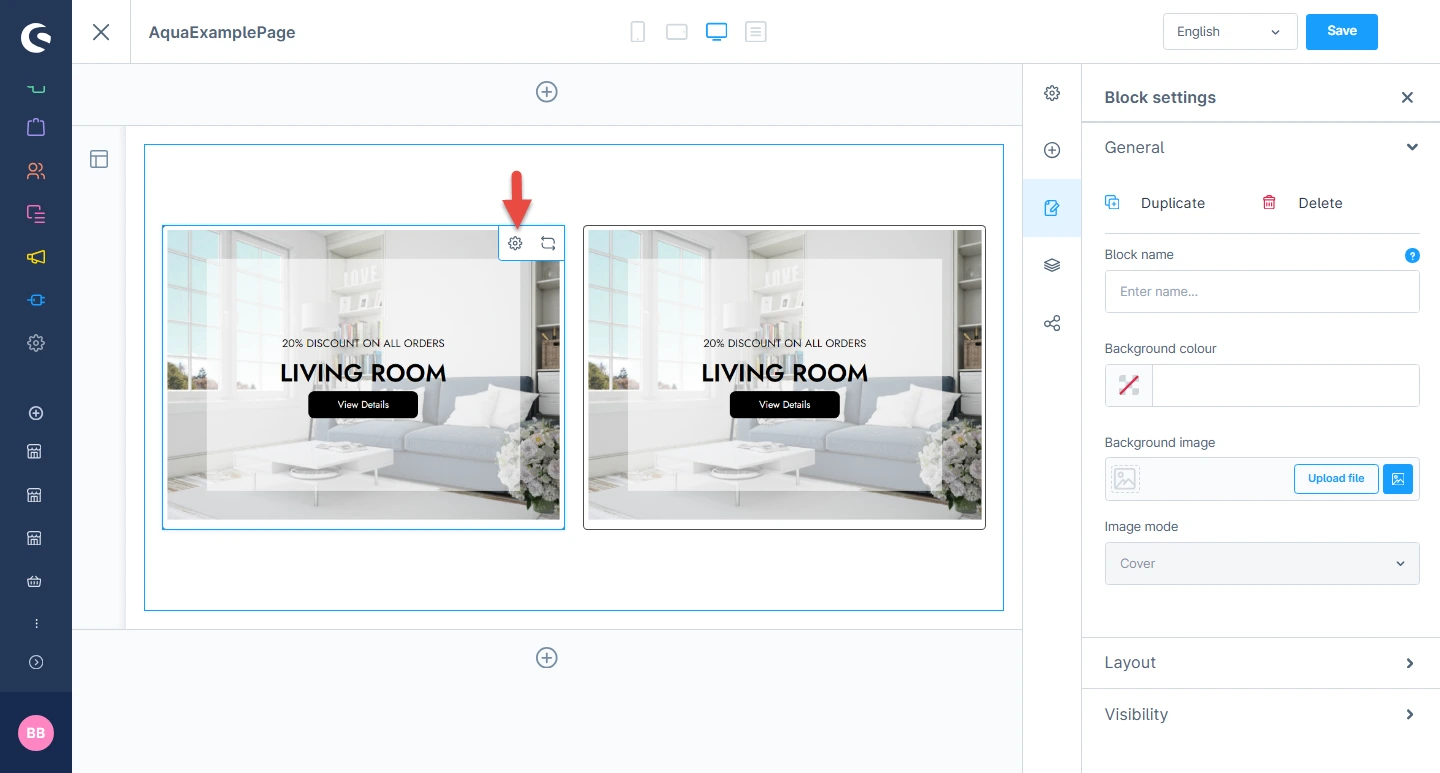
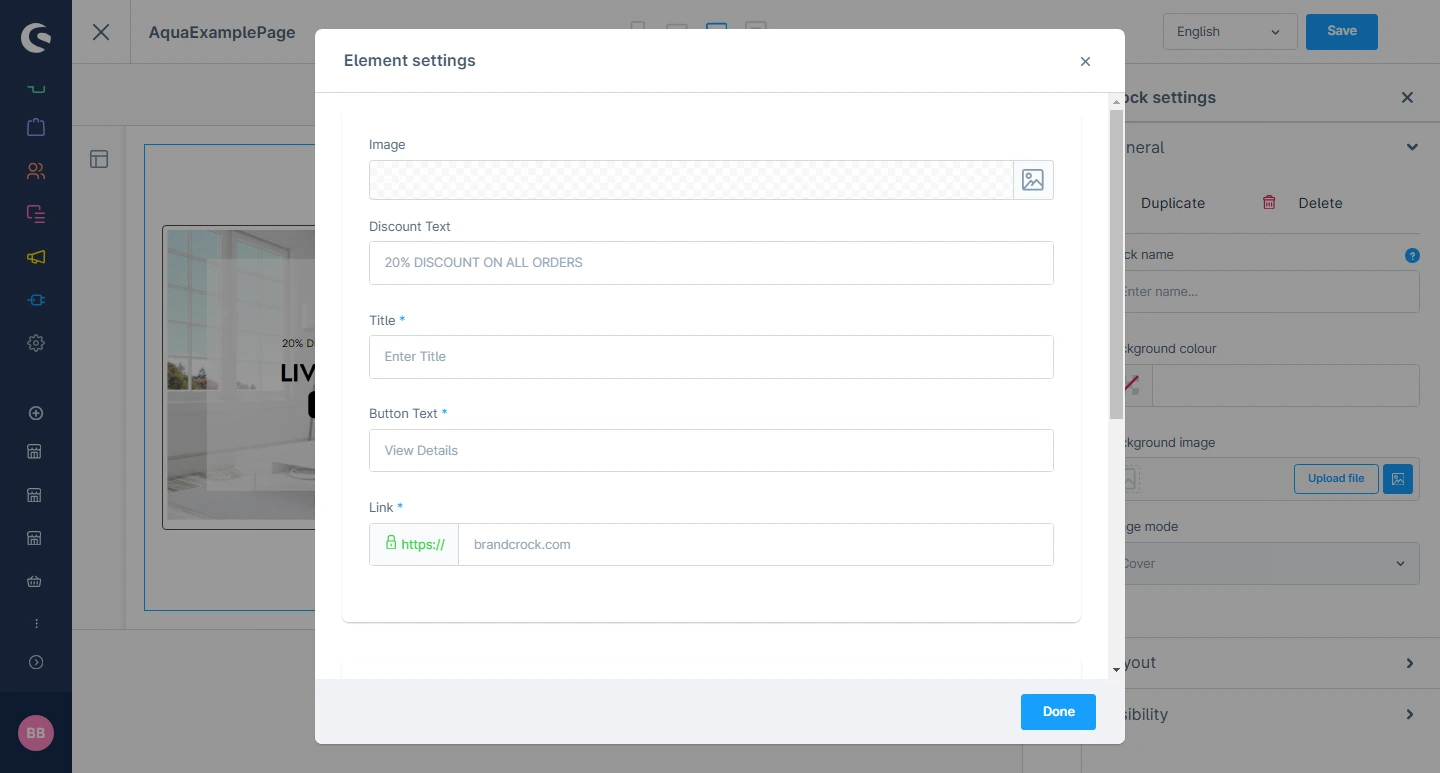
4- In element configuration: You can add the image, dicount text, title, button text and URL.
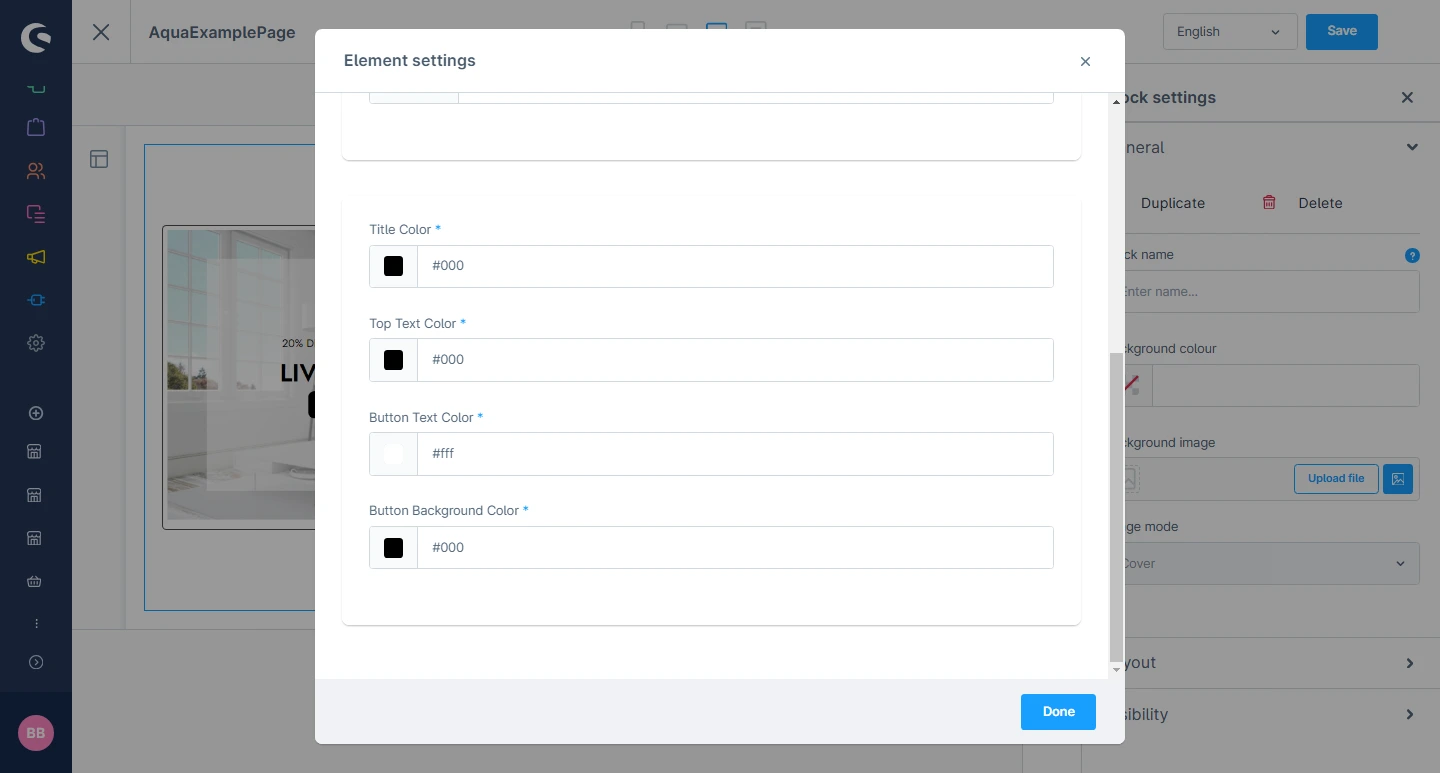
5- After that: You can also change the title color, top text color, button text color and button background color.
After saving the configurations of the CMS page, this block will be visible in the storefront at the respective layout.
Showcase Banner
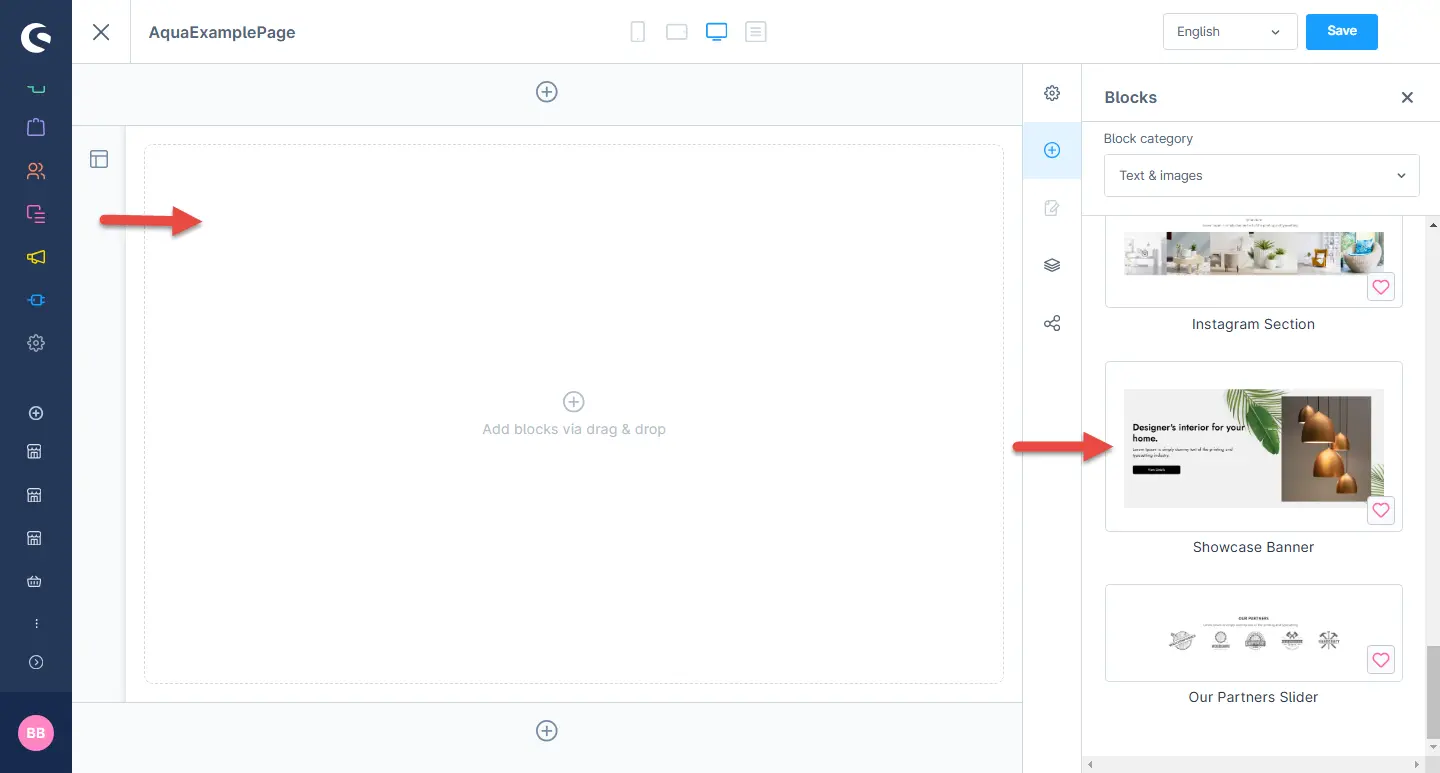
1- Shopping Experience: navigate to the block category and select Text and Images from the dropdown menu.
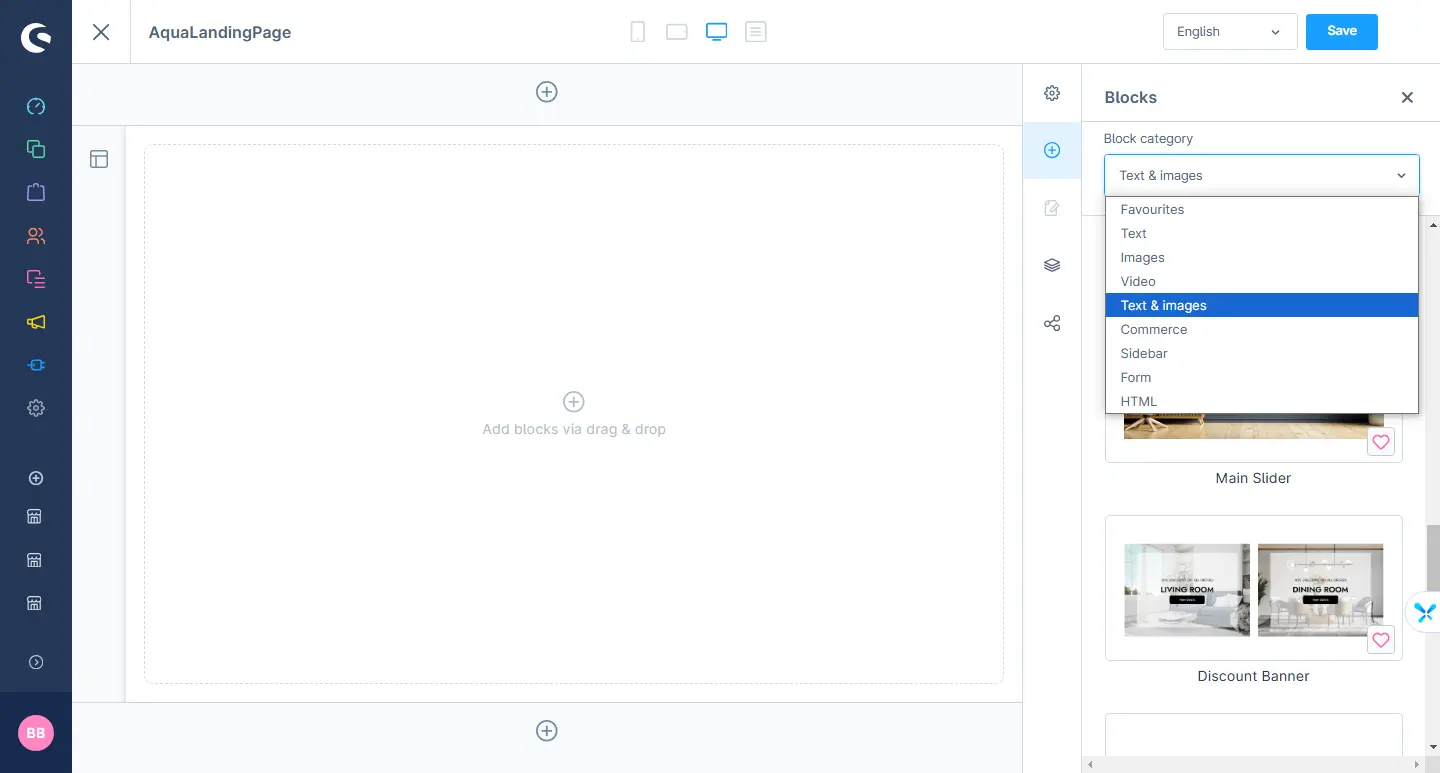
2- Now drag the banner widget and drop it to the left side in the CMS section you want.
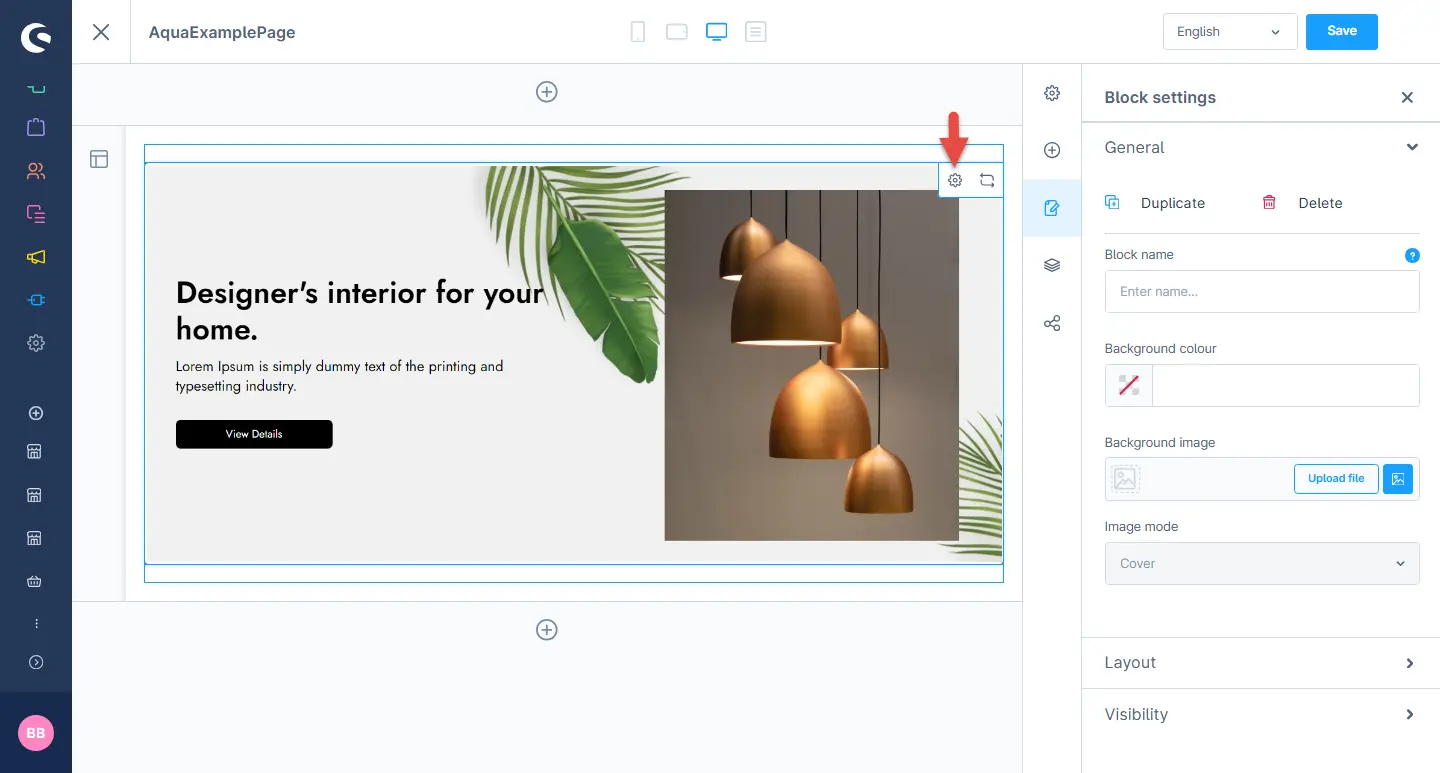
3- After dropping the widget: Click the setting icon to open element configurations.
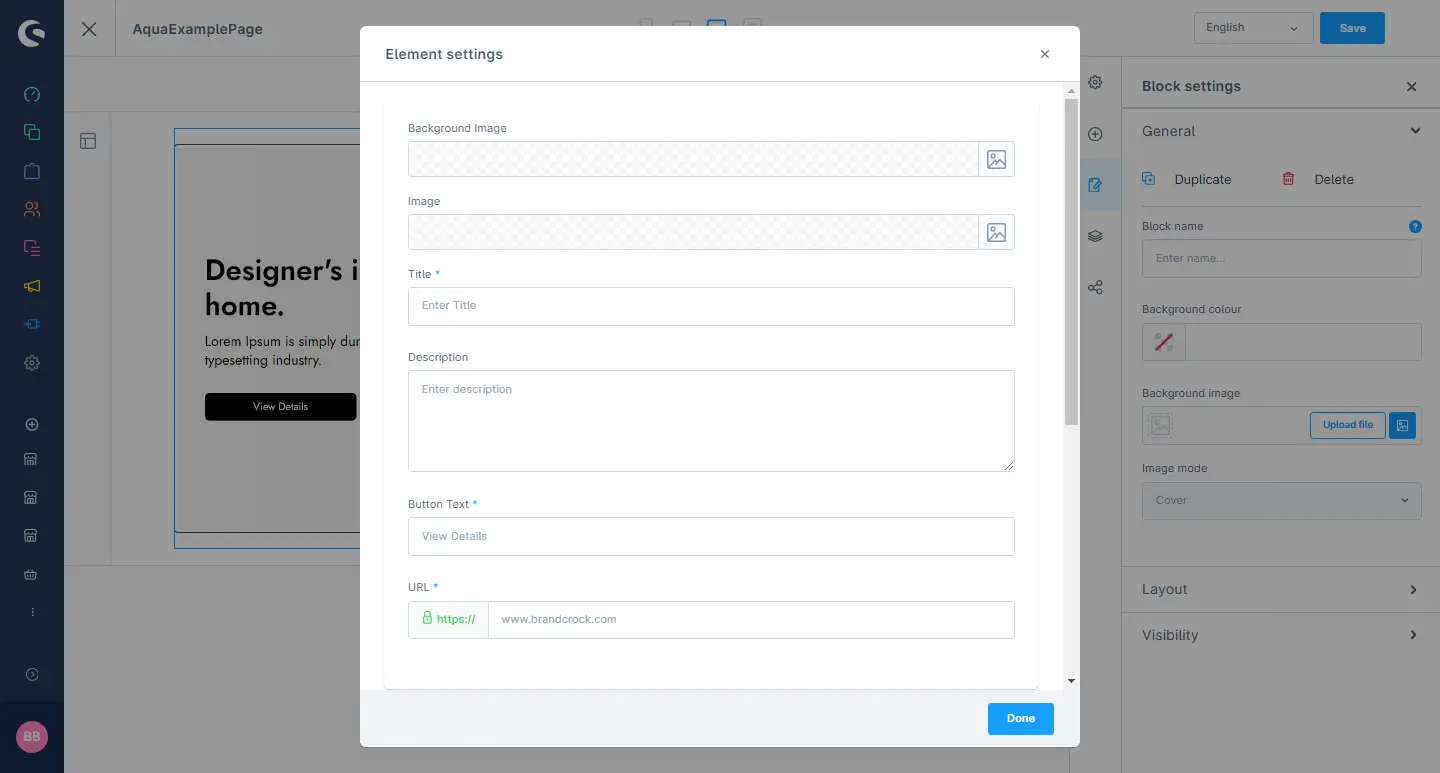
4- In element configuration: You can add the backgroung image, image, title, description, button text and URL.
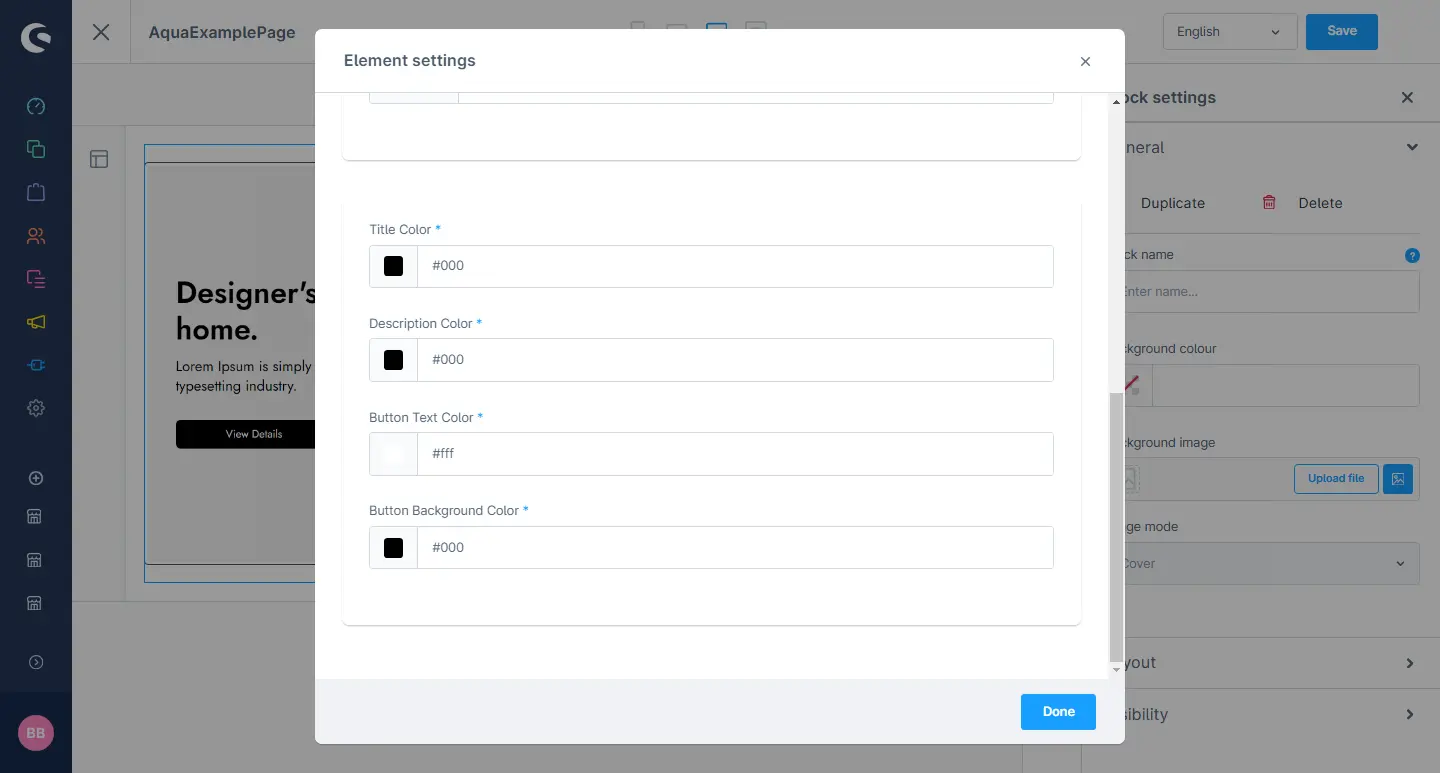
5- After that: You can also change the title color, description color, button text color and the button background color..
After saving the configurations of the CMS page, this block will be visible in the storefront at the respective layout.